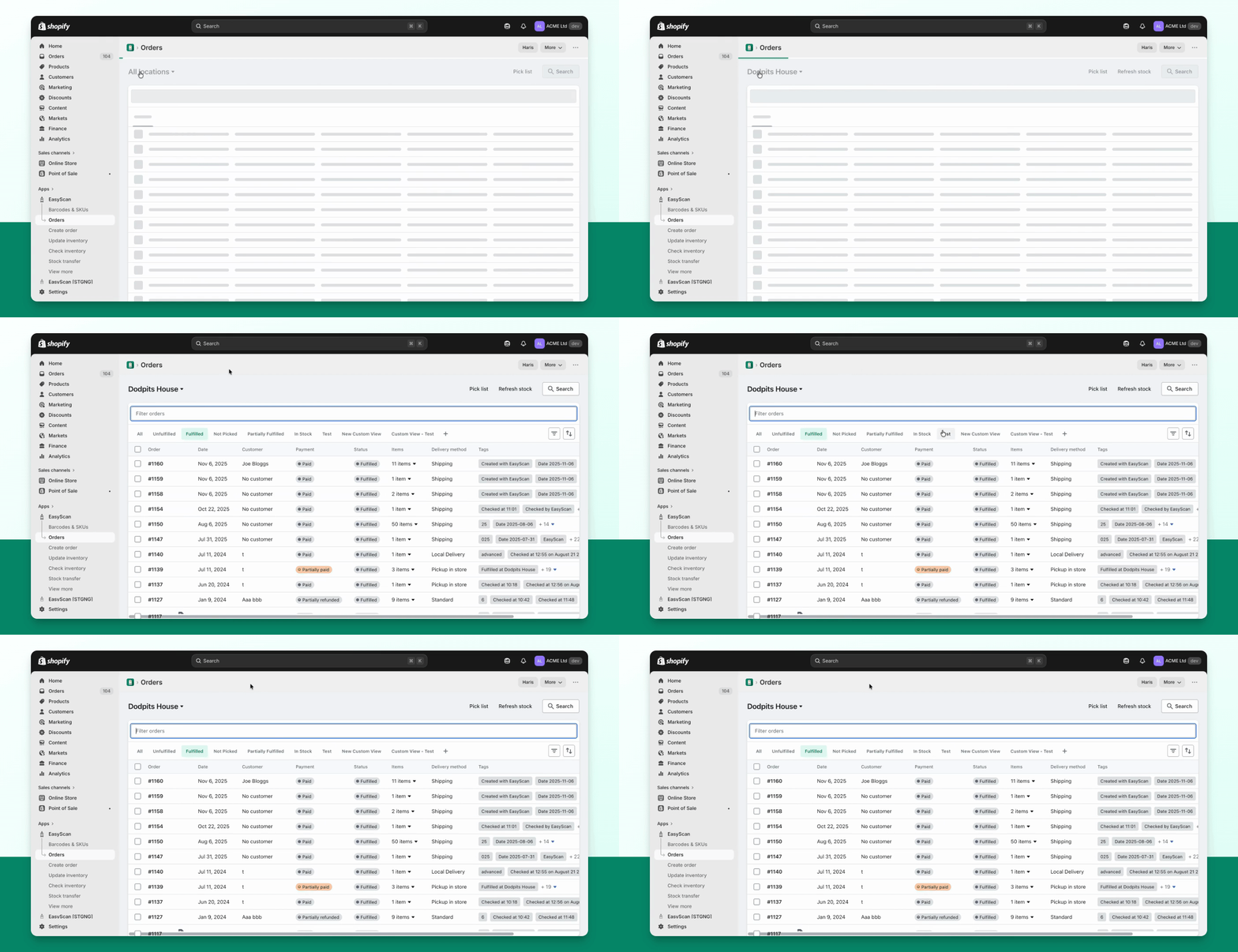
EasyScan provides separate workflows for picking, packing, fulfilling, and checking orders.
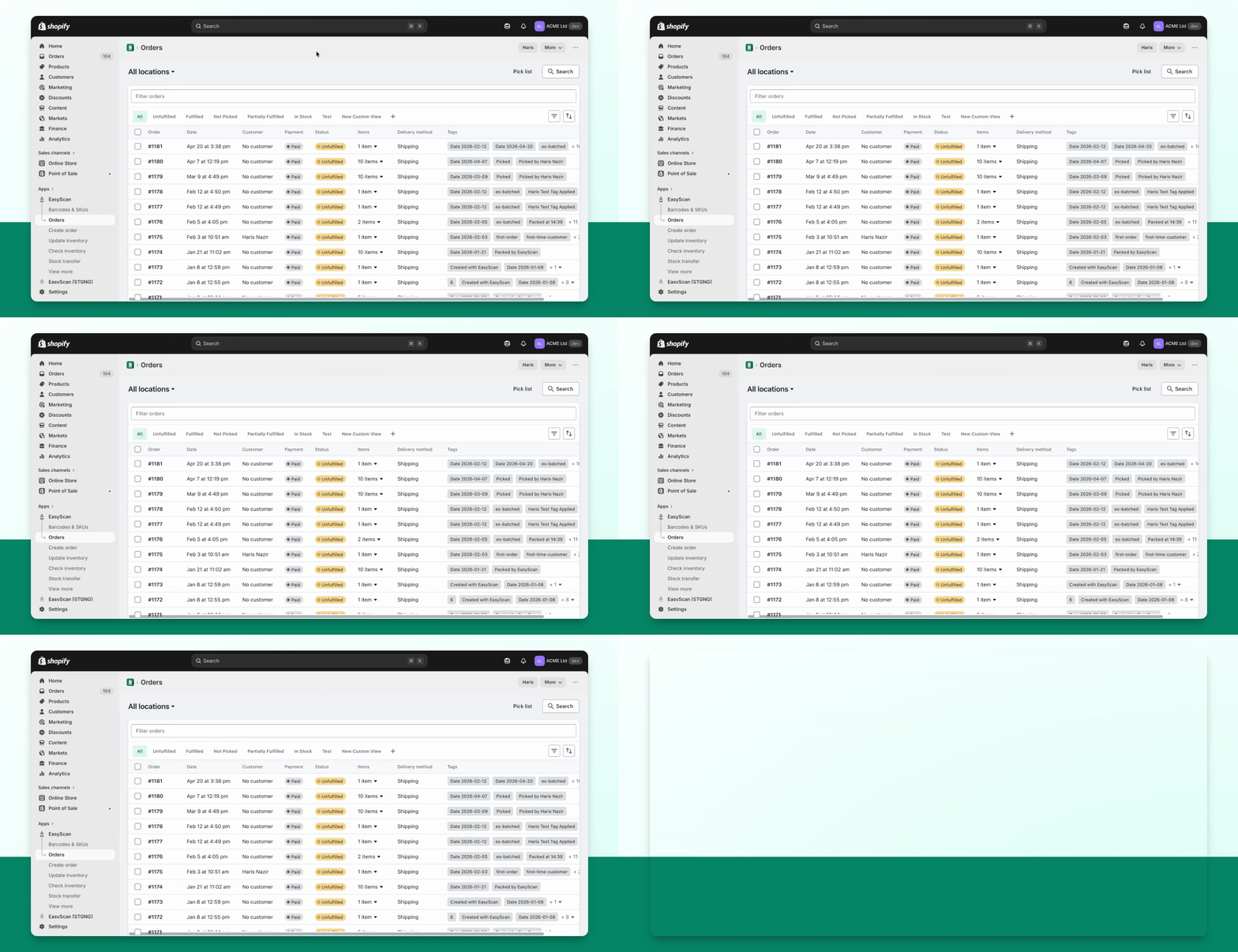
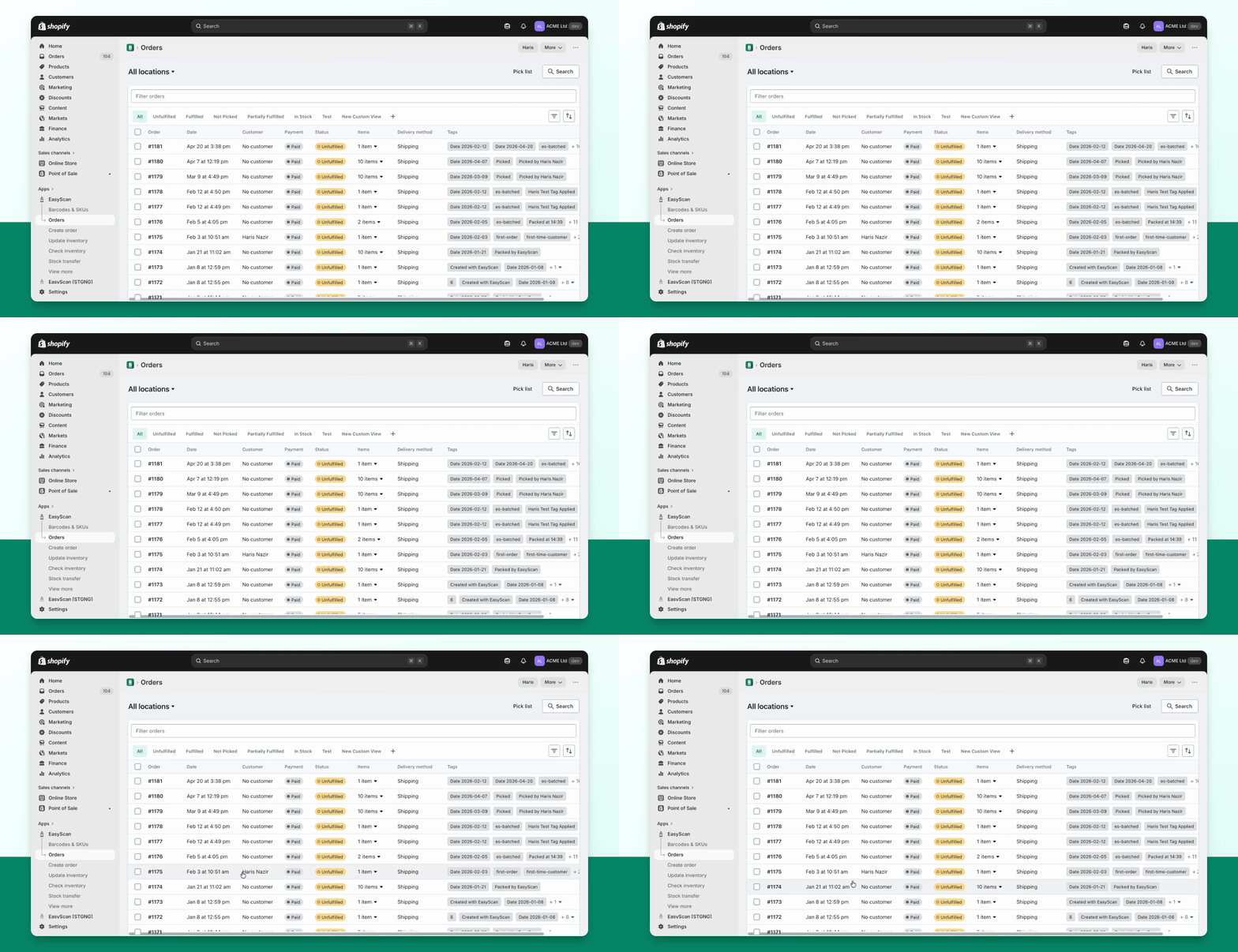
Step 1: Access Order Screen
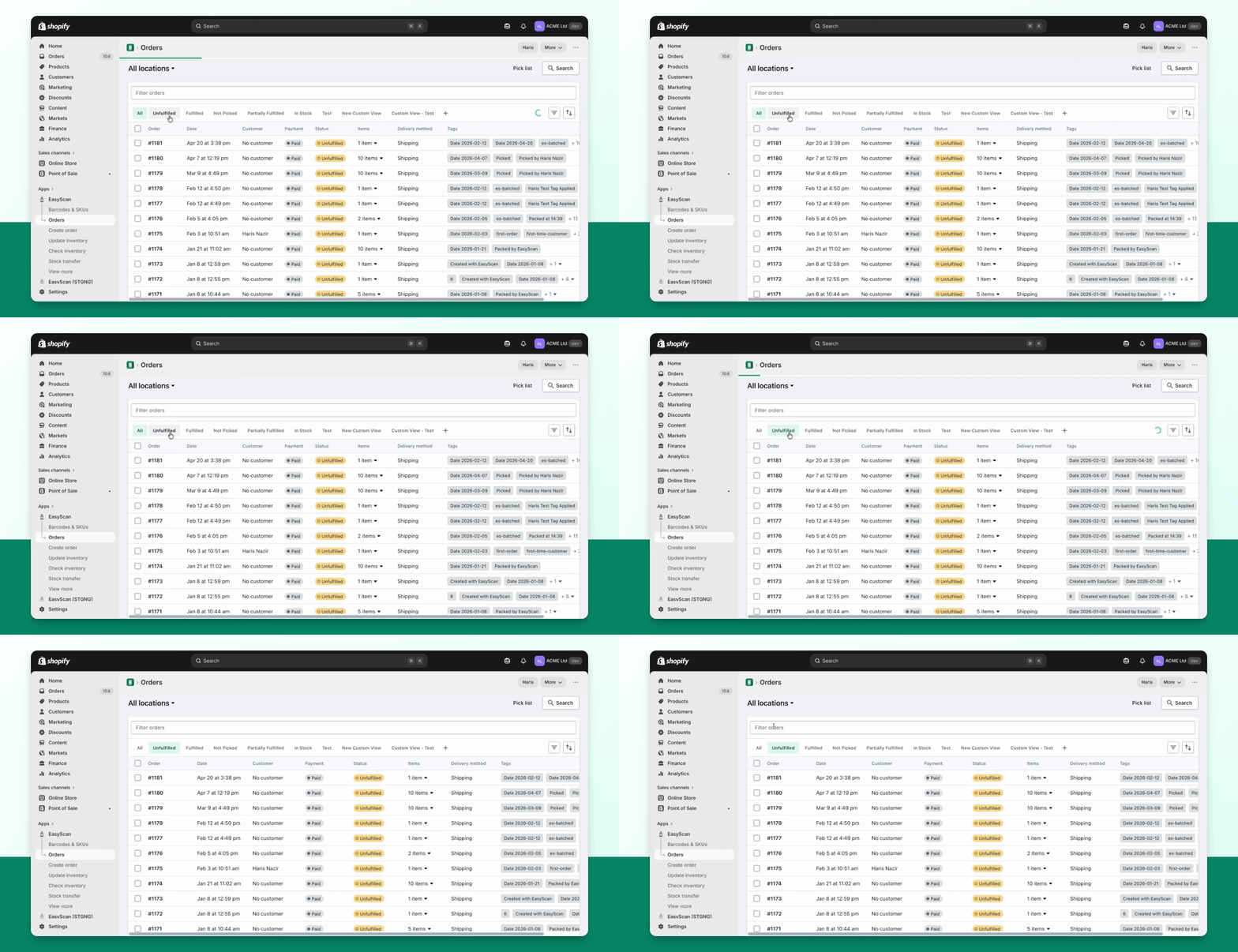
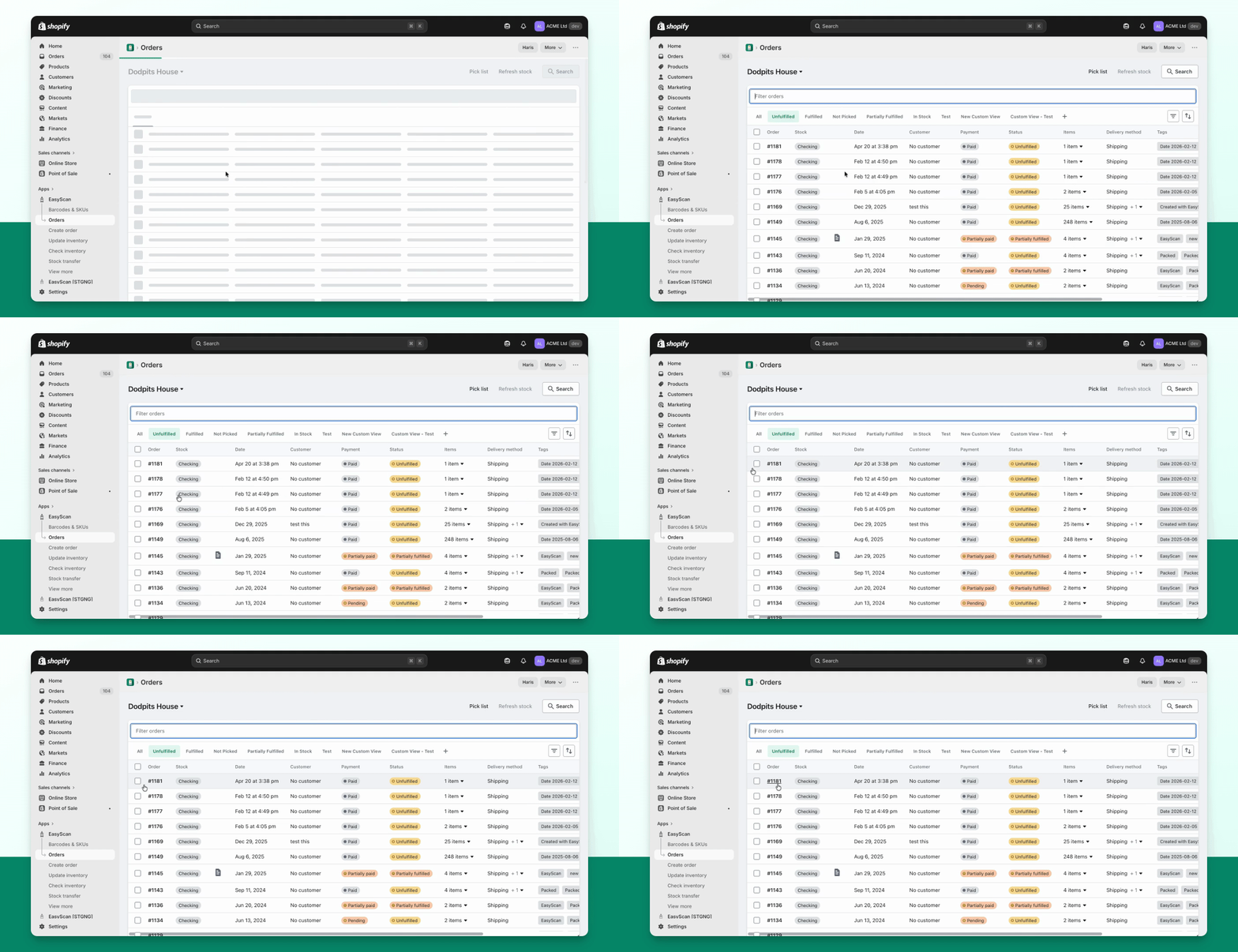
On the Orders list, choose a location, use saved views and filters, sort the queue, and customise the visible columns.
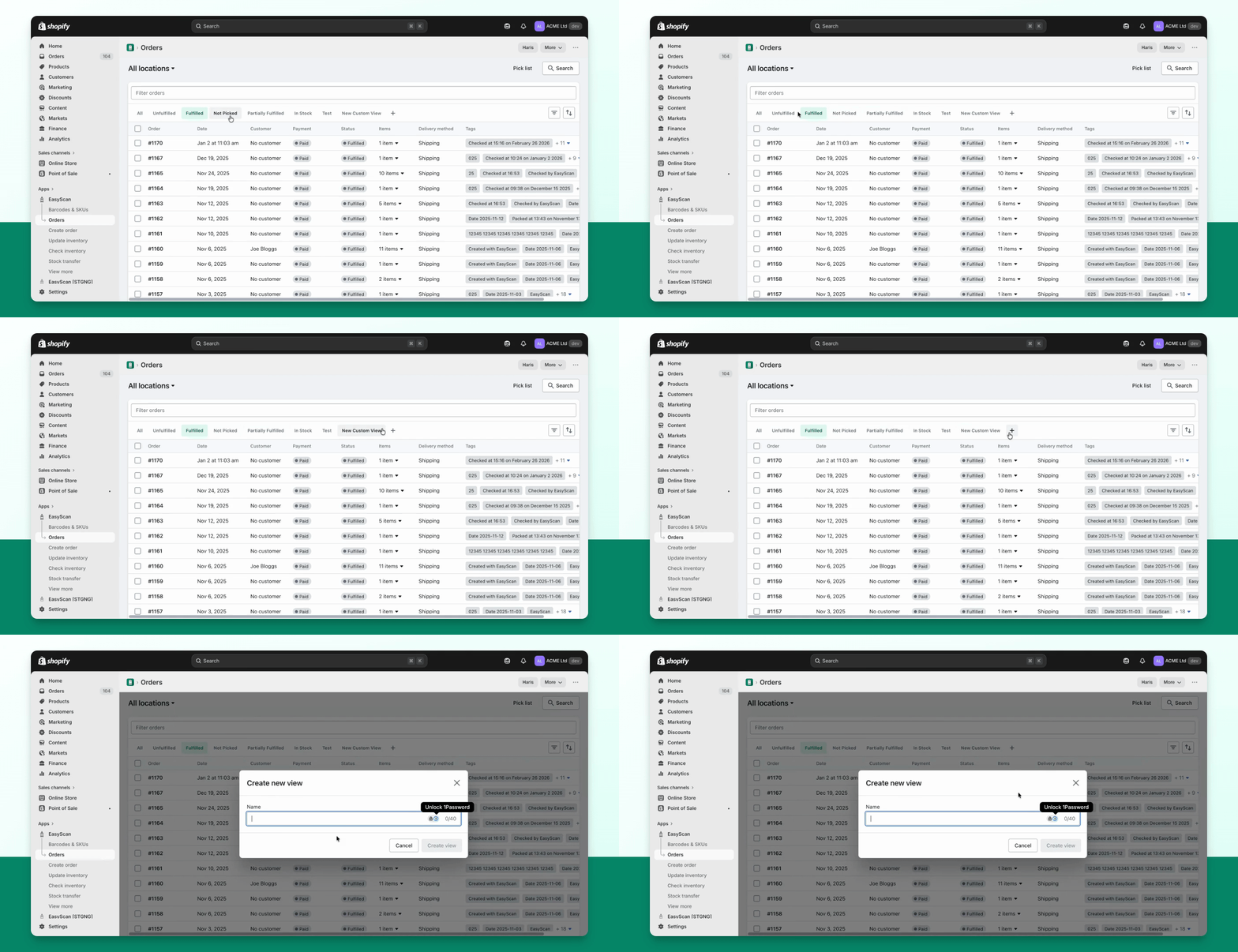
Step 2: Create Custom View
You can create a new custom view and add filters for status and fulfillment status.
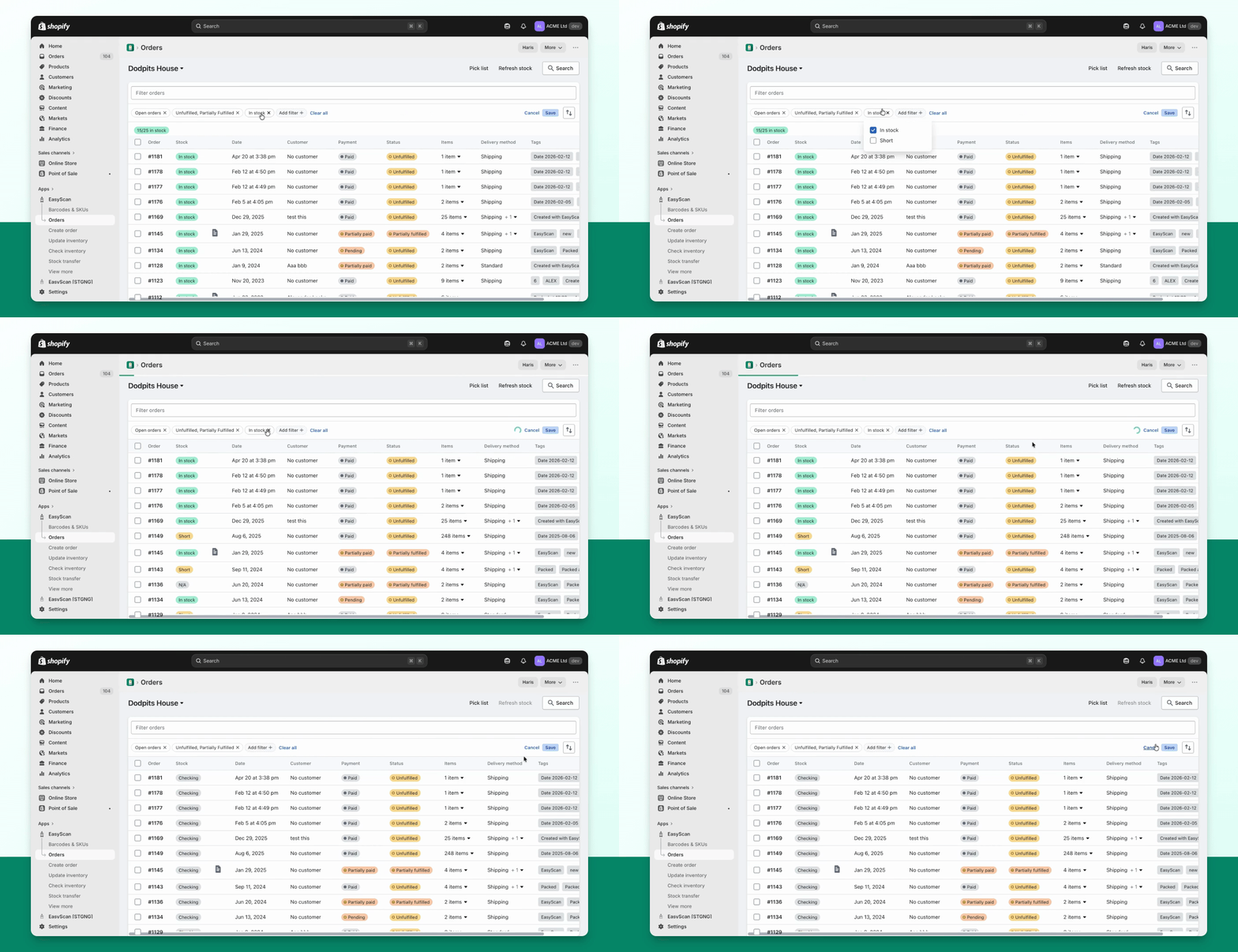
Step 3: Check Inventory
Advanced and Pro can enable the Stock column and Packable filter for a selected location; see Packability.
Step 4: Review Stock Status
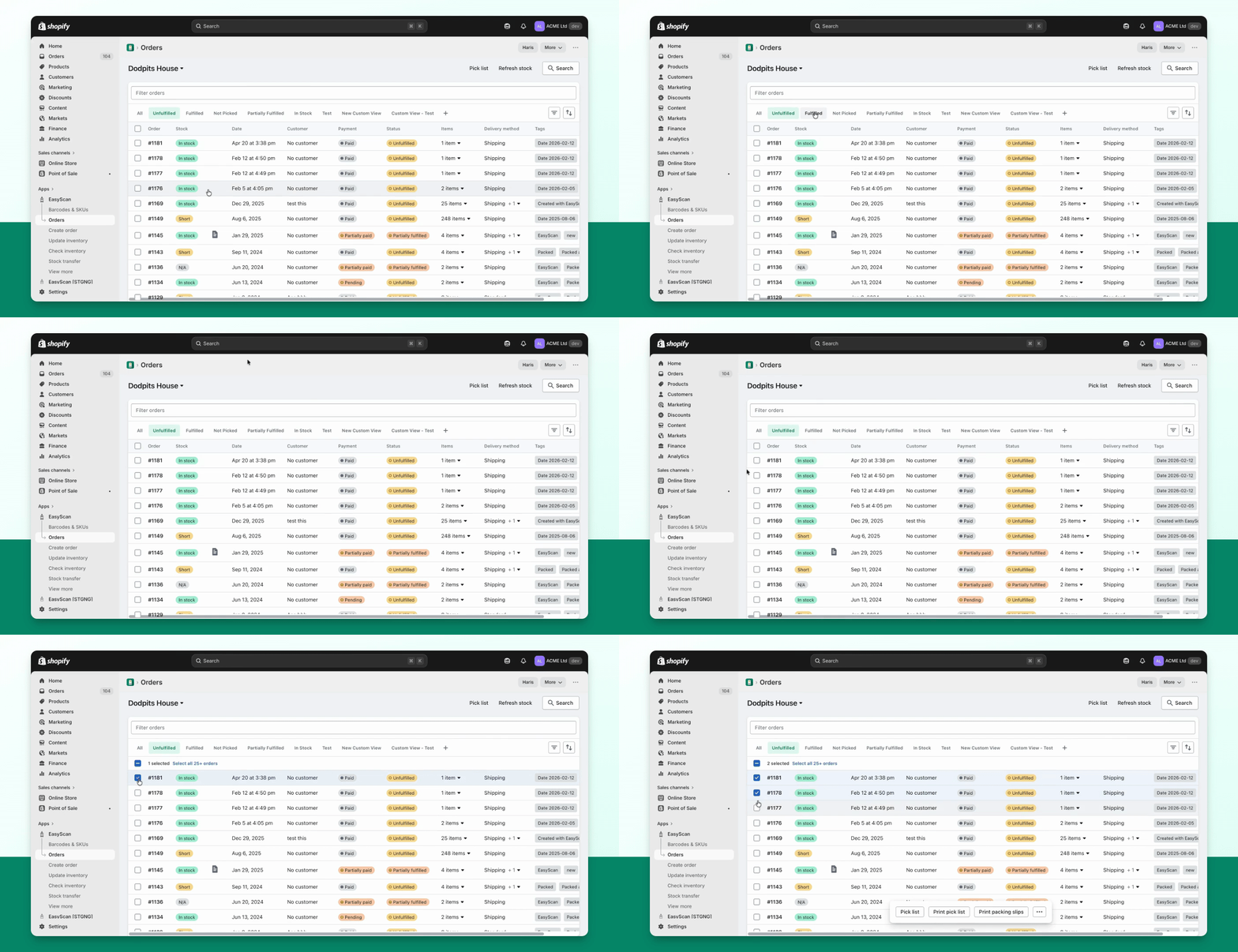
The Stock column shows the packability result for the selected location. Use the Packability guide to understand the results and refresh stock.
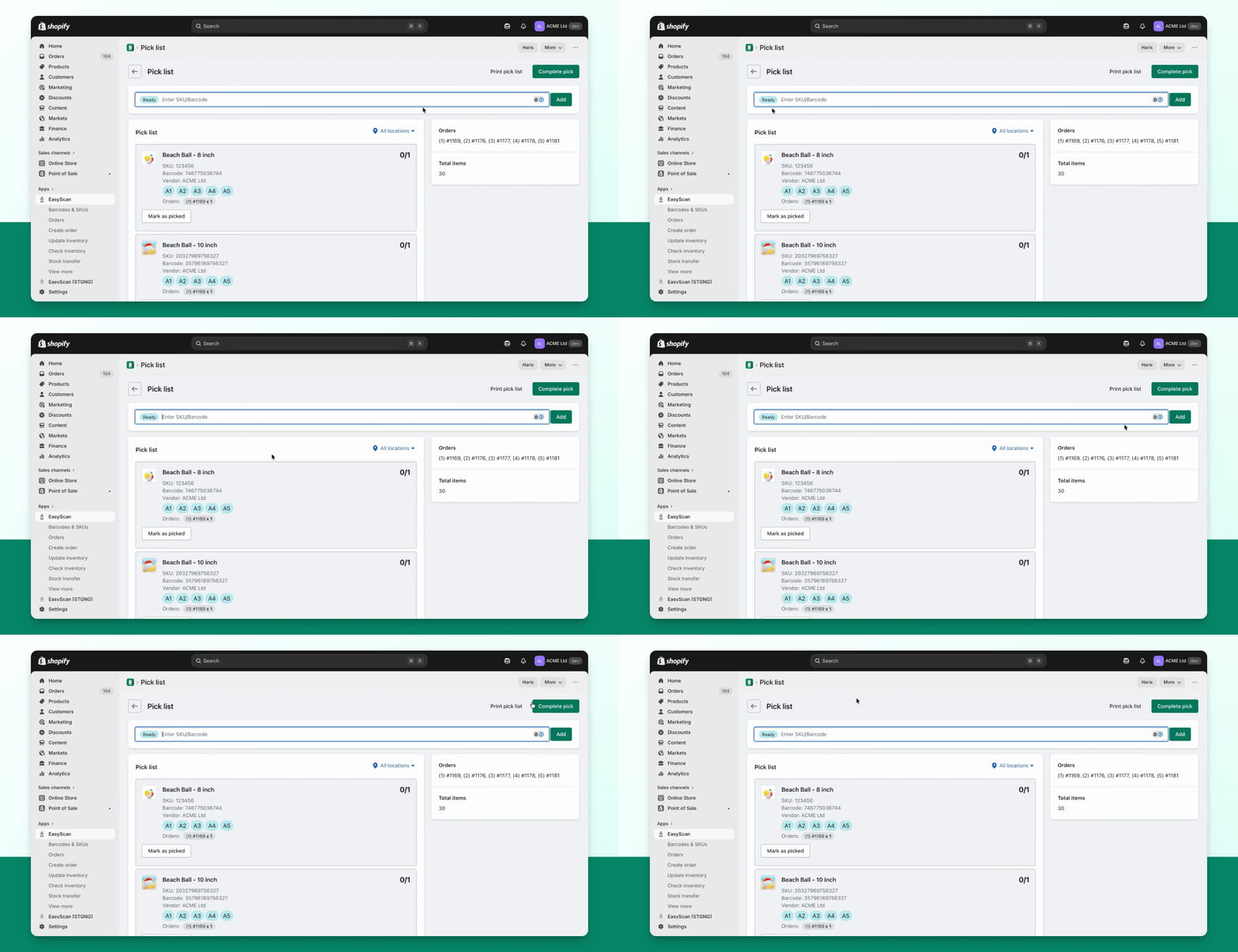
Step 5: Generate Pick List
Pick: collect products for one or several orders using a digital pick list or a printed list.
Step 6: Complete Pick
Complete the pick when the collection is finished.
Step 7: Select Orders for Packing
Select a single order or multiple orders and check for specific products with tags or customer notes. A modal will show relevant information before packing.
Step 8: Pack Orders
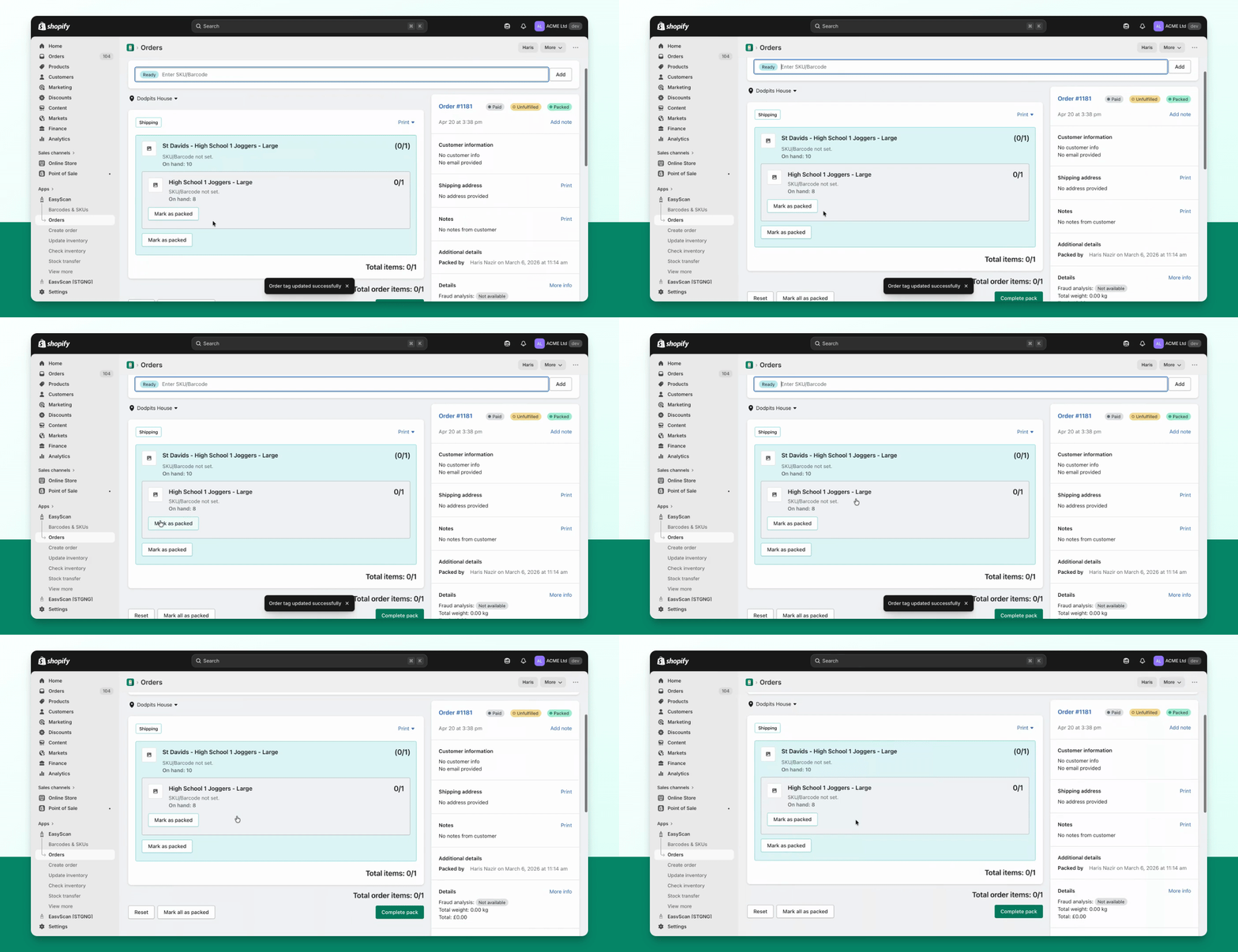
Pack: scan products into each order to verify the items and quantities. Pack-only mode records progress without fulfilling the order in Shopify.
Fulfil: when enabled in Settings → Orders, complete the packed quantities and update Shopify, with tracking and customer notifications controlled by your settings.
Step 9: Verify Packed Items
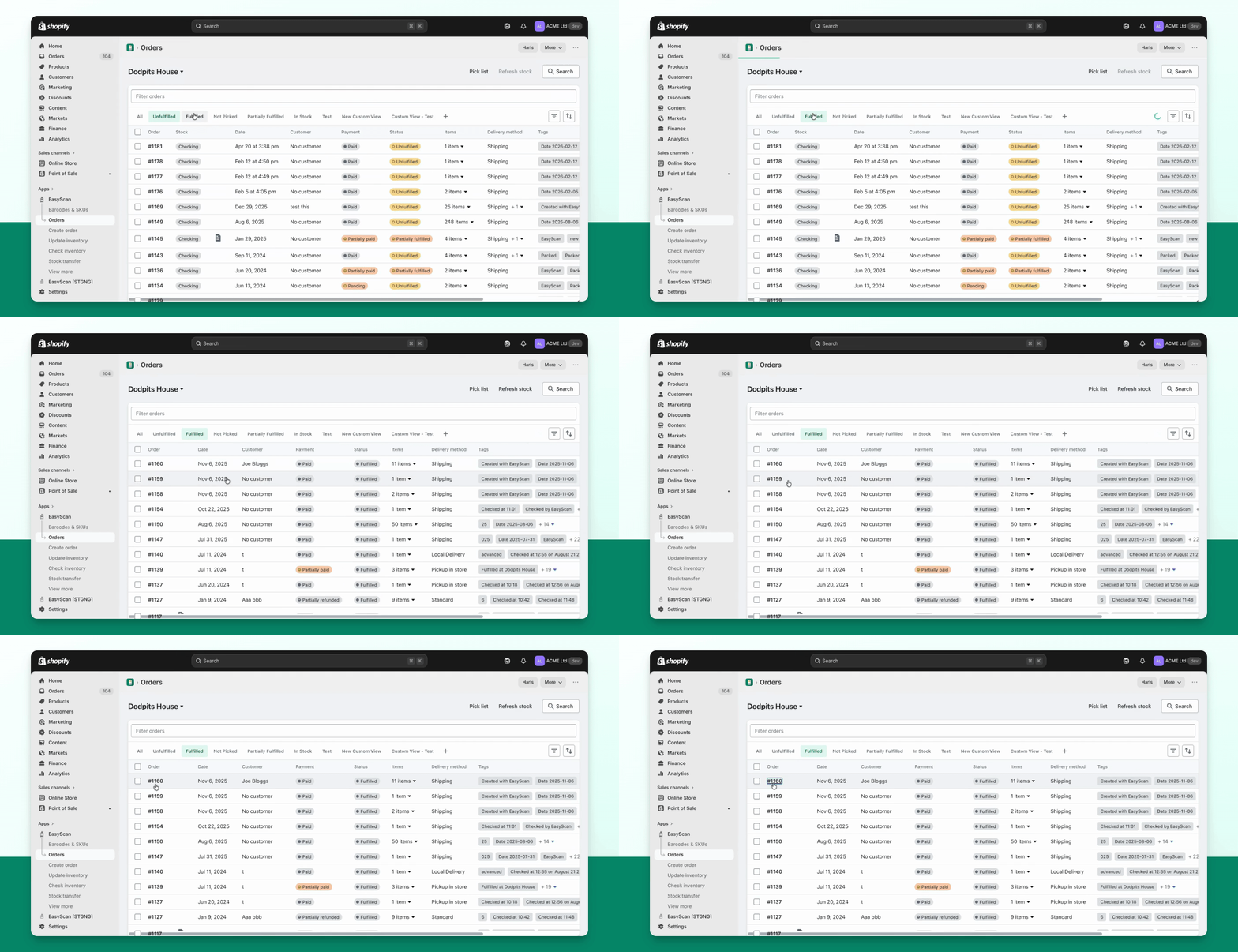
Check: verify an order in the check workflow without treating the check itself as a new stock receipt or fulfilment.
Step 10: Print Documentation
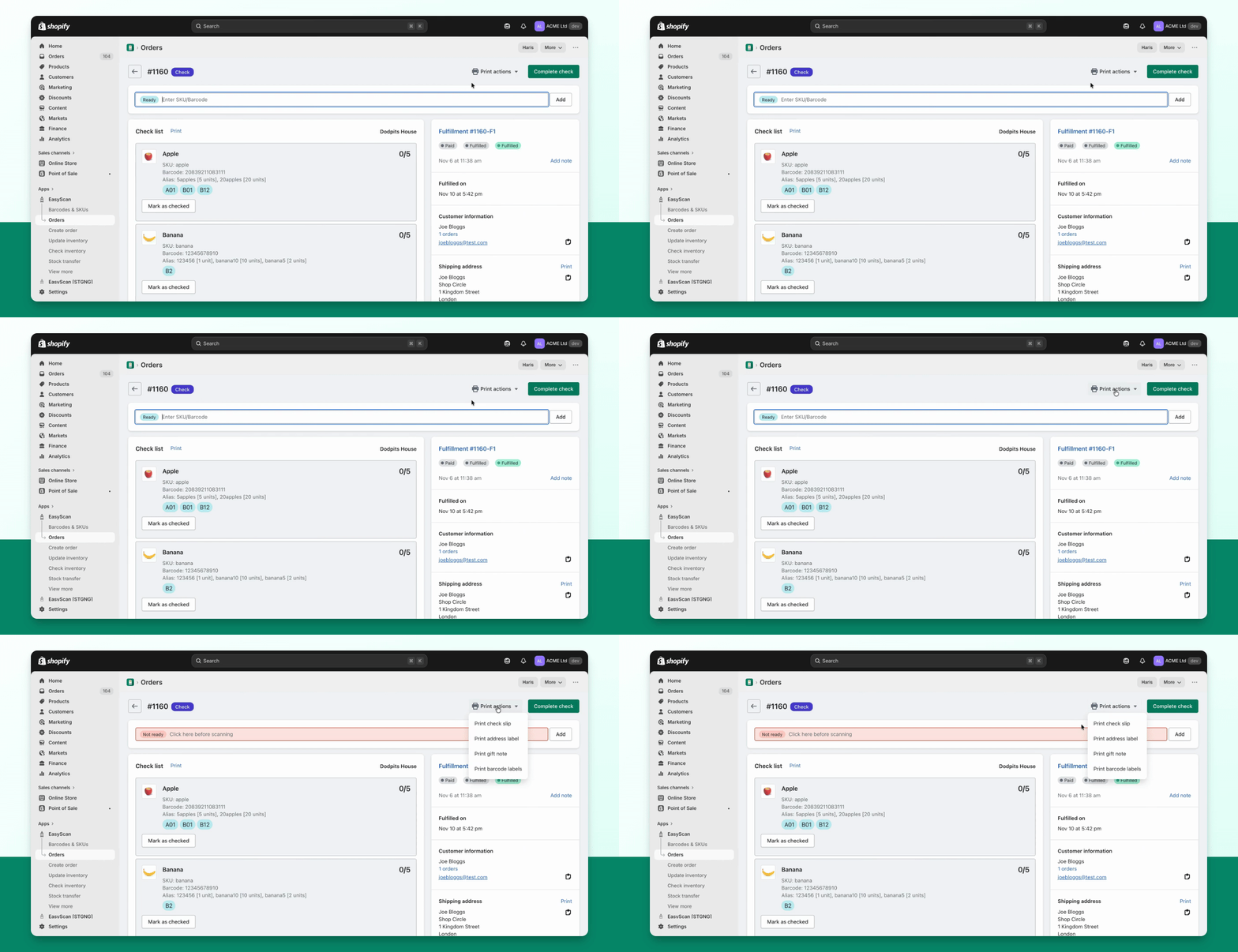
You can print the check slip, packing slip for unfulfilled orders, address labels, gift notes, or barcode labels from here.
Use Order batches for saved groups of filters. Start with the single-order fulfilment guide, then configure shipping labels or on-hold packing if needed.