

This is a quick overview of EasyScan's purchase and transfer orders feature. Let's look at the steps:
Step 1: Create Suppliers
To create suppliers, click the button to the right if you have no suppliers.
When you create a supplier, insert the company, contact name, email address, and additional contacts.
Add details like the average delivery days, lead time, and minimum order quantity.
You can also include shipping rules like minimum order amount, shipping fee, and free shipping threshold.
Link Shopify vendors or configure supplier product assignments and the catalog; follow Create a Supplier.
Step 2: Create Purchase Orders
To create a purchase order, press the button at the top right or use the dropdown to smart generate orders.
Review the strategy for the supplier and destination, including Demand forecast.
If you wish to manually create it, select the supplier, insert the product, and choose the quantity.
You can attach information like estimated arrival, shipping carrier tracking number, and payment details.
Step 3: Manage Purchase Orders
From the draft purchase order, you can duplicate, export to CSV, print PDF, or email it to the supplier.
Step 4: Receive Inventory
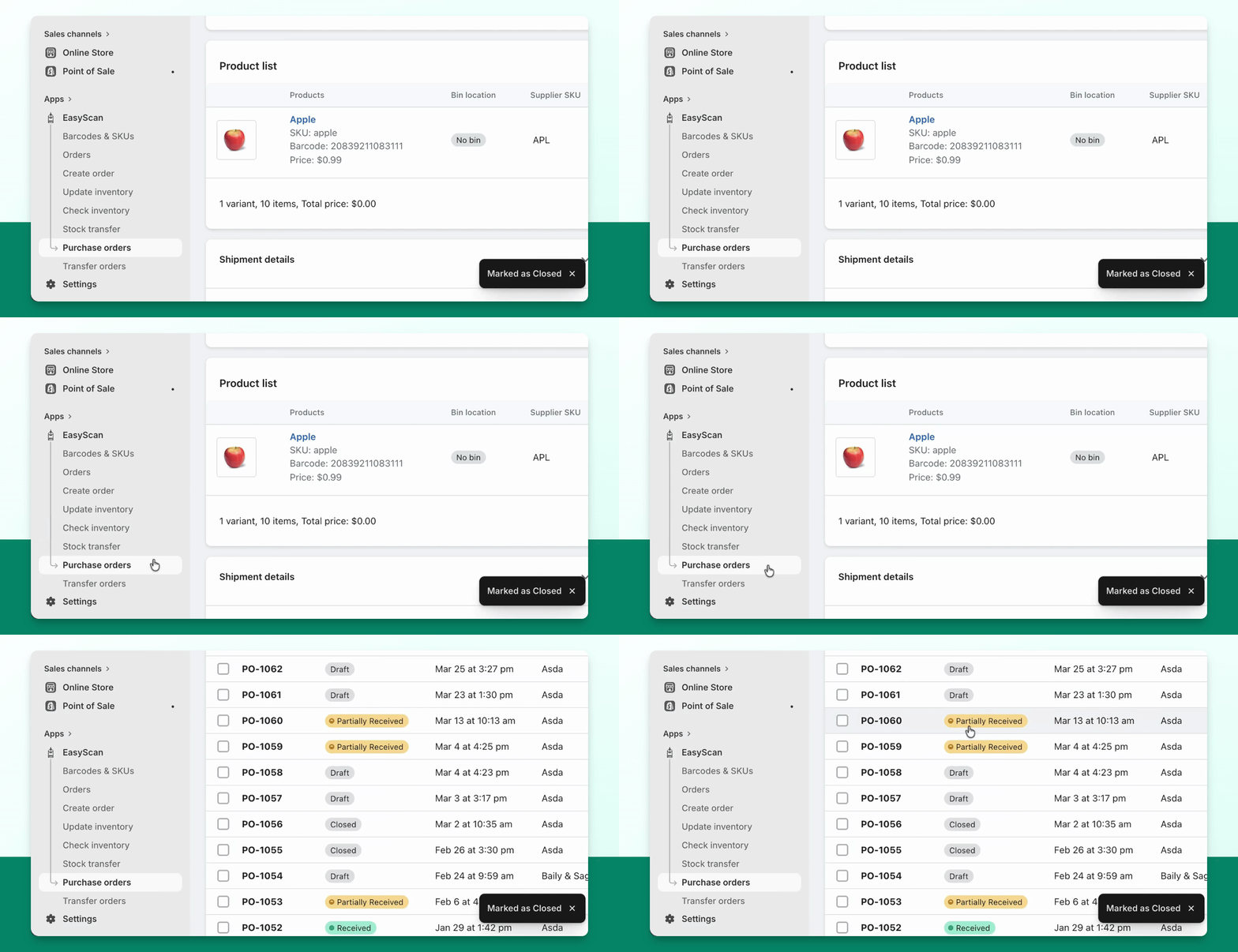
Receive a full or partial delivery
Open the purchase order and select Receive inventory. Scan or enter the units you accept. Use rejected quantities only for units you intend to record as rejected. If units are still expected later, leave them outstanding rather than rejecting the balance.
Review and save. A receipt can leave the order Partially Received. Return to Receive inventory when the next delivery arrives. Once the ordered quantities are accounted for, the PO is Received. Newly accepted units update inventory; rejected units do not add to stock.
Correct an earlier receipt
For a Received purchase order, use More actions → Edit received quantities to correct accepted/rejected quantities. This is separate from editing the order’s product details. Review the inventory effect before saving a correction.
The receive screen can show an optional Available quantity column, and line-item notes remain visible for the receiver. Moving Average Cost is optional; enable it only if you want receiving to update Shopify’s cost per item.
Step 5: Transfer Orders
Navigate to the transfer orders page, similar to purchase orders, to manage your stock transfers.
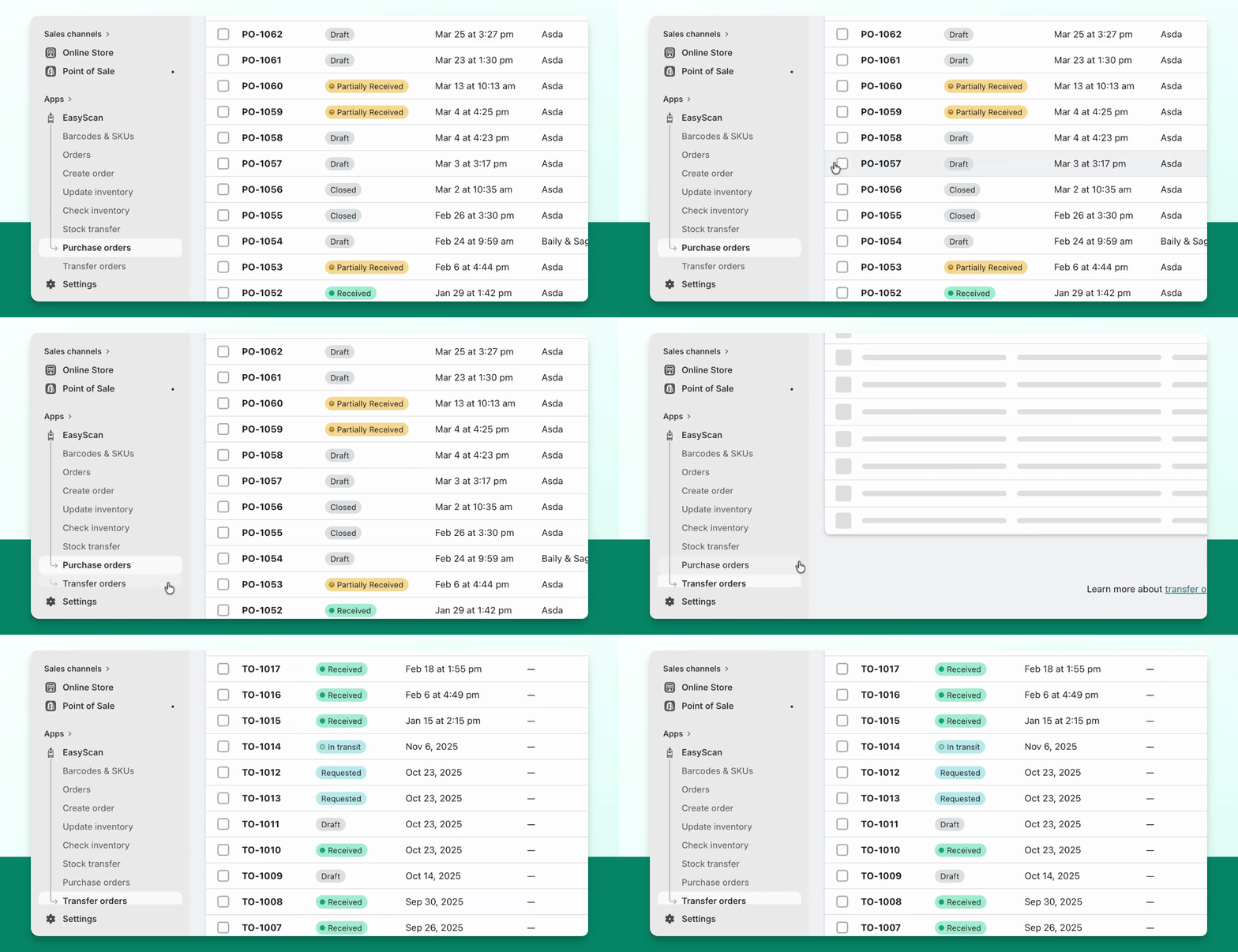
Select the origin and destination, then enter the SKU and quantity to transfer.
After packing the transfer, mark it as in transit.
Finally, accept the received quantity, save, and close the transfer order.
That was a quick overview of the purchase and transfer orders feature in EasyScan.