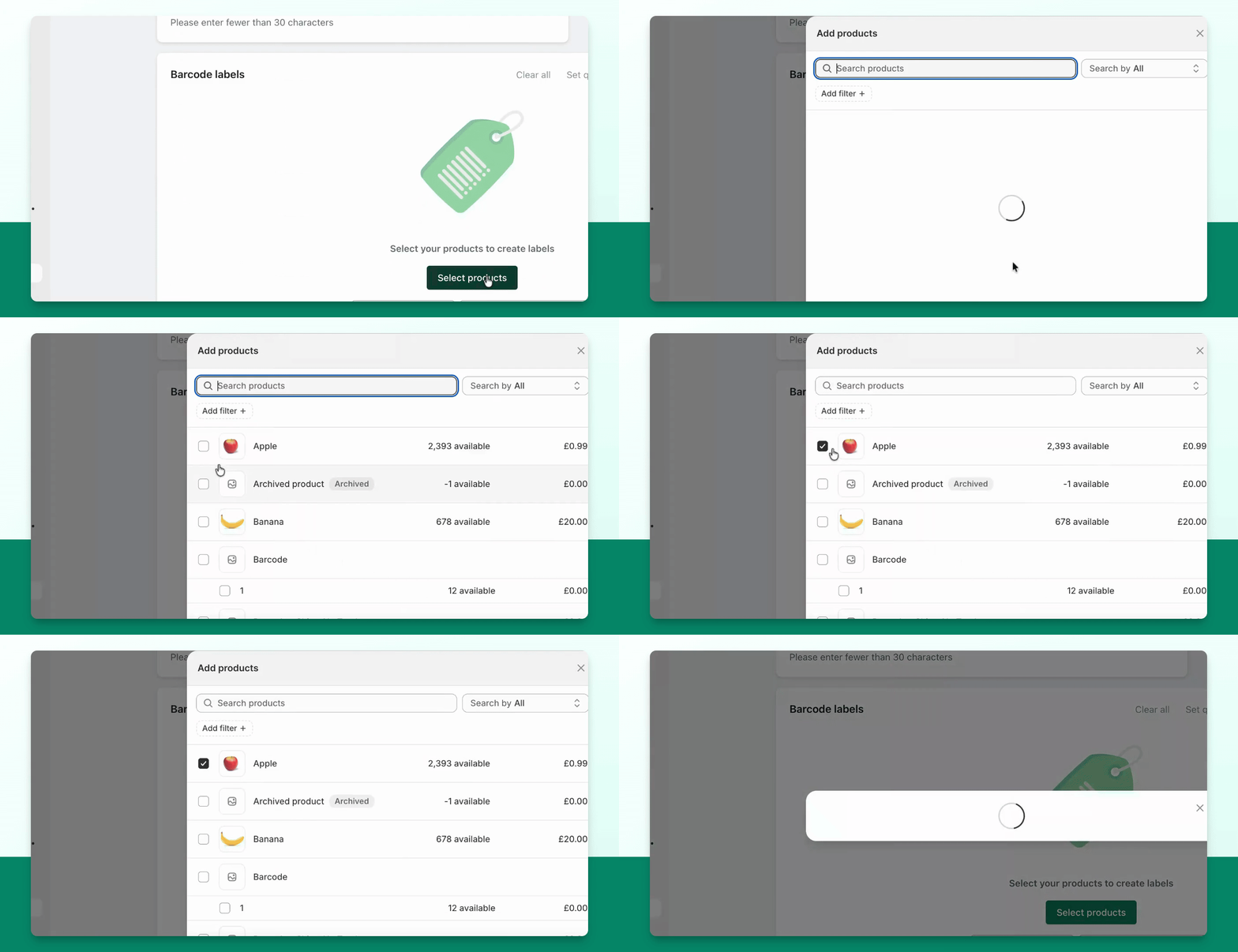
Use the Barcodes & SKUs area for four different tasks:
Assign new barcodes/SKUs: generate values and review them before writing to Shopify.
Assign existing values: enter codes you already use.
Auto-assign: fill empty fields on future products and variants.
Print labels: print values already stored on the selected products.
Create a label template
Choose a printer/label preset or a custom size. Set the paper and label dimensions to match your physical stock. For sheet labels, configure the rows, columns, gaps and margins.
Choose the barcode source and symbol encoding, then compose the rows above and below the symbol. Add the fields you need—such as title, SKU, price, logo or custom content—and review the preview. Country of origin fields are available in the row builder; a missing Shopify origin value prints blank.
Name and save the template for reuse. Print and scan a sample before printing a large run. Changing a label’s symbol encoding does not change the barcode value stored in Shopify. See printing troubleshooting and market prices.
Visual walkthrough
Step 1: Assign Barcodes and SKUs
You can assign new barcodes and SKUs, assign existing barcodes to your products, and assign barcode aliases and cartons.
Step 2: Choose Assignment Type
To assign a new barcode and SKU, you can choose whether you want to assign a barcode, a SKU, or both.
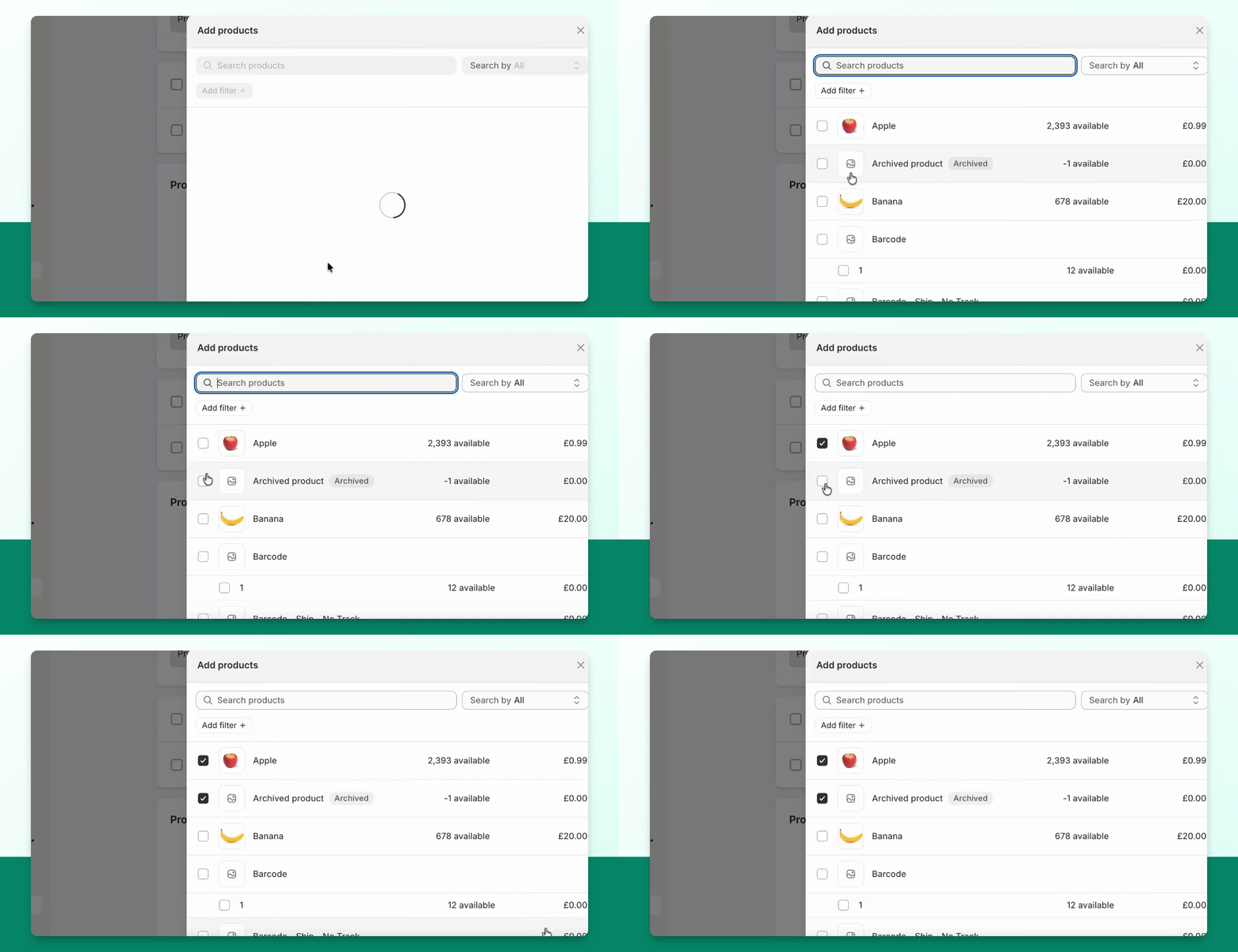
Step 3: Select Products
You can choose a uniquely generated number or a custom pattern and then just select the products you wish to assign.
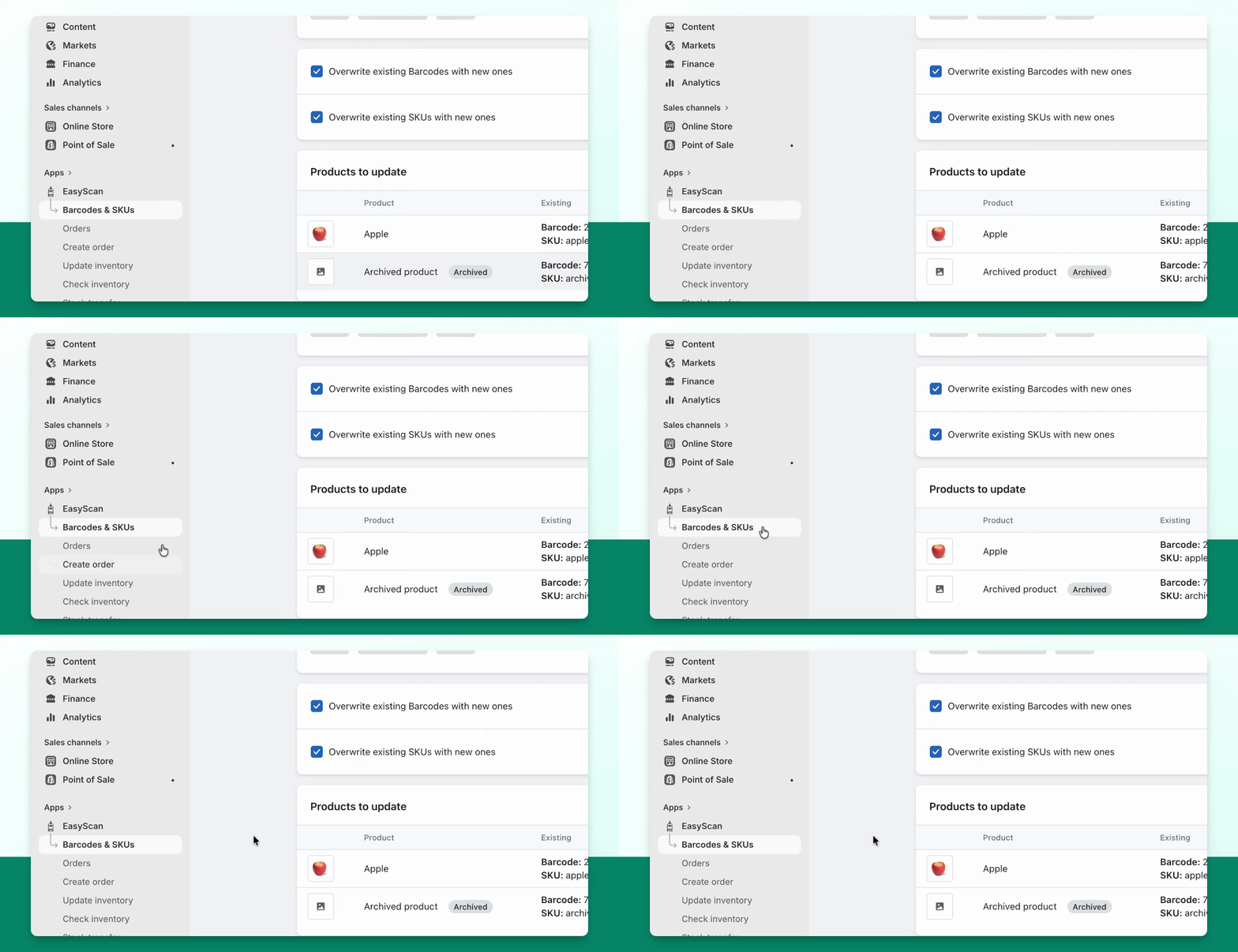
Step 4: Overwrite and Assign
Then you can choose if you wish to overwrite and then press Assign.
Step 5: Print Barcode Labels
Open Print labels to print values already stored on the selected products.
Step 6: Select Template
You can select any pre-configured templates from earlier.
Step 7: Printer Settings
If you don't have any, you can then choose your printer's brand and the label code or choose our custom settings.
Step 8: Customize Label Display
Use the row builder to choose the fields above and below the barcode symbol, then check the preview.
Step 9: Show Numeric Value
You can choose whether you want to show the numeric value for the barcode, and you can see a live preview here.
Step 10: Select Barcode Type
We can also do different types of barcode symbol encoding including QR codes.
Step 11: Print Product Labels
Name and save the template for reuse. Select products, print a sample and scan it before printing a large run.