

TL;DR
Let's Do It Together!
Barcode aliases require Pro and the Barcode aliases setting. An alias gives an existing Shopify variant another scan value; it does not replace the variant’s primary barcode. The alias quantity determines how many units the scan represents—for example, 12 for a carton of 12.
Step 1: Enable Barcode Aliases
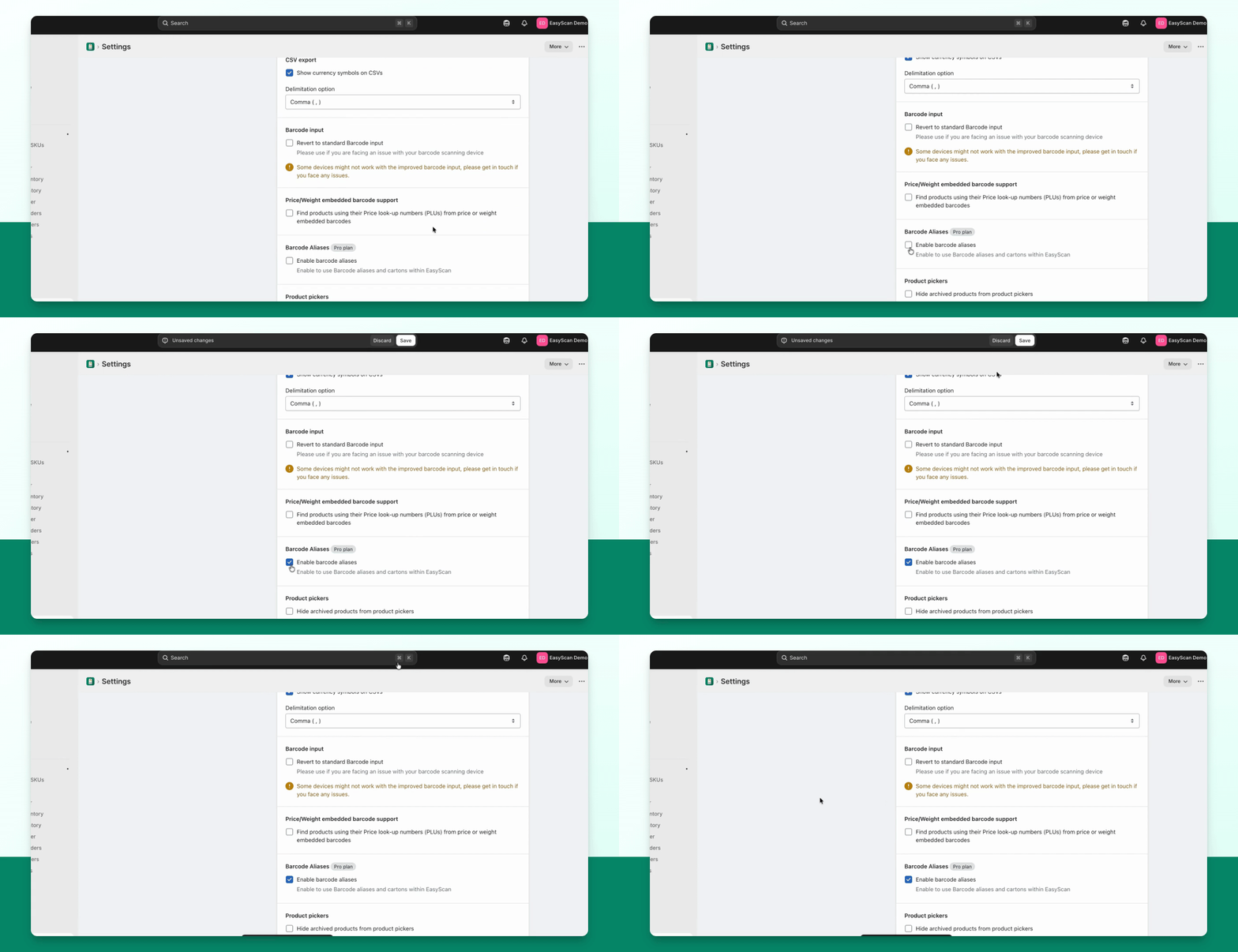
Go to Settings → General and enable Barcode Aliases.
Don't forget to click Save to apply the changes.
Step 2: Access Barcode Page
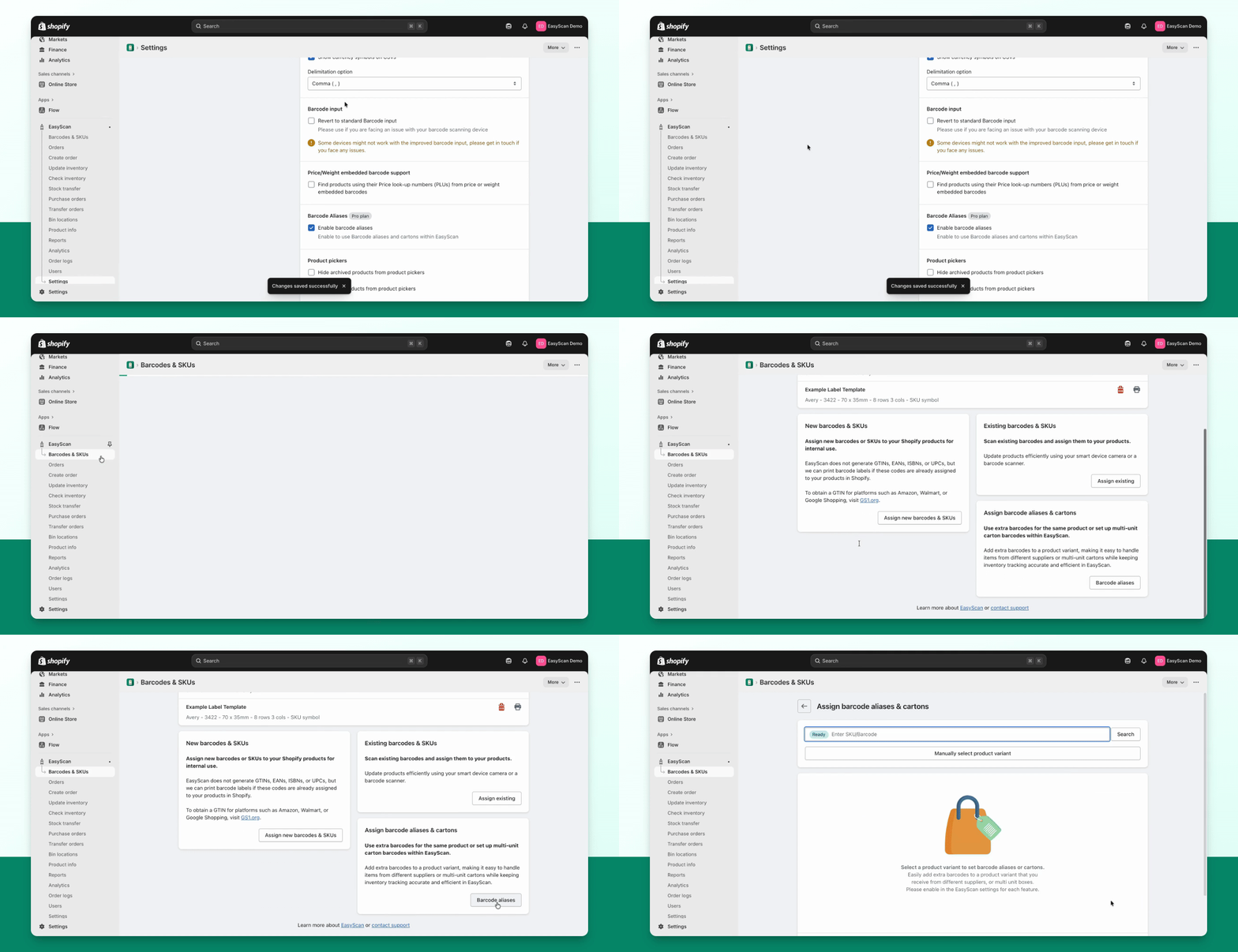
Navigate to the Barcode page and scroll down to Barcode Aliases.
Step 3: Assign a Barcode Alias
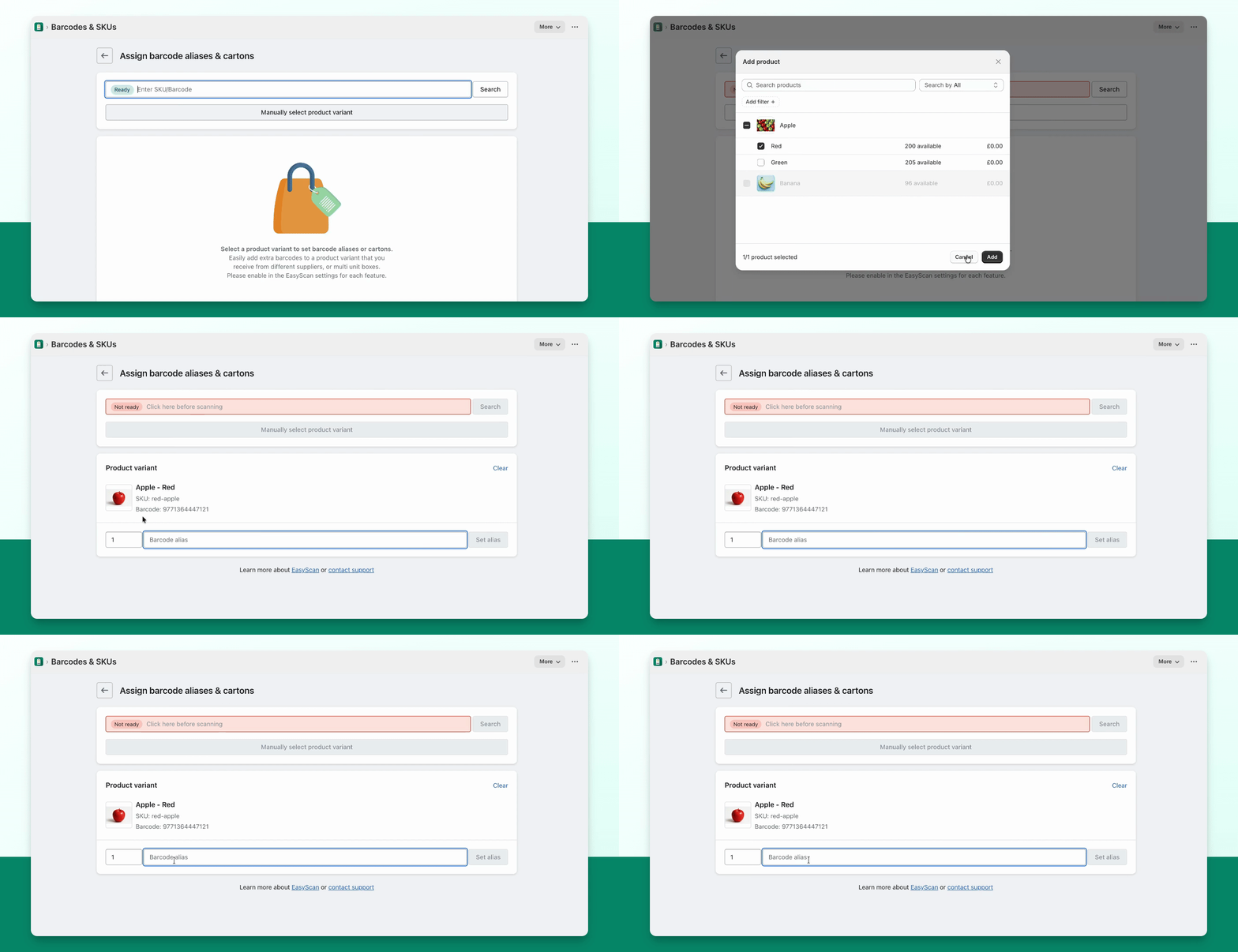
Enter or scan the product to assign a barcode alias, then type the alias in the provided box.
Step 4: Set Quantity for Alias
If needed, select the quantity for the product using the quantity selector on the left.
Step 5: Save the Alias
Press Set Alias to finalize the assignment.
Scroll down to confirm that the alias has been applied successfully.
From Barcode aliases & cartons, use the native CSV import for bulk setup. Download the template, provide the product identifier, alias and quantity, then review matches before importing. The import limit is 1,000 rows / 2 MB.
For checkout, open the EasyScan POS scanner tile. Shopify’s ordinary checkout scanner does not send its scans to EasyScan’s alias lookup.