

TL;DR
Let's Do It Together!
Step 1: Start Assigning Barcodes
From the Main Dashboard, click Assign New.
Choose whether to update the Shopify Barcode field, the SKU field, or both. Review the generated values and overwrite options before assigning them.
You are now ready to choose the barcode type to assign.
Step 2: Choose Barcode Type
Select how you want to generate barcodes: uniquely generated number, Shopify variant ID, or custom barcode.
If you choose custom barcodes, specify a prefix, starting auto number, and suffix.
For example, starting at 1000 will allow the next number to be 1001.
Step 3: Customize Barcodes
Optionally add product title, variants, option name, vendor, type, and metafield information.
Remove punctuation, numbers, and add delimiters if needed.
Step 4: Select Products
Select the products you wish to assign barcodes to.
Review the new barcodes that will be assigned on the right.
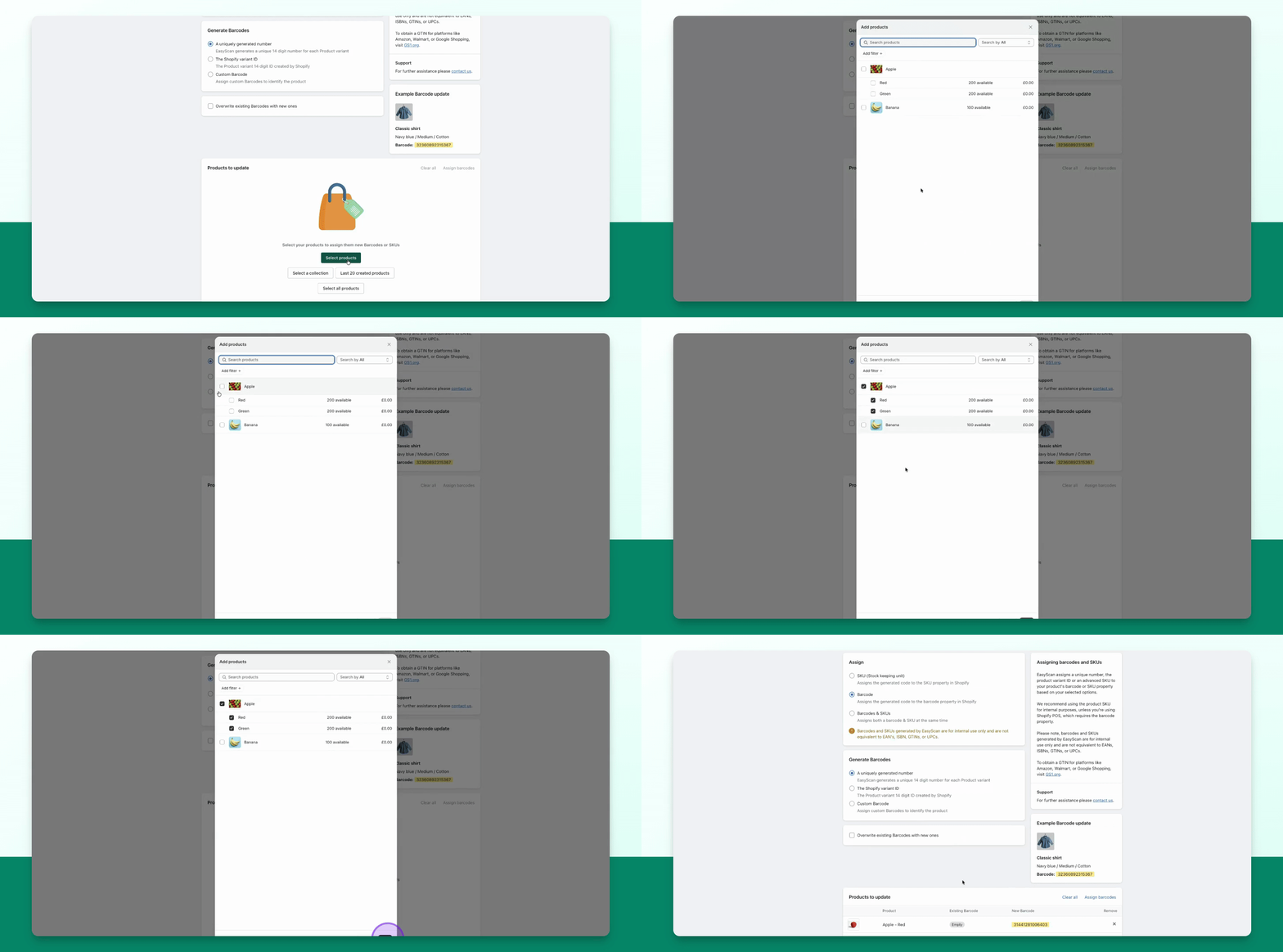
Step 5: Assign Barcodes
Press Assign Barcodes to proceed.
Confirm you are not overwriting any existing barcodes and press Continue.
The barcodes will now be updated successfully.
Step 6: Print Barcode Labels or Reports
You can now choose to print barcode labels or generate a report.
If printing a report, you will see the generated report.
Step 7: Overwrite Existing Barcodes
To overwrite a barcode, go to Assign New and select products.
For the product, choose Overwrite Existing Barcodes.
Press Assign Barcodes and confirm the action.
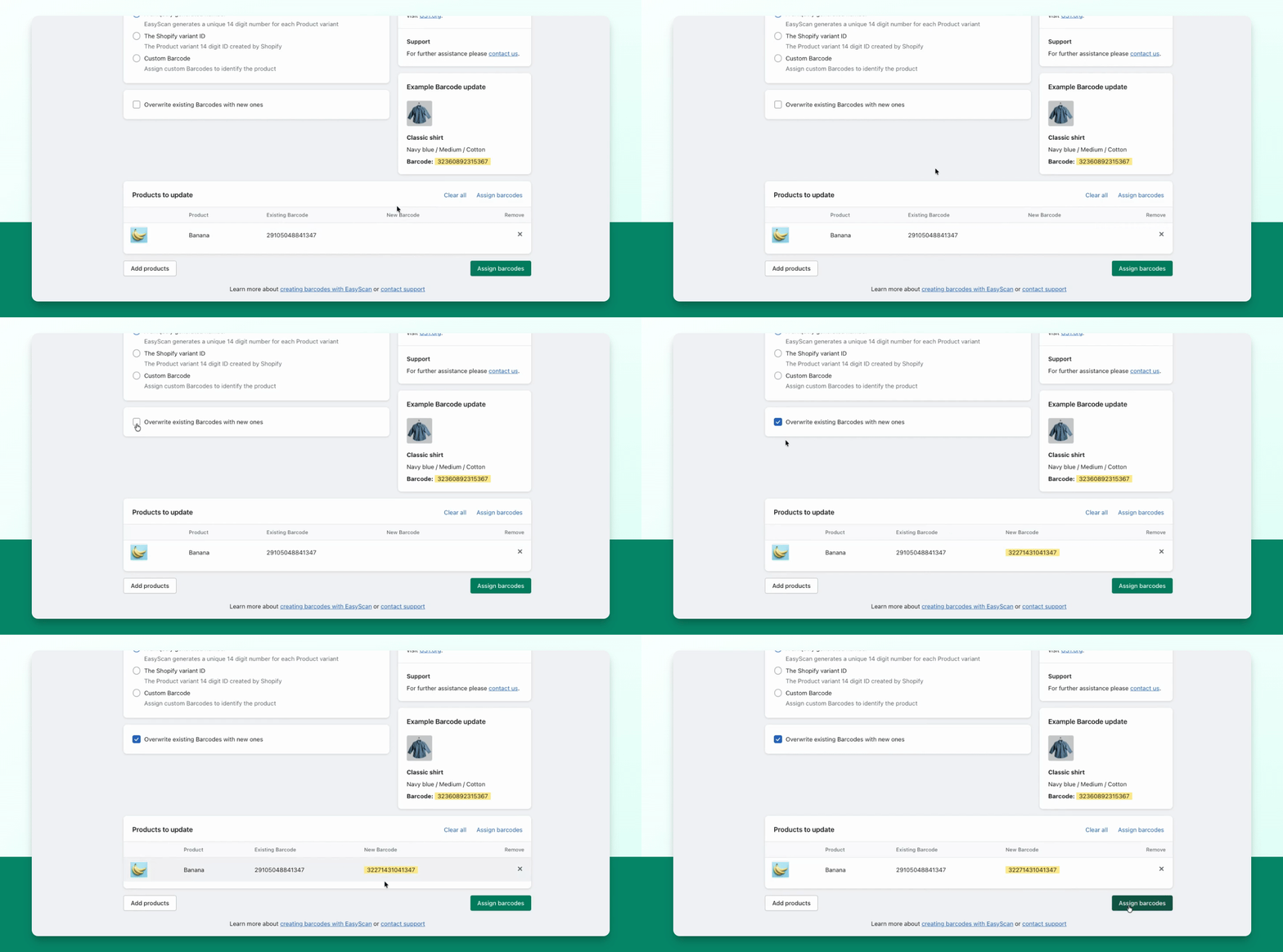
Step 8: Finalize and Print
The barcode has been updated successfully.
You can now print the barcode labels or print the report again.