TL;DR
Choose Select from Shopify, or upload the image to Shopify Files if needed.
If using the URL option, paste the direct image link in EasyScan.
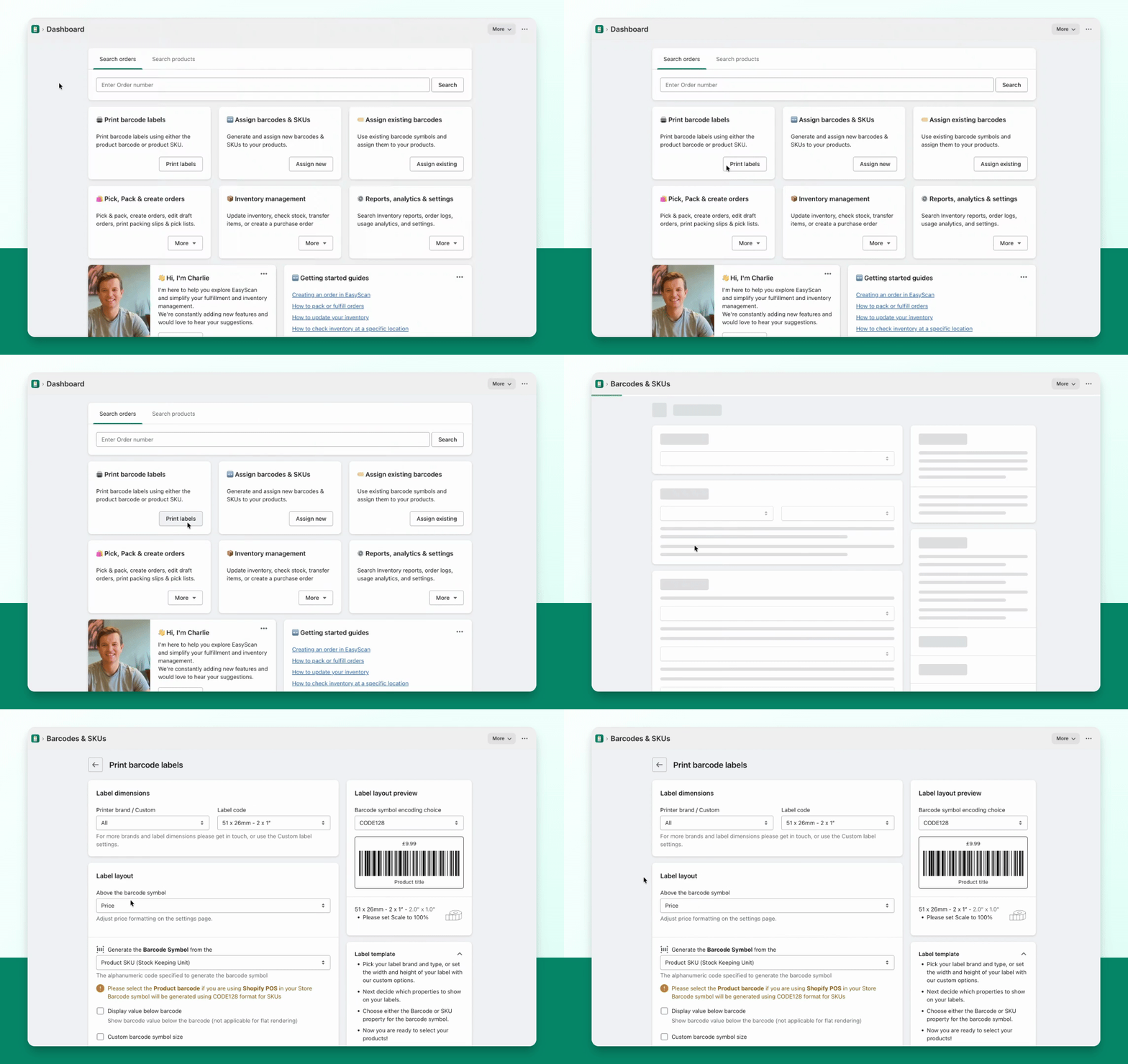
Step 1: Access Print Labels
Go to the EasyScan dashboard.
Click on Print Labels.
Step 2: Select Custom Logo
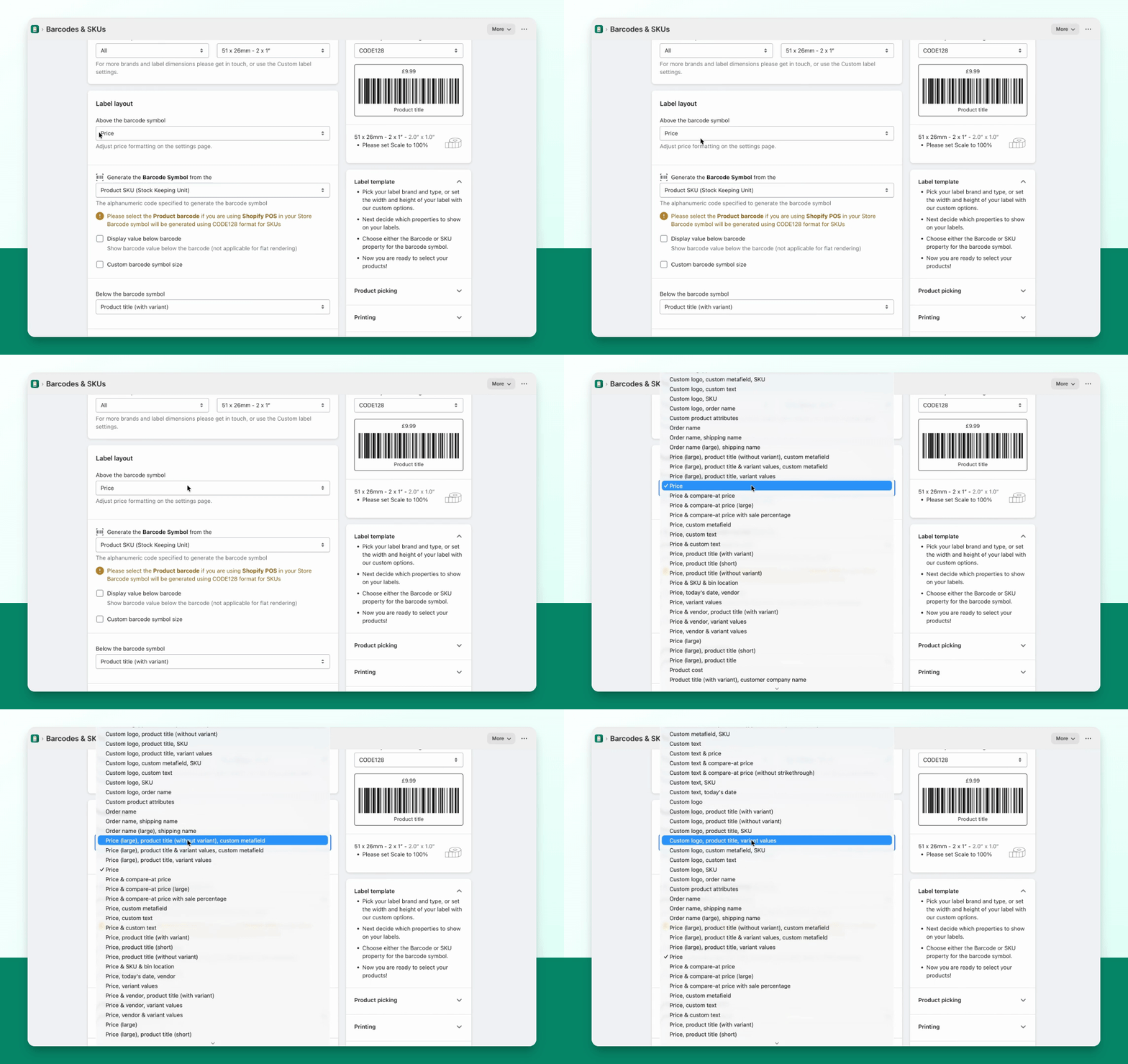
Scroll down to Label Layout.
In the label layout, add the Custom logo field in the available layout controls. Choose Select from Shopify to pick an image from Shopify Files, or paste the image’s direct URL. Adjust its size and preview it on the label. Save the template to reuse the design, then print a sample to check size and readability.
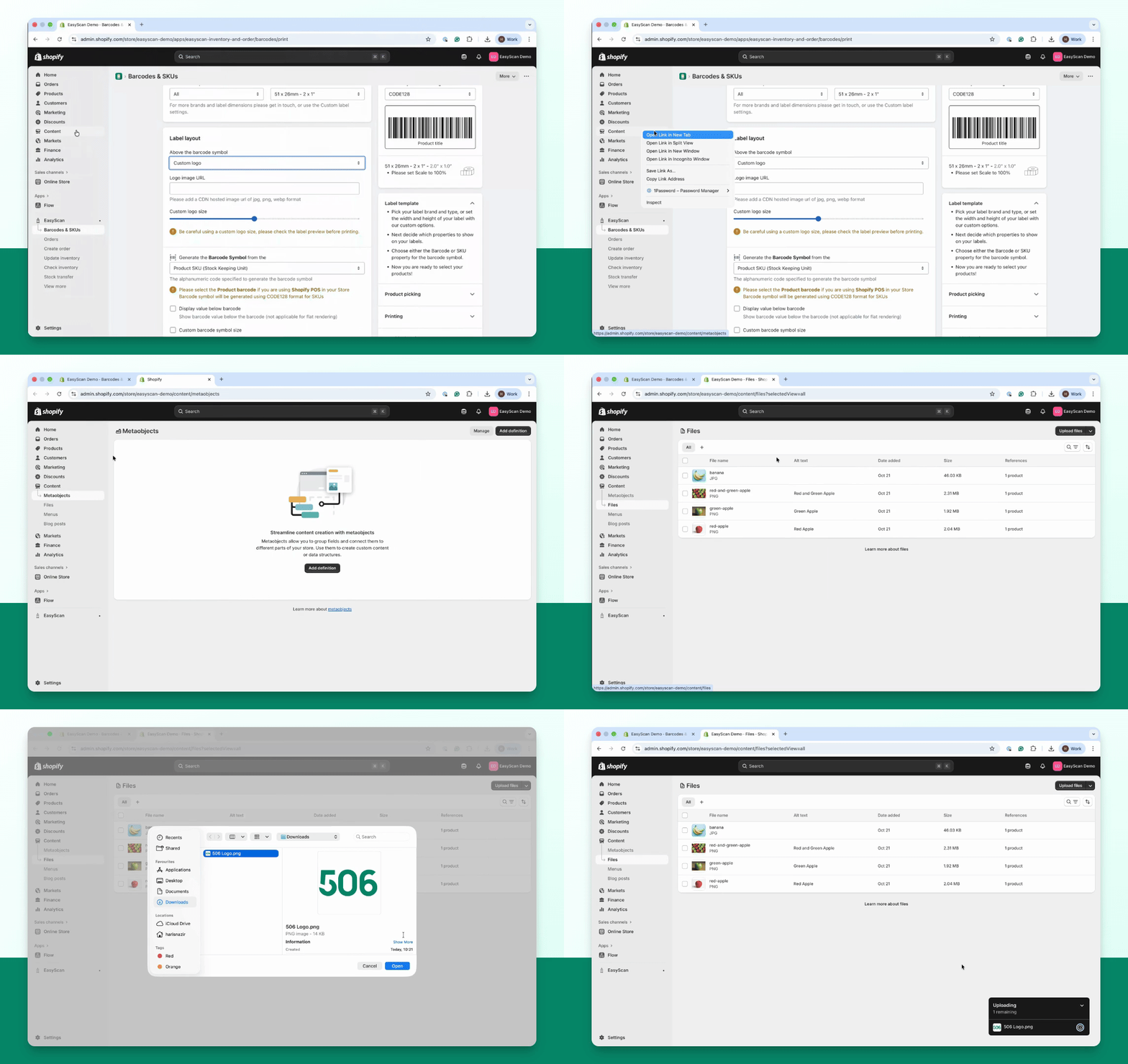
Step 3: Upload a Logo if Needed
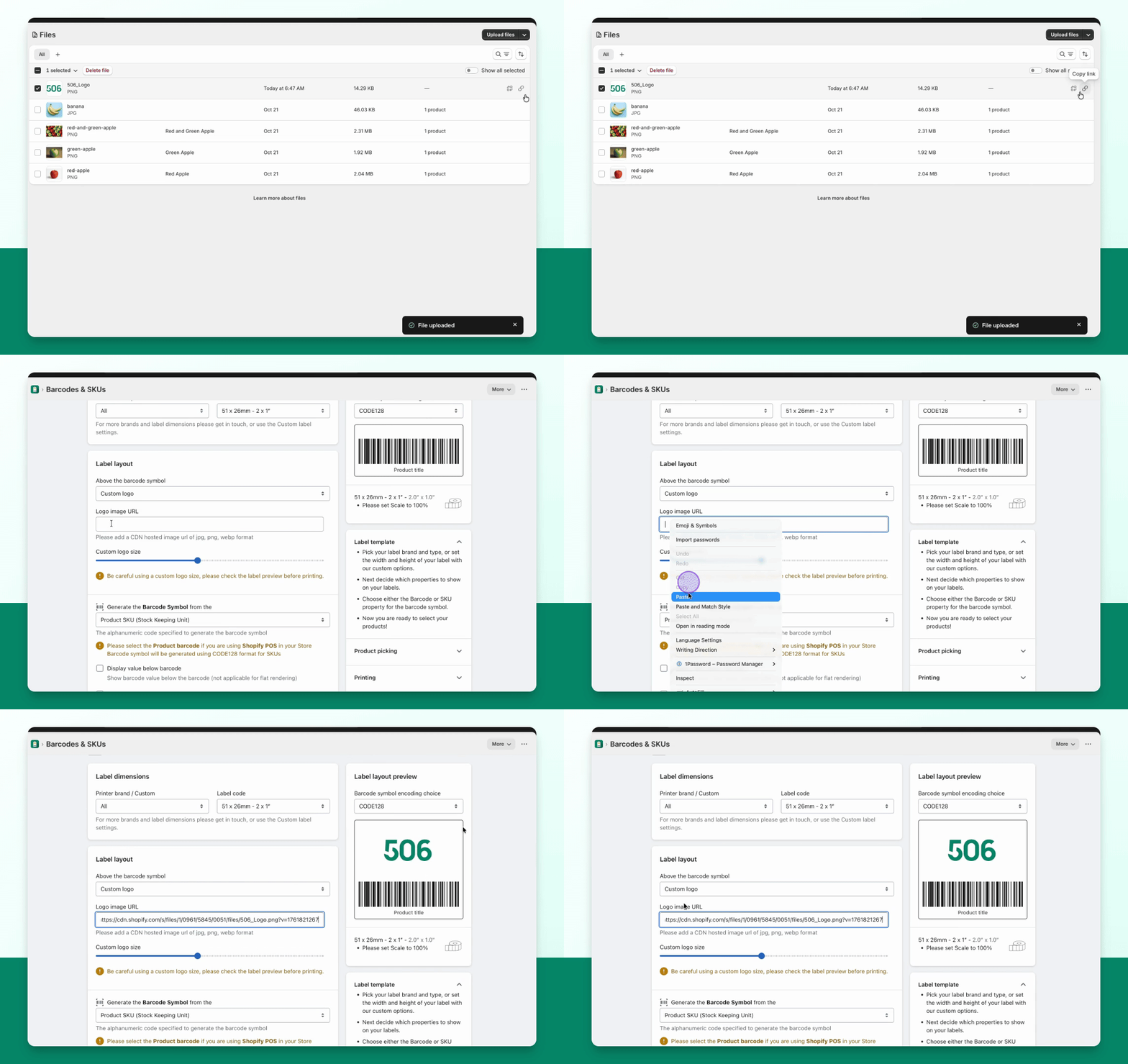
If your logo is not already in Shopify Files, open Shopify’s Content → Files in a new tab.
Click on Files and then Upload Files to upload your logo.
Choose the image using Select from Shopify, or copy its direct URL if you prefer the URL option.
Step 4: Insert Logo URL
If using the URL option, paste the direct image link in the Logo Image URL field.
Check the Label Layout Preview for the logo appearance.
Step 5: Adjust Logo Size
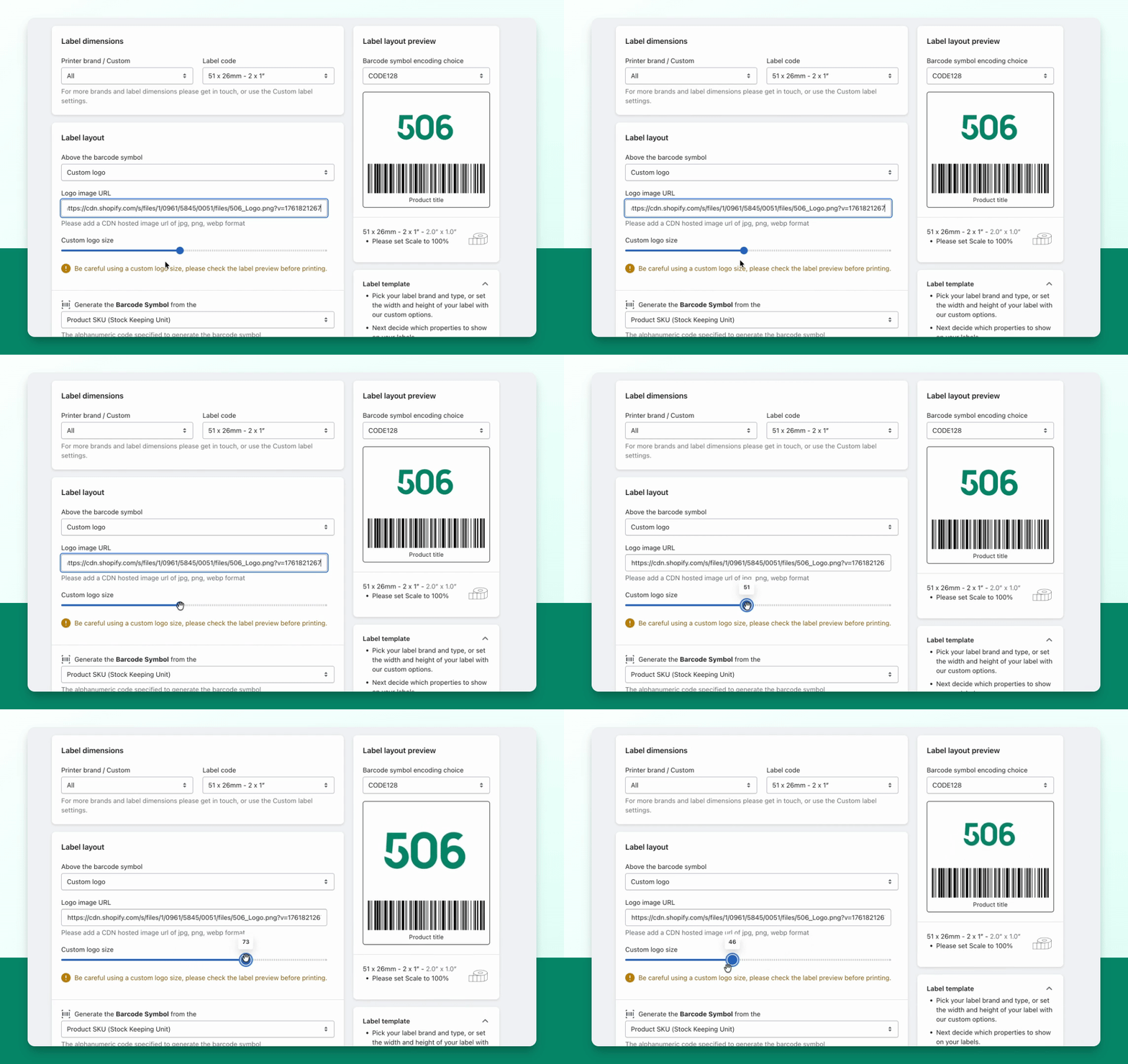
Use the Custom logo size slider to adjust the logo size.
Step 6: Save the Label Template (Optional)
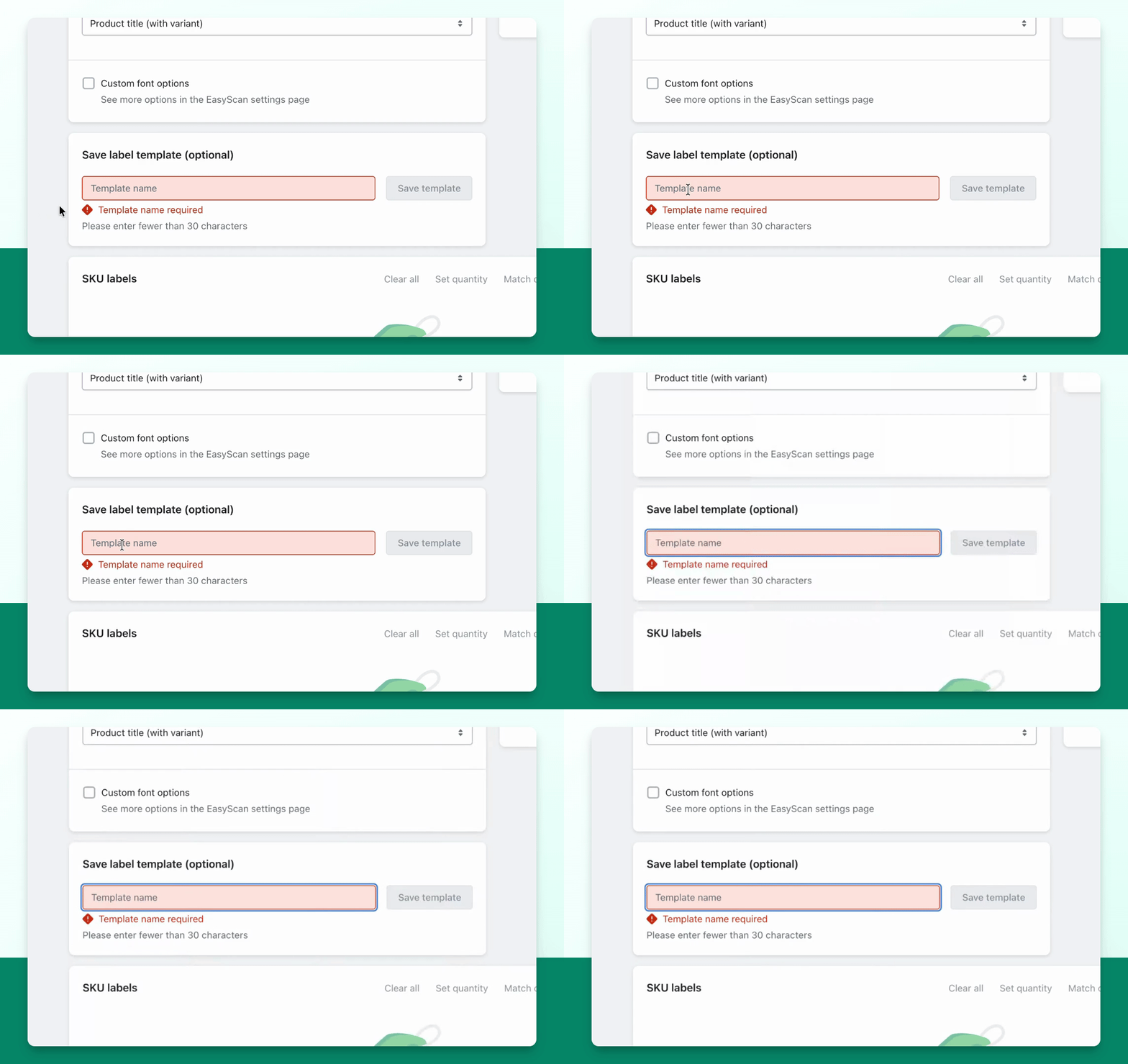
Scroll down and complete any other settings.
Enter a name for your template in the Template Name field.
Click Save Template.
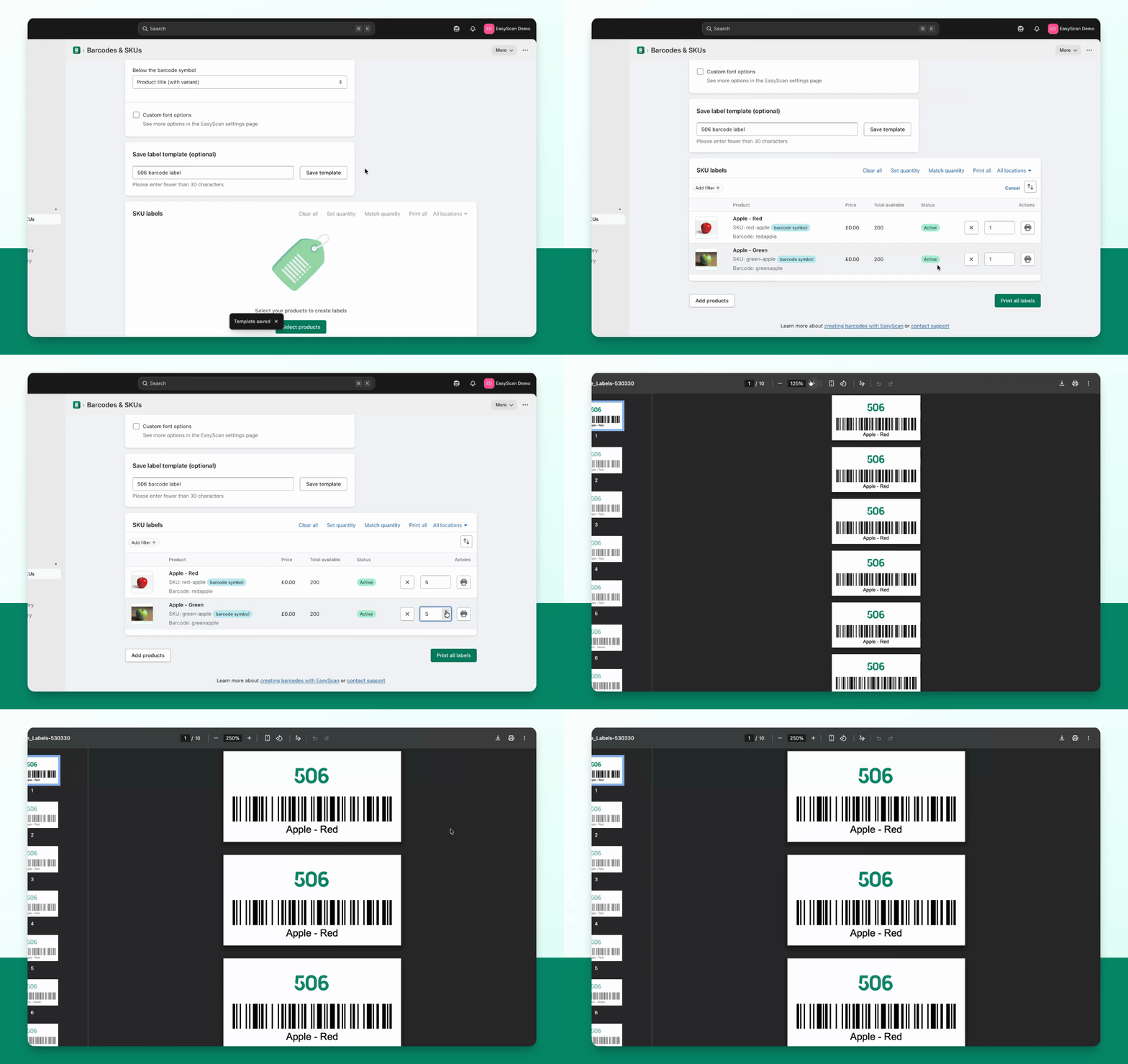
Step 7: Print Your Labels
Select your products and choose the quantity to print.
Press Print All Labels to print the labels with your logo.