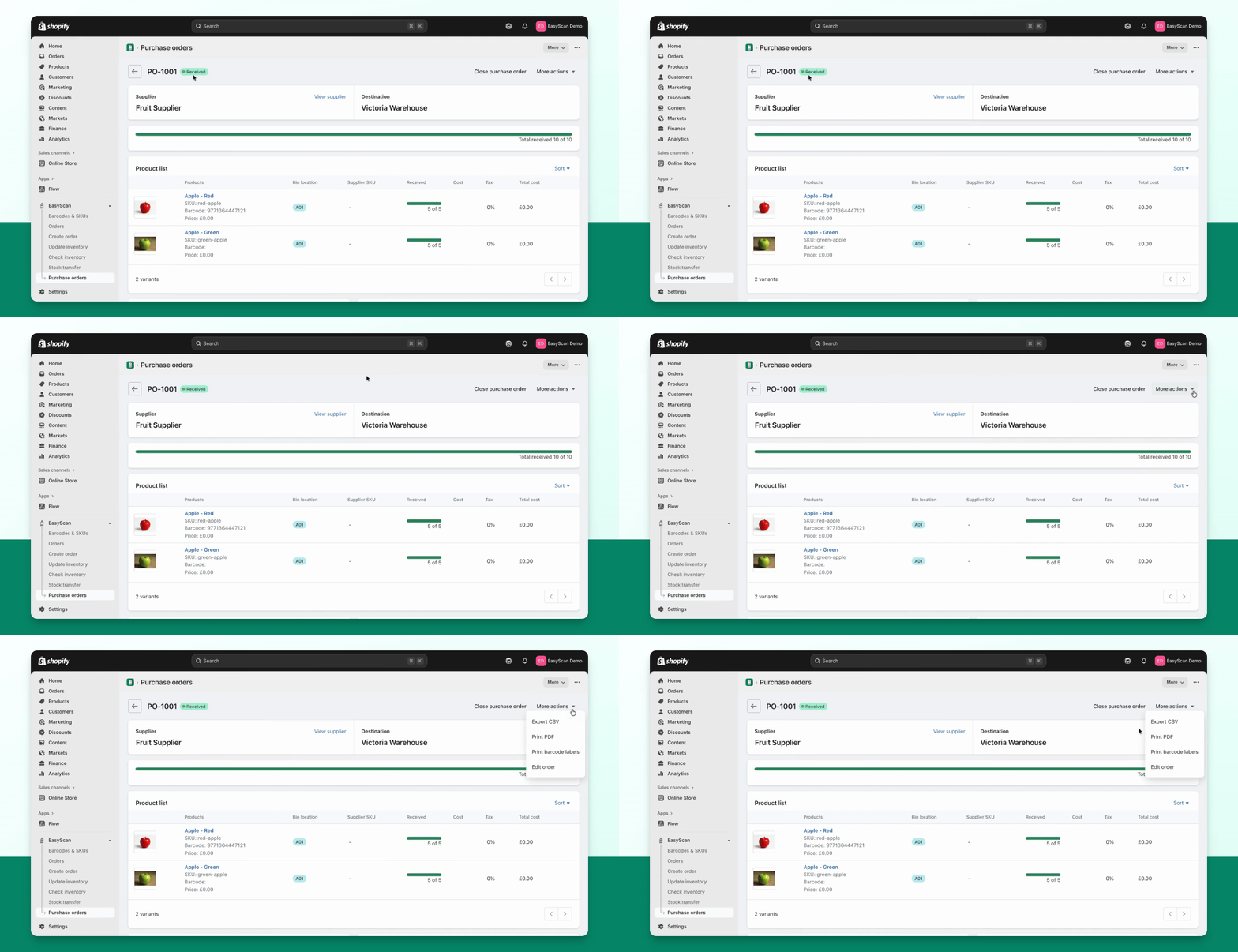
TL;DR
Let's Do It Together!
Step 1: Access the Purchase Order
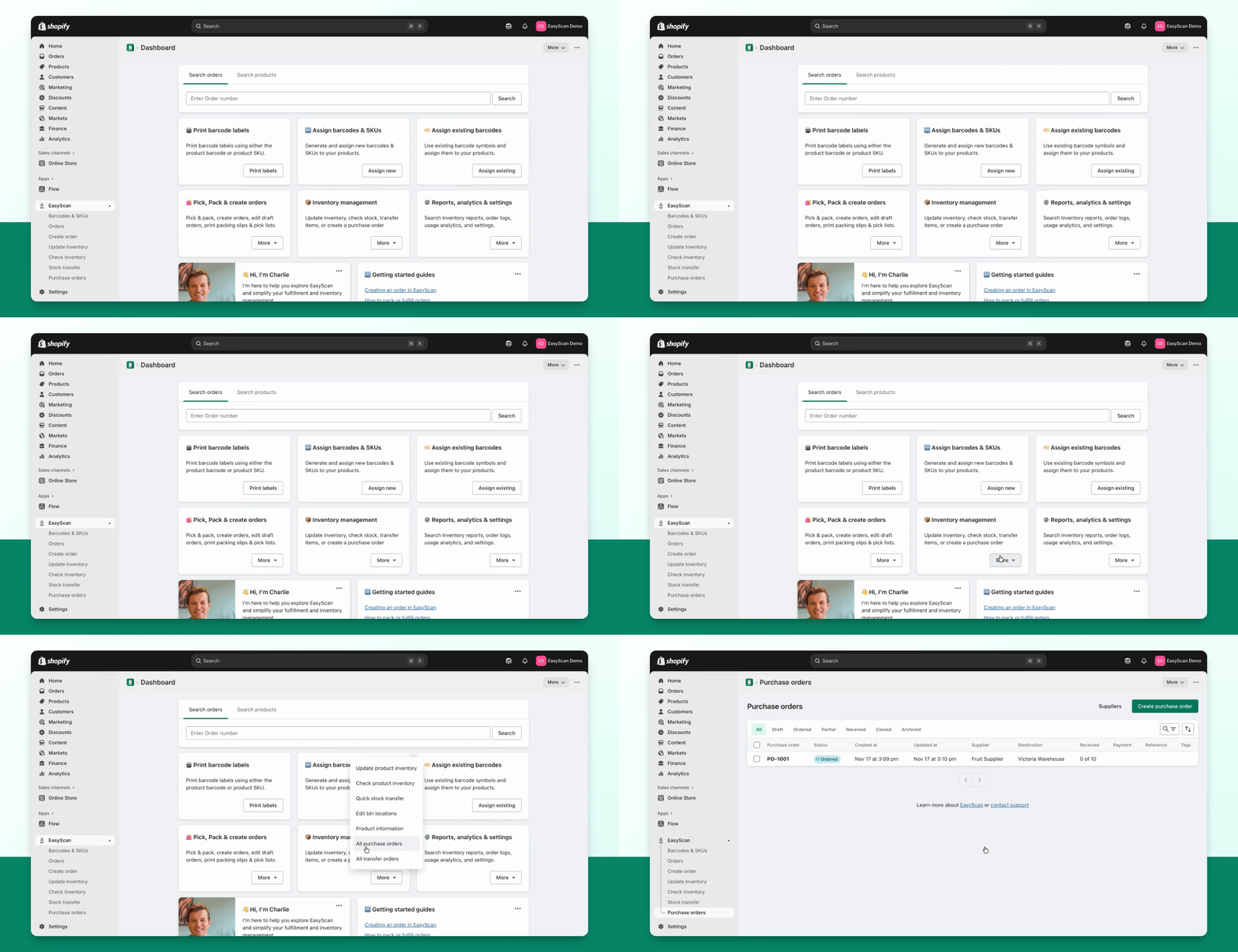
Go to the Purchase Order page.
Select the purchase order you wish to receive.
Click on Receive Inventory.
Step 2: Scan or Select Items
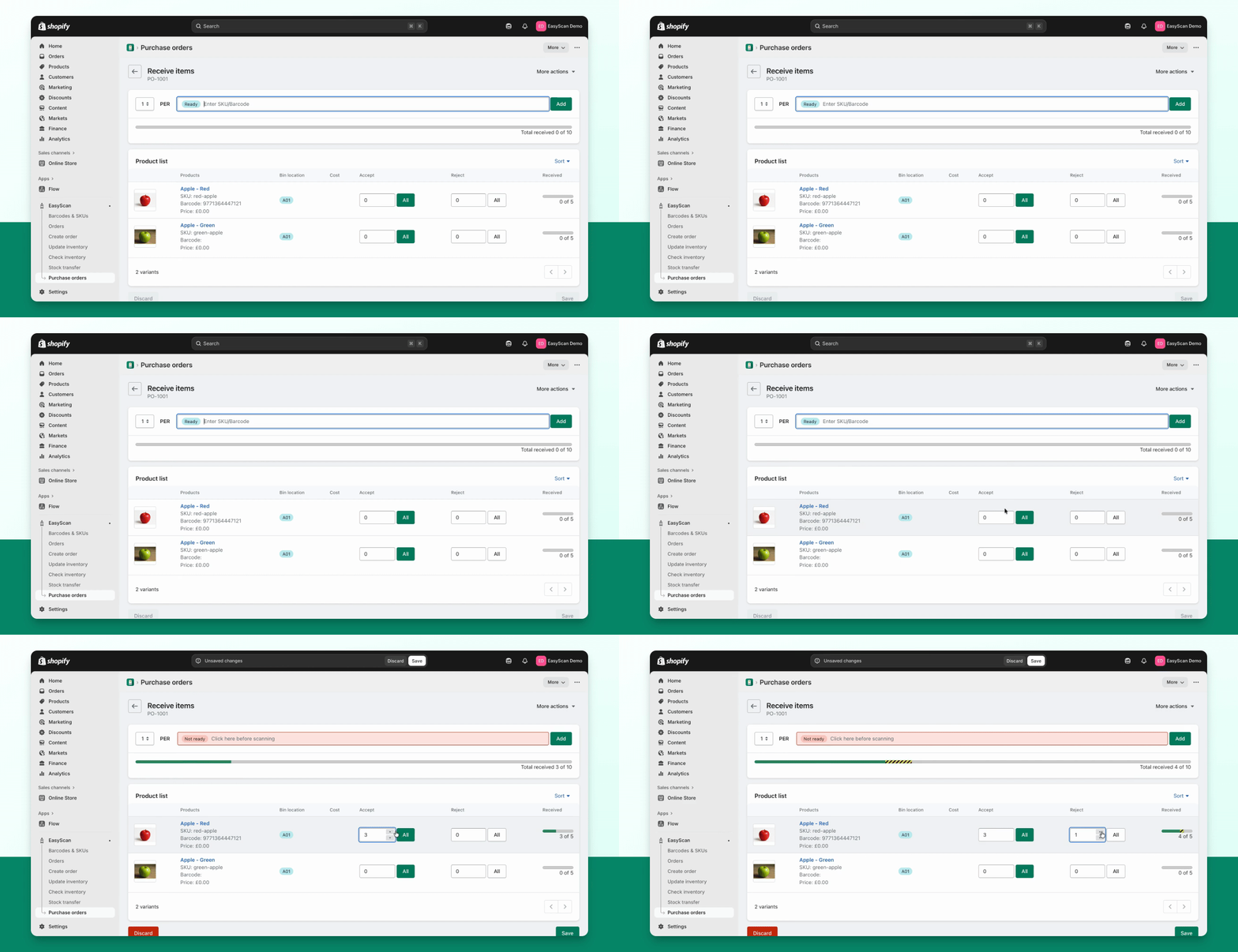
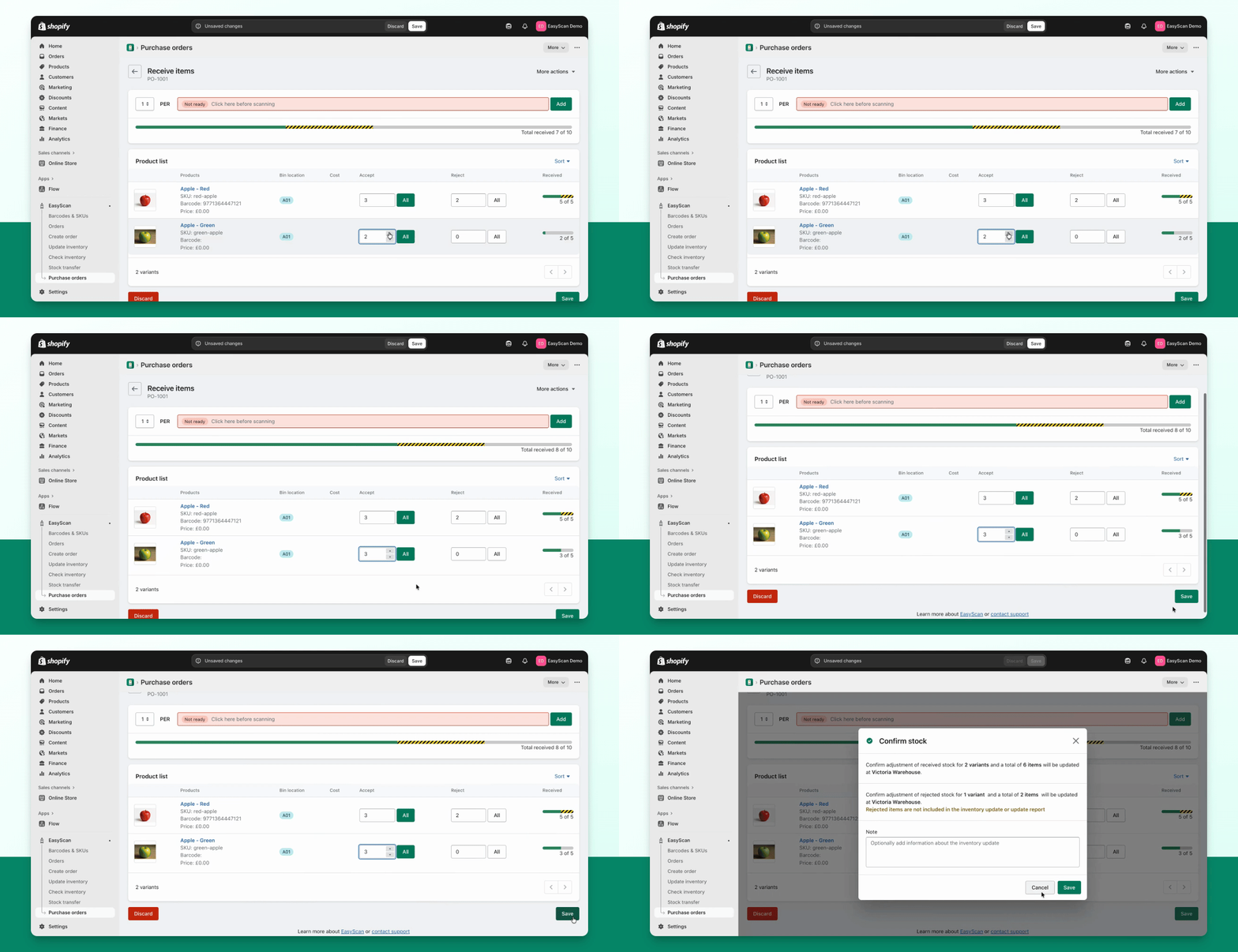
Scan the items you wish to receive.
Alternatively, use the Quantity Selectors to enter quantities.
Step 3: Accept or Reject Items
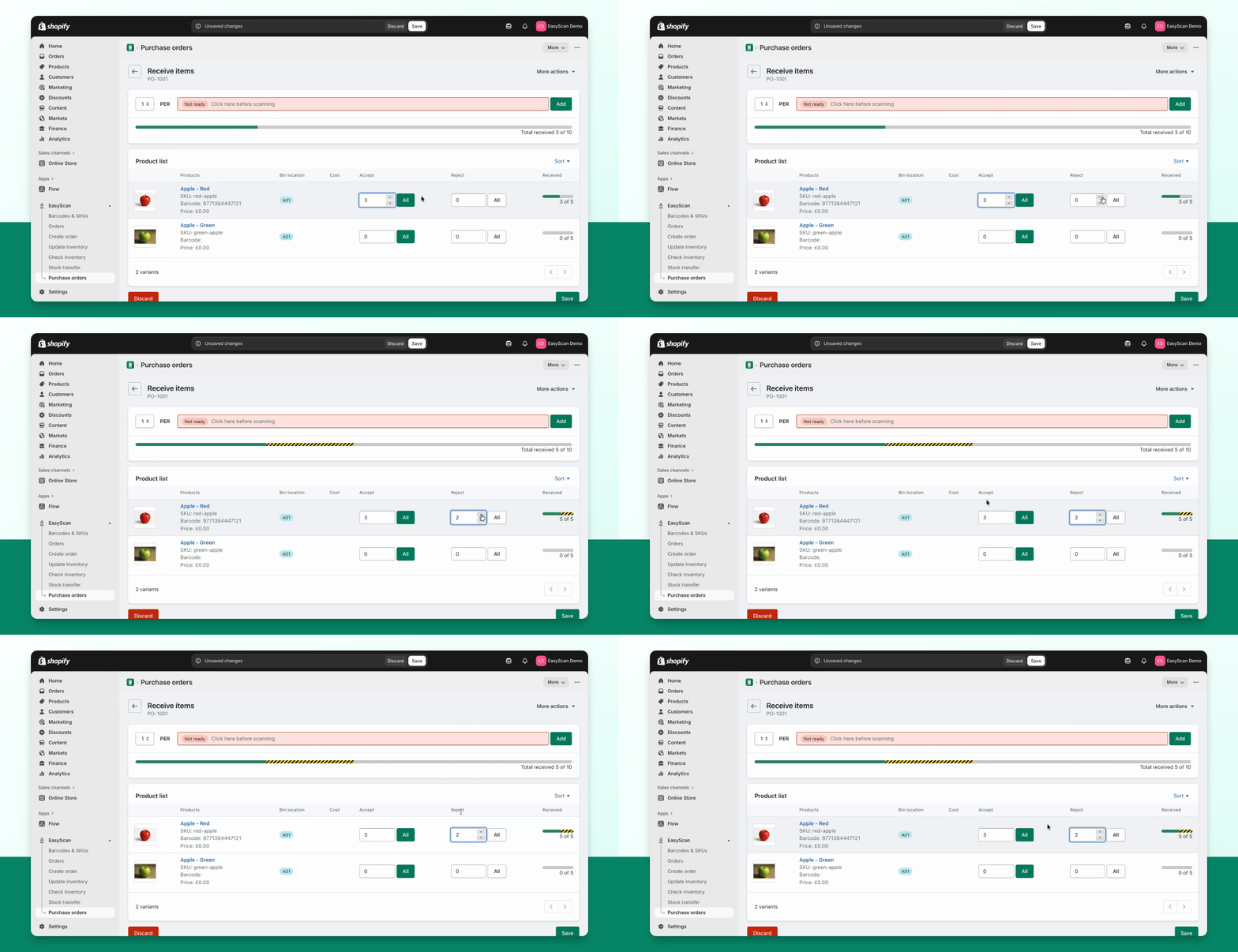
Open the purchase order and select Receive inventory. Scan or enter the units you accept. Use rejected quantities only for units you intend to record as rejected. If units are still expected later, leave them outstanding rather than rejecting the balance.
Step 4: Save Partial Receipts
Review and save. A receipt can leave the order Partially Received. Return to Receive inventory when the next delivery arrives. Once the ordered quantities are accounted for, the PO is Received. Newly accepted units update inventory; rejected units do not add to stock.
This is useful for receiving in multiple dispatchments.
A receipt can leave the order Partially Received.
Step 5: Finalize the Receipt
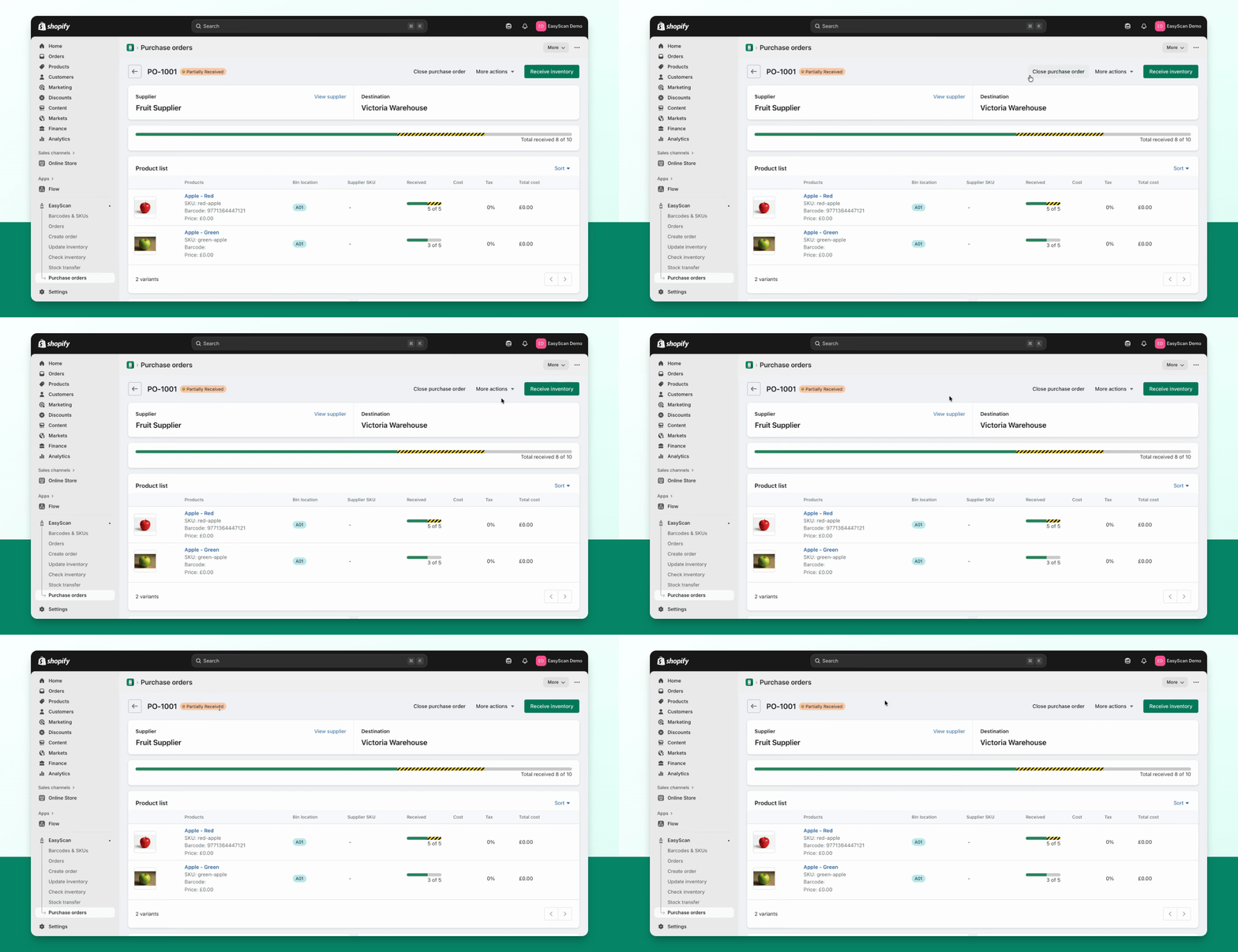
Once you receive the remaining items, click on Receive Inventory again.
The previously partially received items will be displayed.
Receive the remaining accepted quantities in Receive inventory, then review the result.
Finally, click Save.
Once the ordered quantities are accounted for, the PO is Received.
Step 6: Adjustments After Receiving
Correct an earlier receipt
For a Received purchase order, use More actions → Edit received quantities to correct accepted/rejected quantities. This is separate from editing the order’s product details. Review the inventory effect before saving a correction.
The receive screen can show an optional Available quantity column, and line-item notes remain visible for the receiver. Moving Average Cost is optional; enable it only if you want receiving to update Shopify’s cost per item.
After receiving stock, follow Put away stock into bin locations to confirm shelf placement.
For CSV mapping, export options and attachments, see Import, export and share purchase orders.