

Check inventory is now called Inventory count, and Stock transfer is now called Quick transfer. Older walkthrough images may show the previous names. Choose the workflow that matches what you are trying to do:
Update inventory: increment, decrement or set stock at one Shopify location. Review and save to apply the change.
Inventory count: compare a count with Shopify and review any discrepancies before choosing an update.
Stocktakes: run saved barcode or manual counts on Advanced or Pro. Barcode adjustments are applied after review; manual counts sync as they are confirmed.
Quick transfer: move stock immediately between Shopify locations. Use Transfer orders for separate packing and receiving stages.
Bin locations: assign shelf labels, including bulk CSV imports, without changing stock quantities.
Inventory alerts: notify the team when stock meets your rules.
Reports: review stock health and purchasing needs. Use Logs for saved inventory activity.
Before counting or updating, check the location and Inventory mode. Available means stock free to sell; On hand also includes committed and unavailable units. Inventory count and Update inventory can import counts from CSV as well as accept scans or manual selection.
Put away stock into bin locations after receiving or updating inventory.
Visual walkthrough
Step 1: Open Update Inventory
We'll begin with the Update Inventory screen.
This screen is to update inventory levels at a given location. When you go to the screen, you'll be able to select the location where you'll see all your locations.
If you want to skip this module, you can set a default location in the settings.
Step 2: Choose Update Mode
Once on the screen, choose Increment, Decrement, or Set to enter a target inventory quantity.
For this example, we use increment to increase.
You can choose the inventory mode that you'd like to use so you can see the available inventory or the on-hand inventory.
Step 3: Add Product
Now you can either manually select a product or you can scan its SKU or barcode.
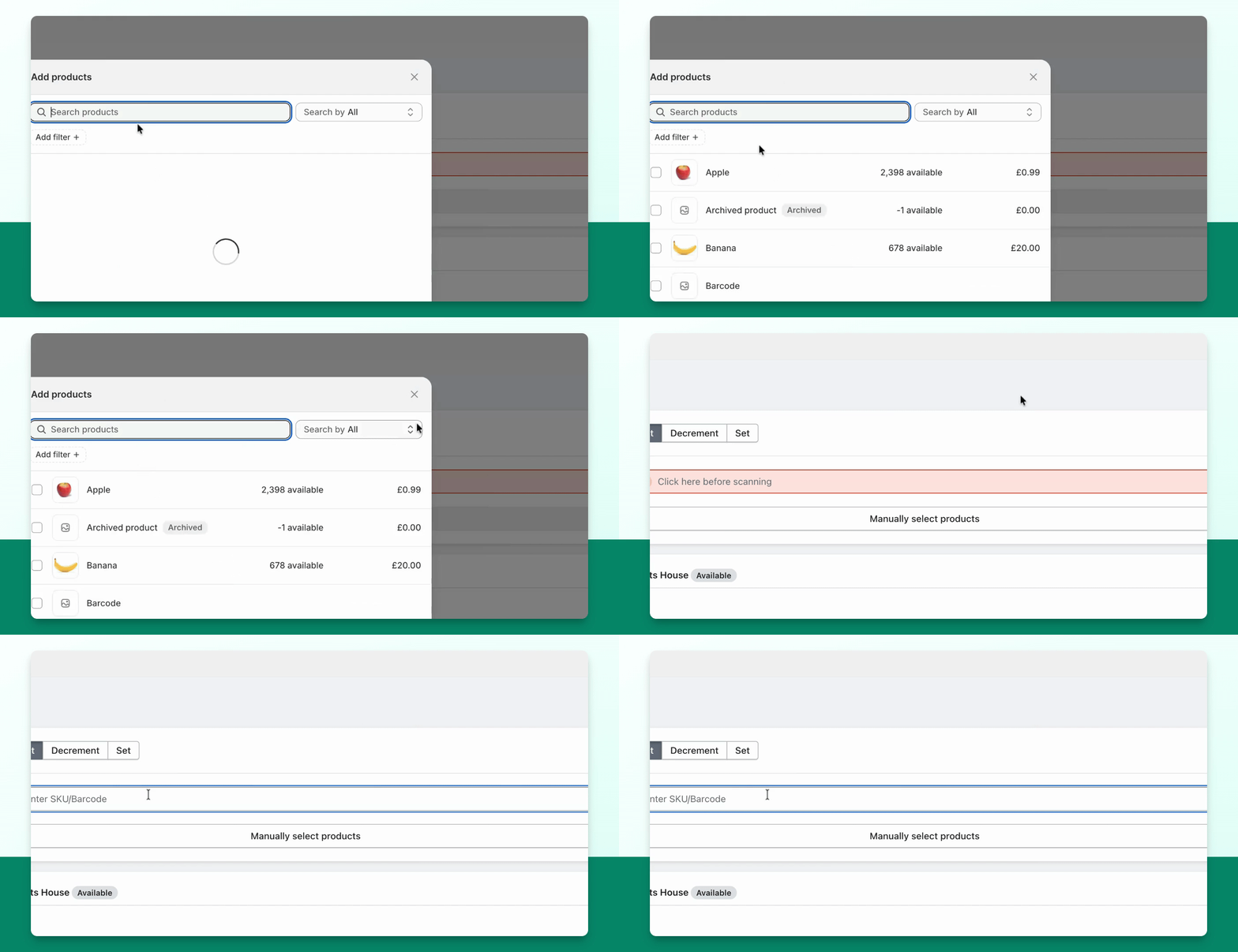
Once added, you'll see it appear in the table below with the bin location.
Information regarding the adjustment levels of the current inventory levels and how much you're increasing it by will appear.
Step 4: Print or Save Update
Review your quantities and select Save update to apply the stock change. Printing a report alone does not apply it.
You can include a reason and a note for the update.
Step 5: Inventory count
Now you can go to the next feature, which is Inventory count. This is great for small stock takes of products.
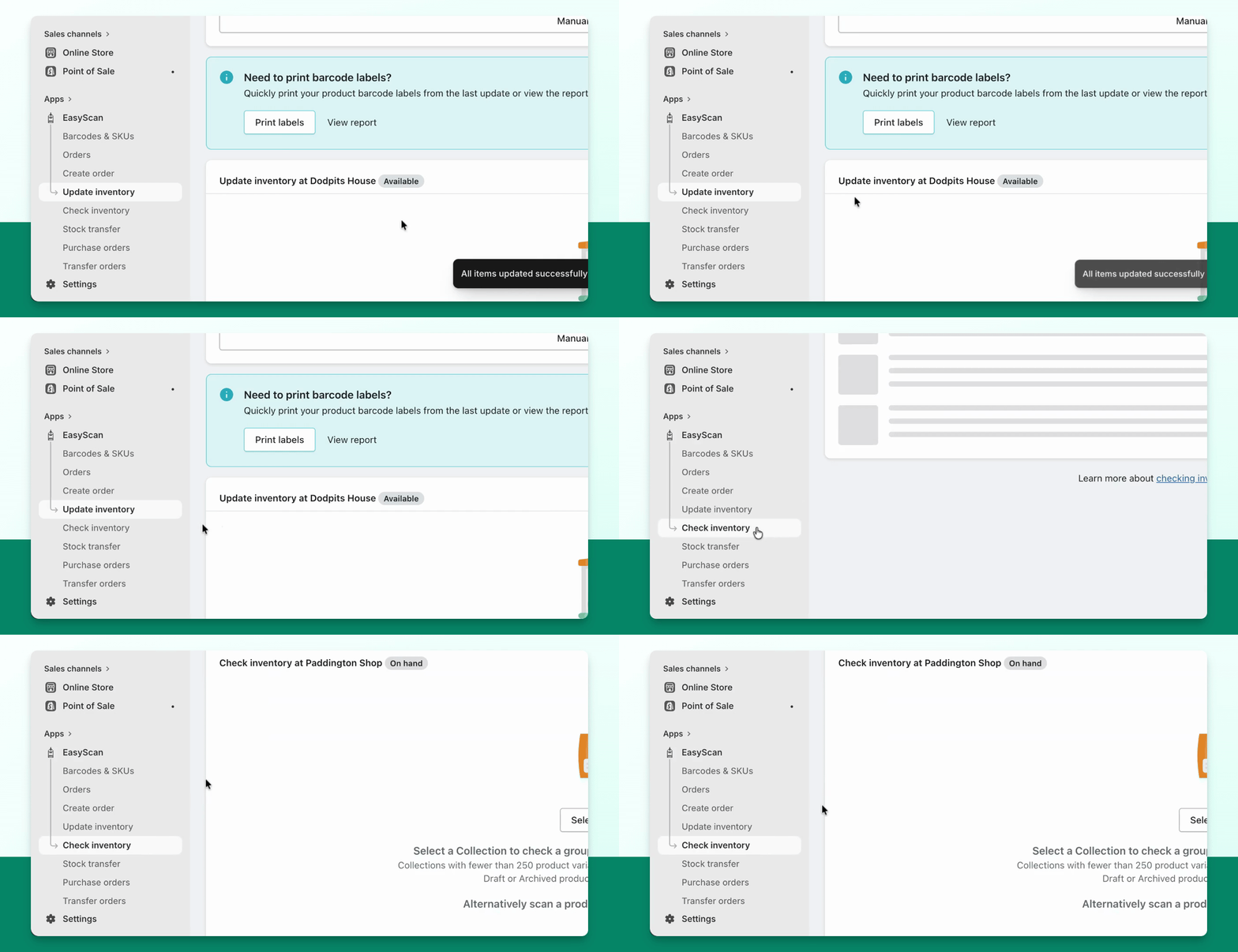
You can choose the location for the stock take. You can change the inventory mode and either manually select a product, scan it in, or choose based on collection.
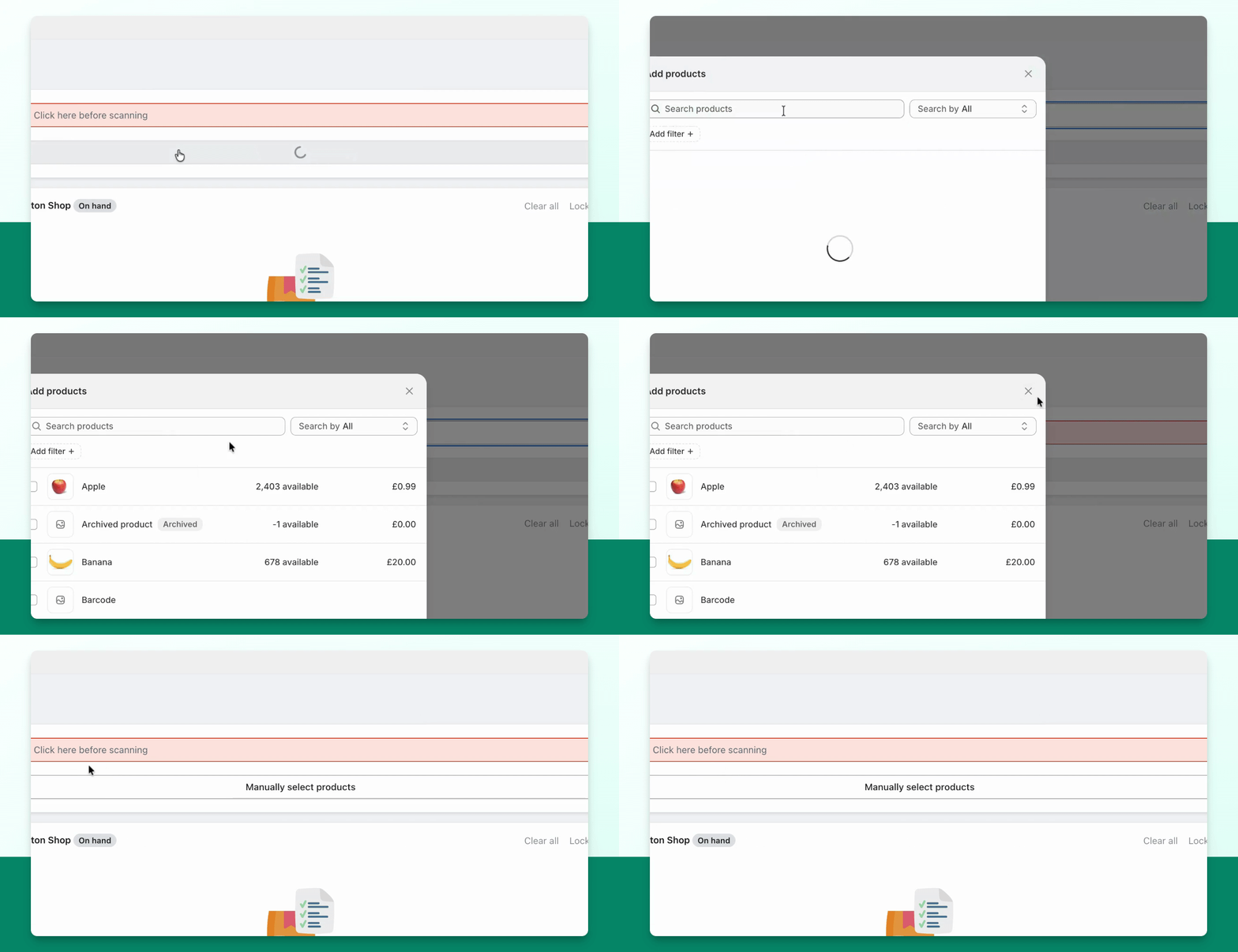
Step 6: Scan Product
For now, we'll scan the product.
You can see that the apple has been scanned in.
Step 7: Lock List
Once you've imported all your items, you can then lock the list to ensure no other items can be scanned in.
Just make sure that you're not accidentally scanning an incorrect item.
This will show you the on-hand difference and count. Make sure you have as much of the item as you expect to have.
Step 8: Save Report
You can also manually change the amount here to the correct amount and then save report.
If there are any discrepancies, you can view the suggestions provided.
You can save this as a draft or update the inventory immediately.
If you applied an inventory update, check the result and resolve any failed items before continuing.
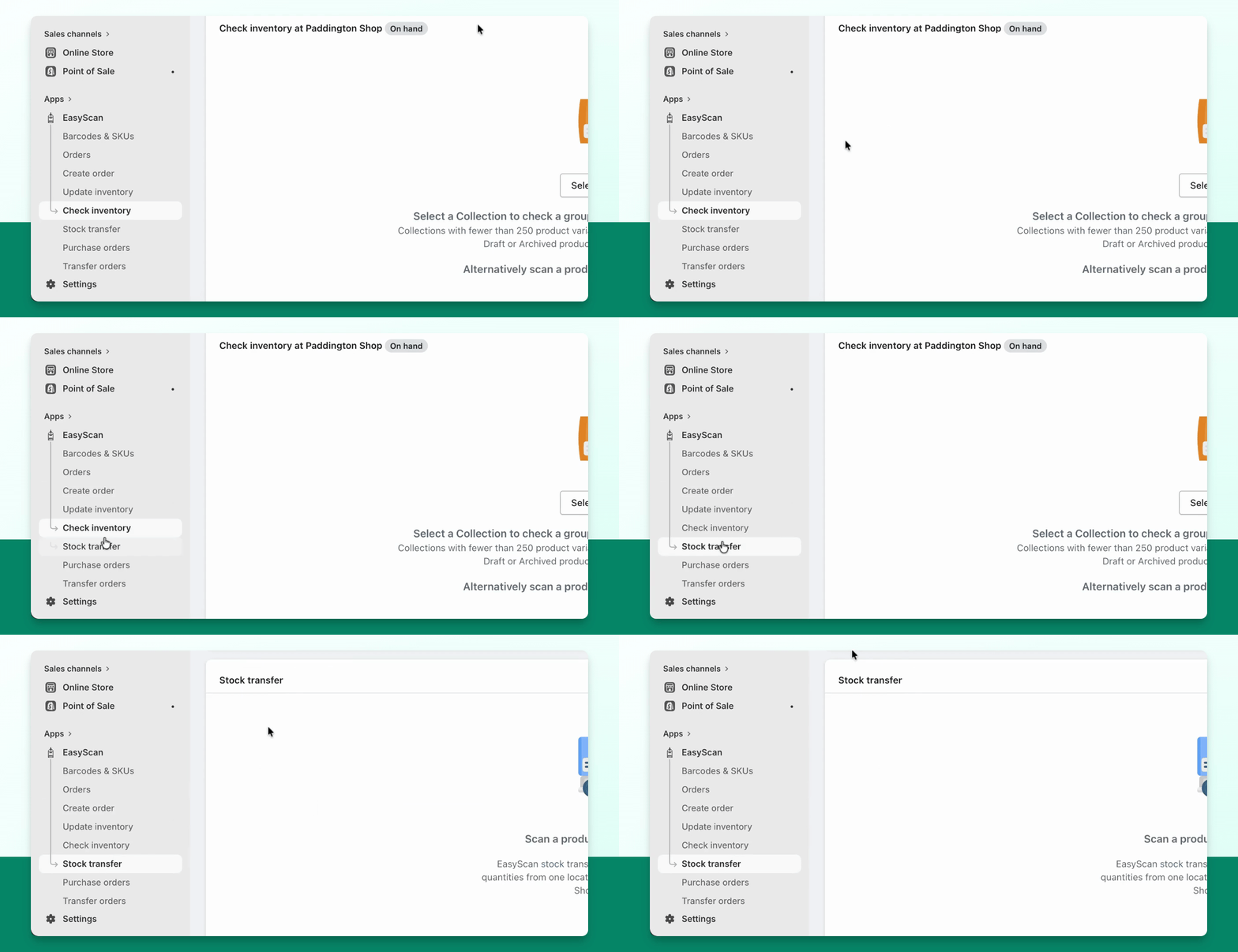
Step 9: Quick transfer
We also have a Quick transfer feature to move stock from one location to another.
This works similarly to the other pages; you can scan a product and select how much to move.
Step 10: Bin Locations
We have a bin locations feature where you can scan a product and see the bin locations it's assigned to.
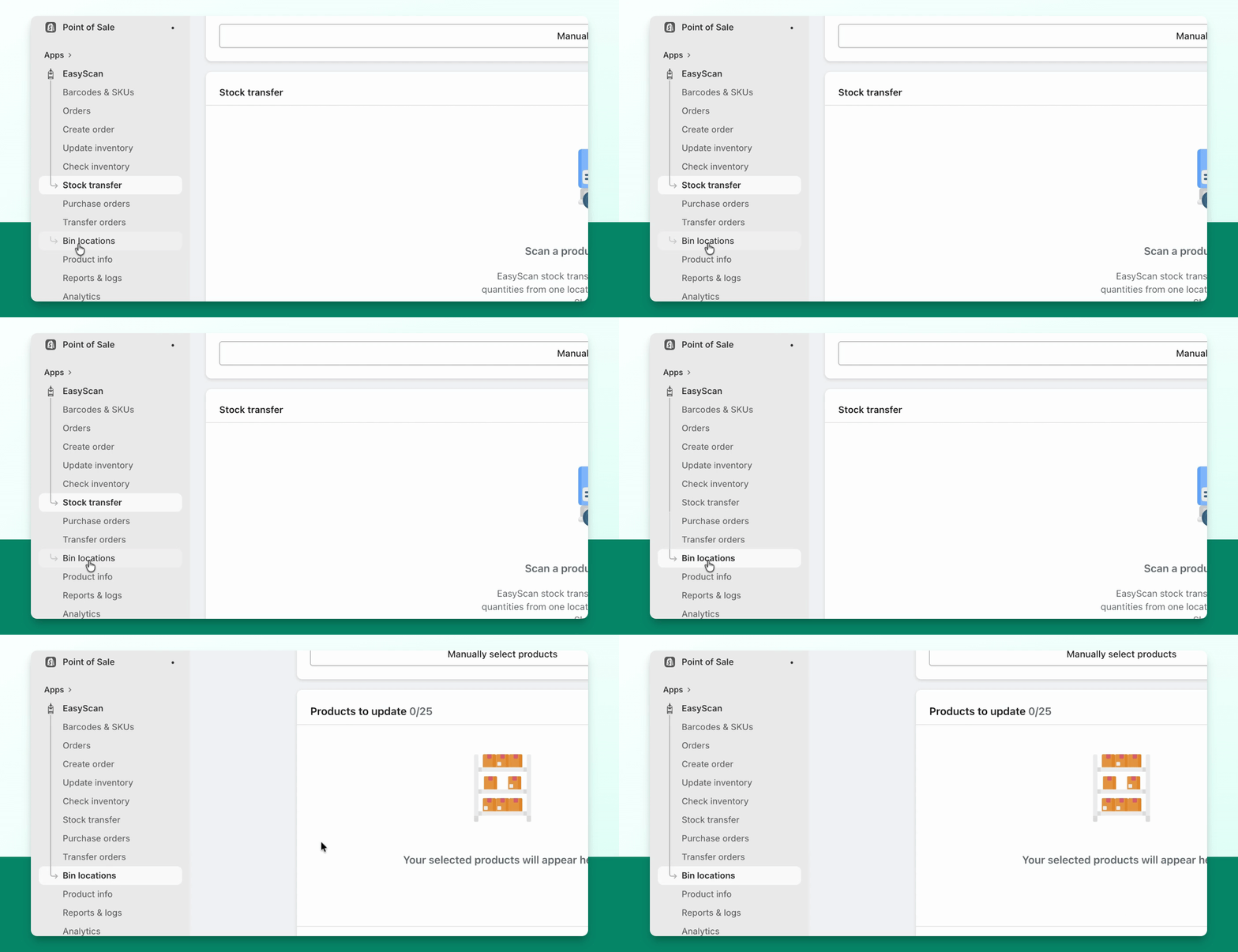
You can update up to 25 items at a time and assign them to more bins.
Set the bin location, and it's now been appended.
You can print bin location labels or create a report of all the bin locations available at your warehouse or store.
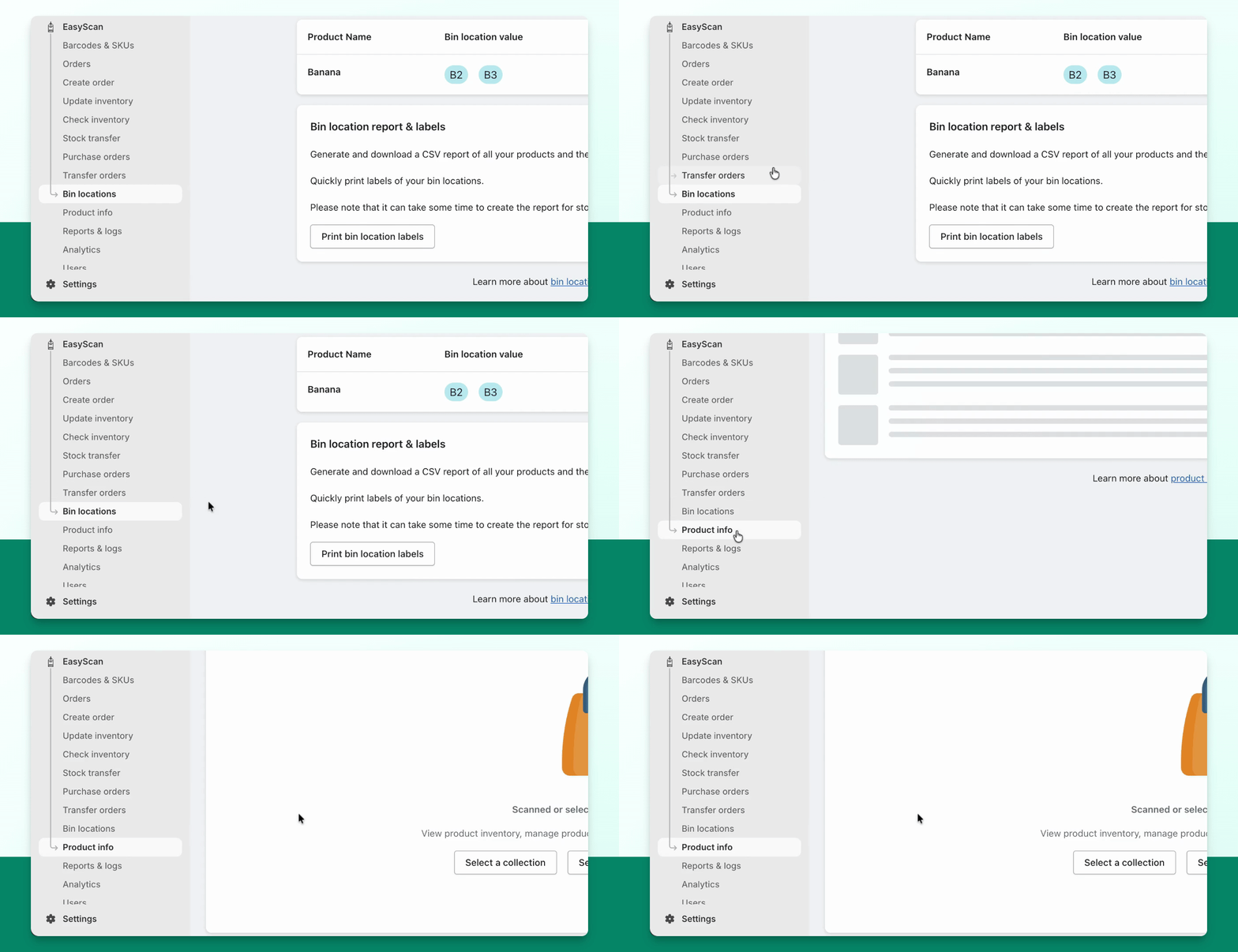
Step 11: Product Info Page
Finally, we have a product info page that allows you to get information on your products.
From here, you can scan in a product, view its bin location, and edit the columns in the settings page.
Step 12: Add New Product
If you press Add New Product in the corner, this will take you to the Shopify admin to create new products in your Shopify store.