TL;DR
Reject only units you intend to record as rejected. Leave units expected later outstanding.
Press Receive Items to save the accepted units. The receipt can be partial.
Let's Do It Together!
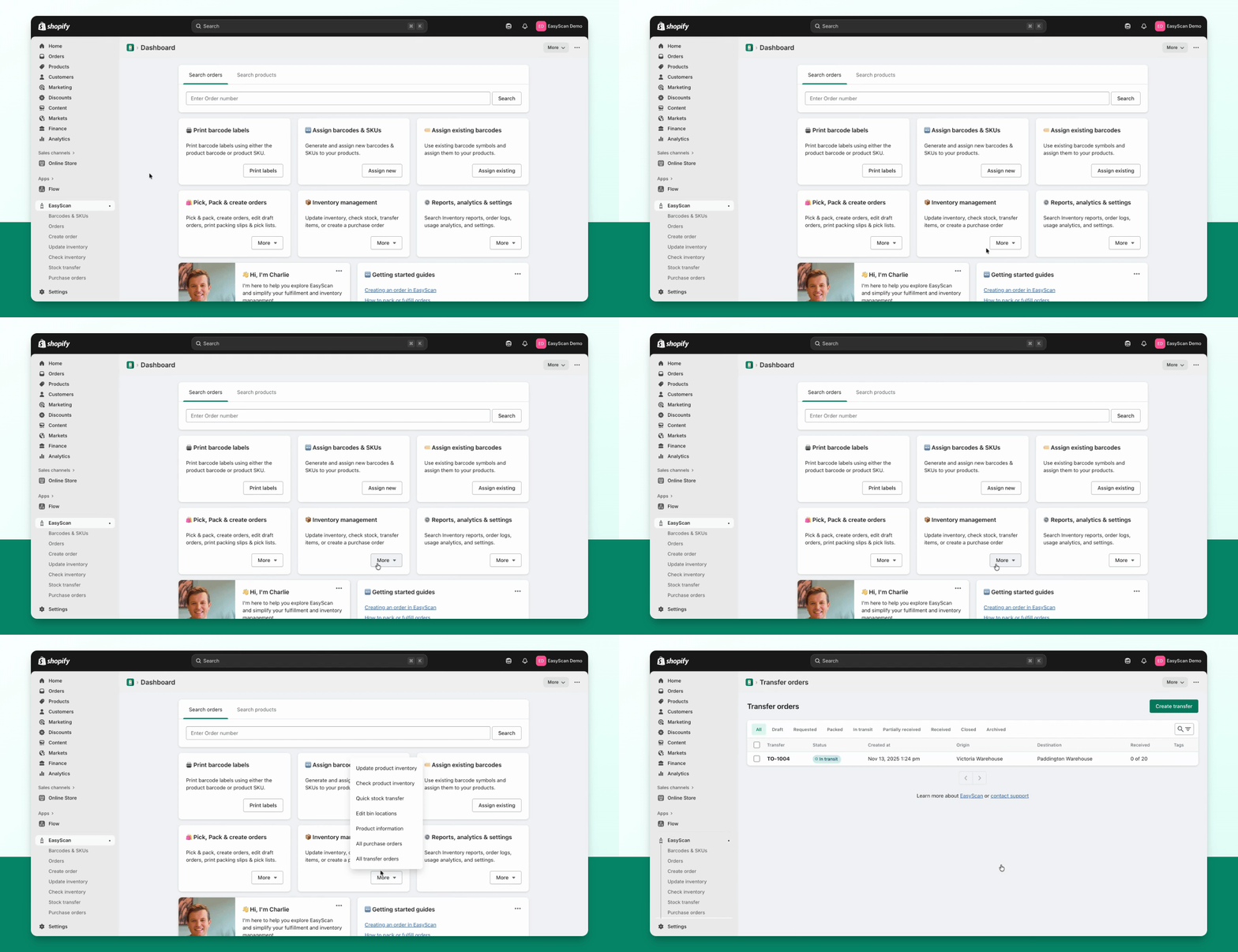
Step 1: Access Transfer Orders
Navigate to the Transfer Orders page.
Select the transfer order you are ready to receive.
The selected transfer order will display its current state.
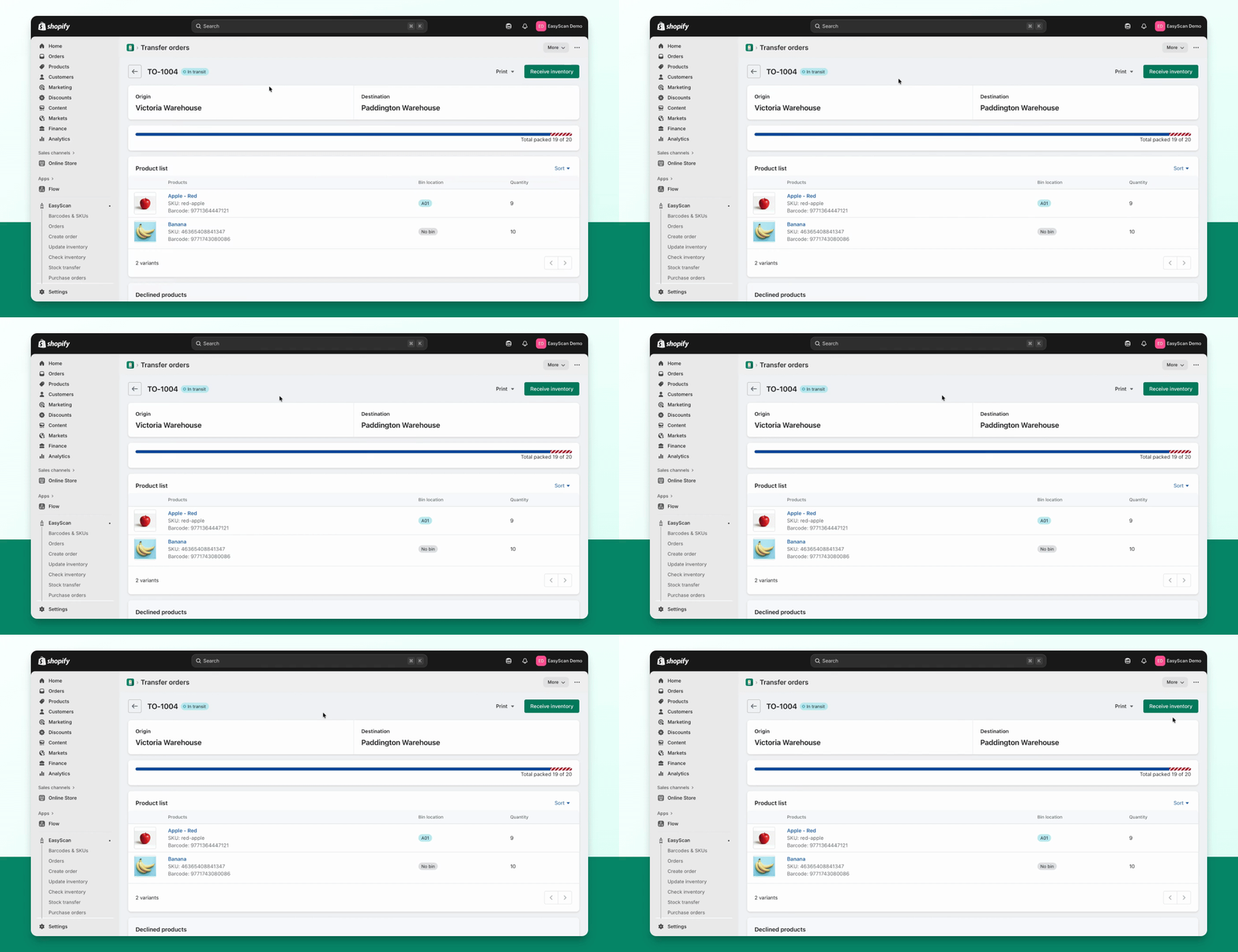
Step 2: Receive Inventory
Press the Receive Inventory button.
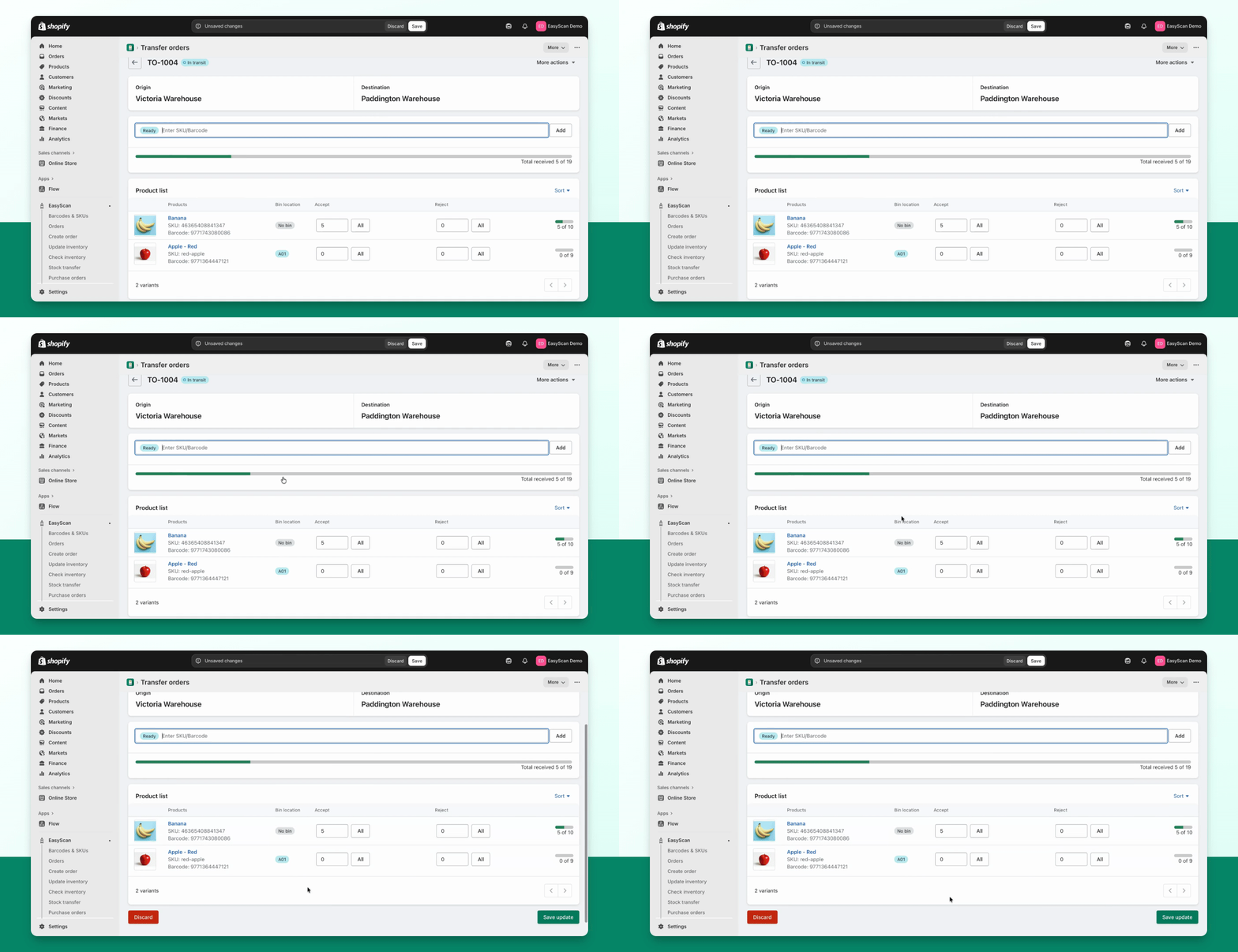
You can either use the buttons on the page or scan the barcodes.
Step 3: Review Accepted, Rejected and Outstanding Items
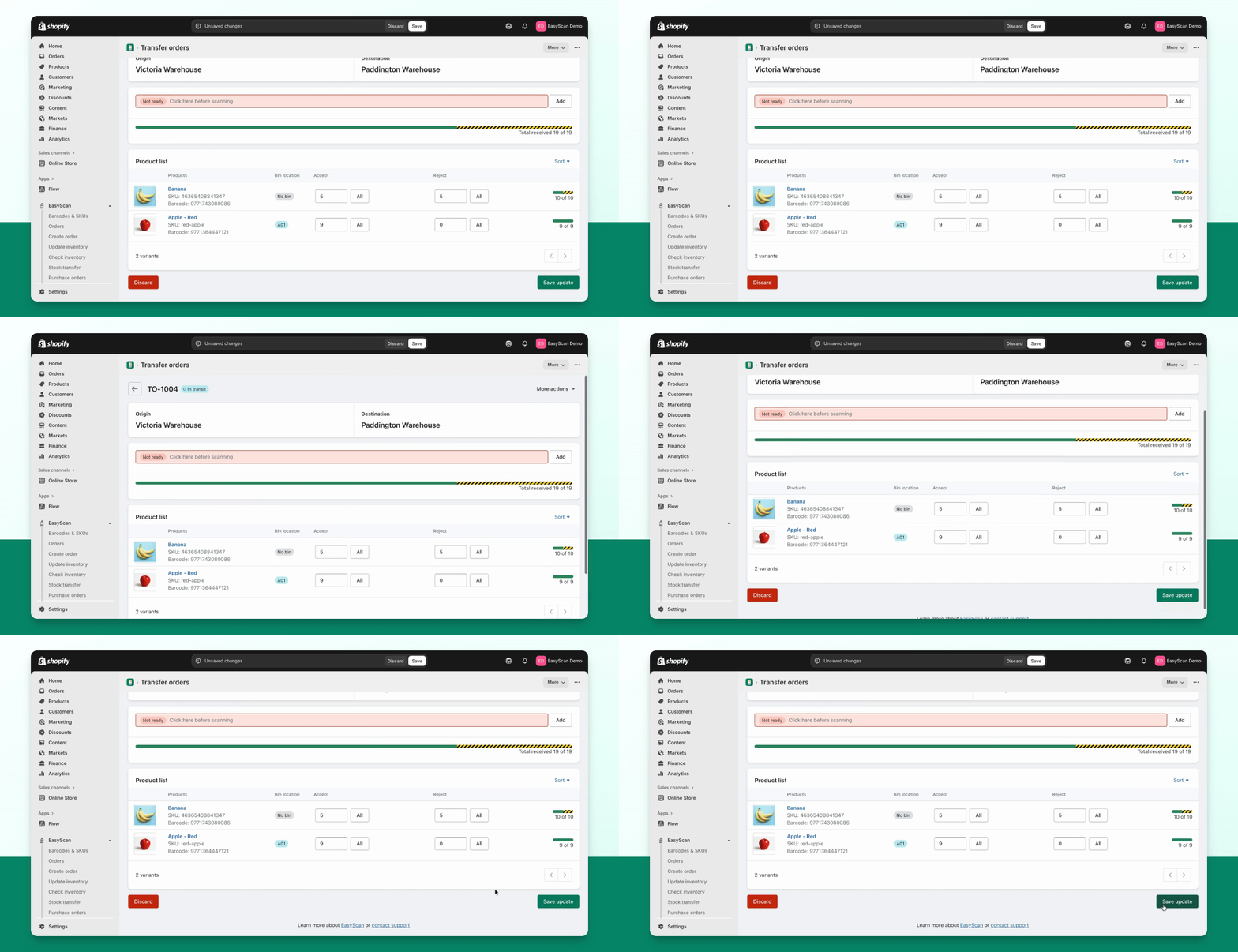
Accept the units that actually arrived and are being received into destination stock. Reject units only when you intend to record them as rejected—for example, damaged units you will not accept. If the rest of the shipment is still expected, leave those quantities outstanding and save a partial receipt.
You can also press the all button to accept or decline all products quickly.
Step 4: Save and Confirm
Once you're satisfied with everything, press Save Update.
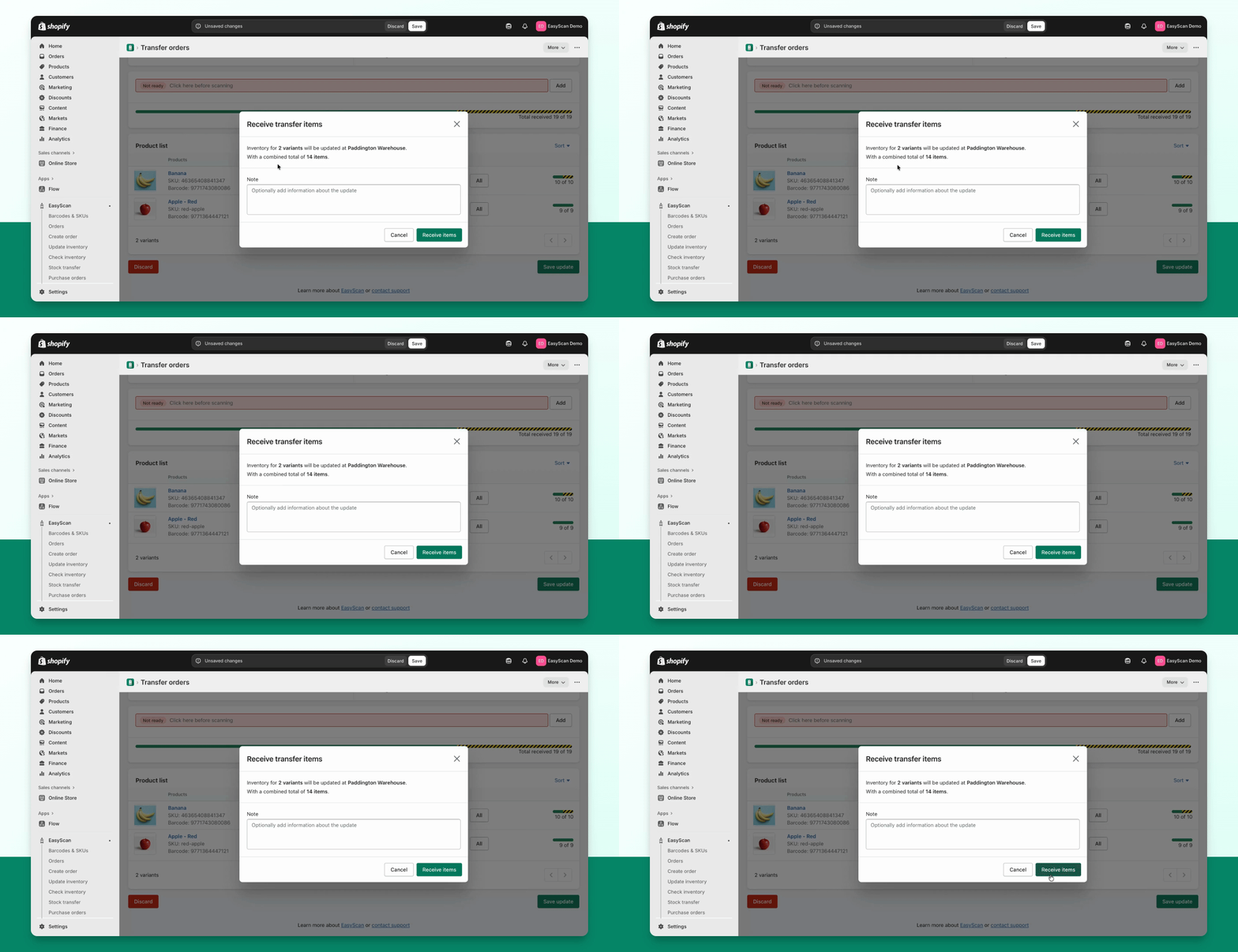
A confirmation message will appear, allowing you to add notes.
Step 5: Finalize Receipt
When ready, press Receive Items.
Saving a receipt adds the newly accepted units to destination stock. Review the result and any errors. Return to Receive inventory for a later delivery; the transfer becomes fully received once its packed quantities are accounted for. Close and archive it when the workflow is finished.
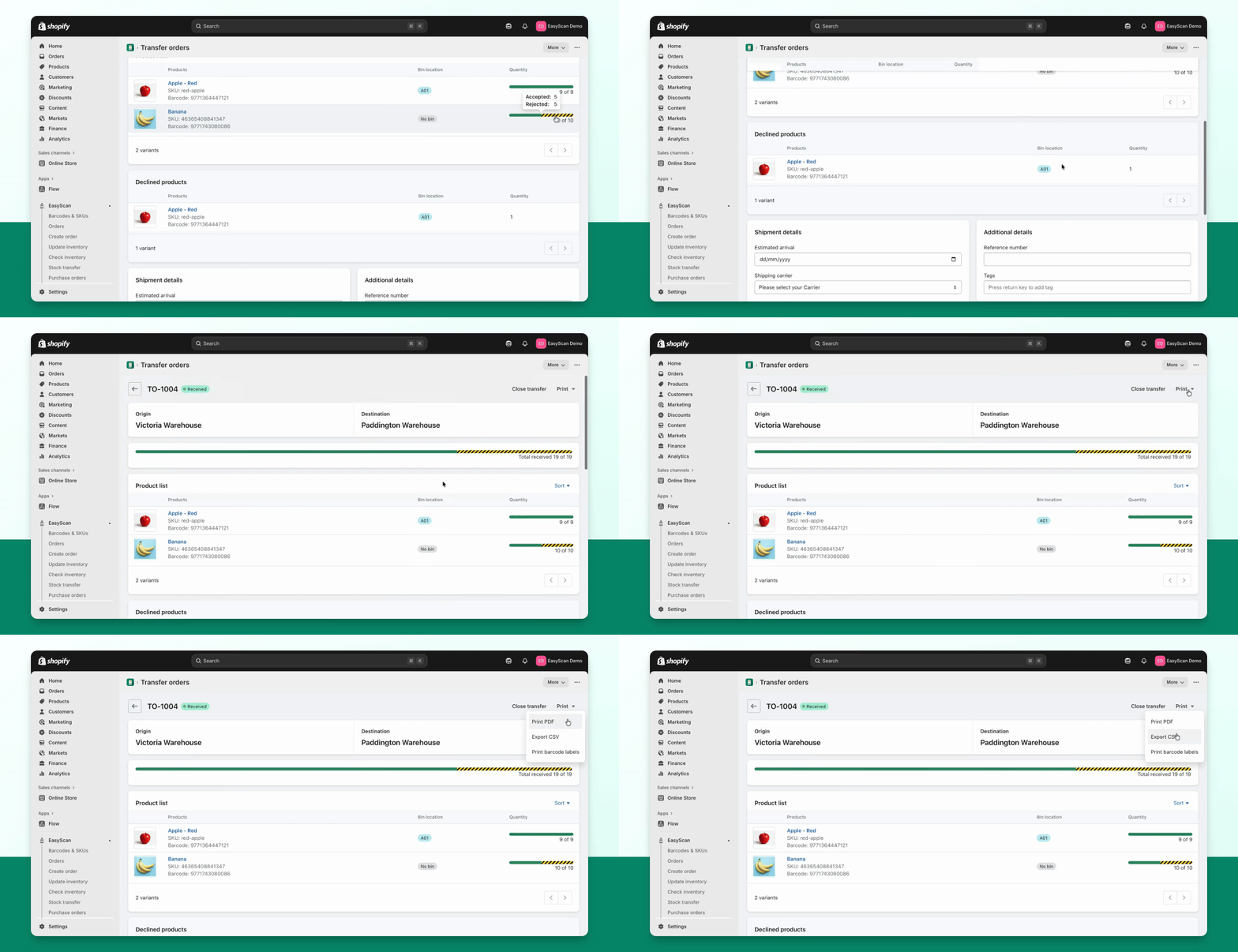
You will see all products received, declined, and rejected.
Step 6: Manage the Transfer Order
You can print a PDF, export a CSV, or close the transfer order.
Closing the transfer signifies to other users that it is complete.
Once closed, you can archive the transfer order.