TL;DR
Press Mark as packed and add notes before confirming.
Let's Do It Together!
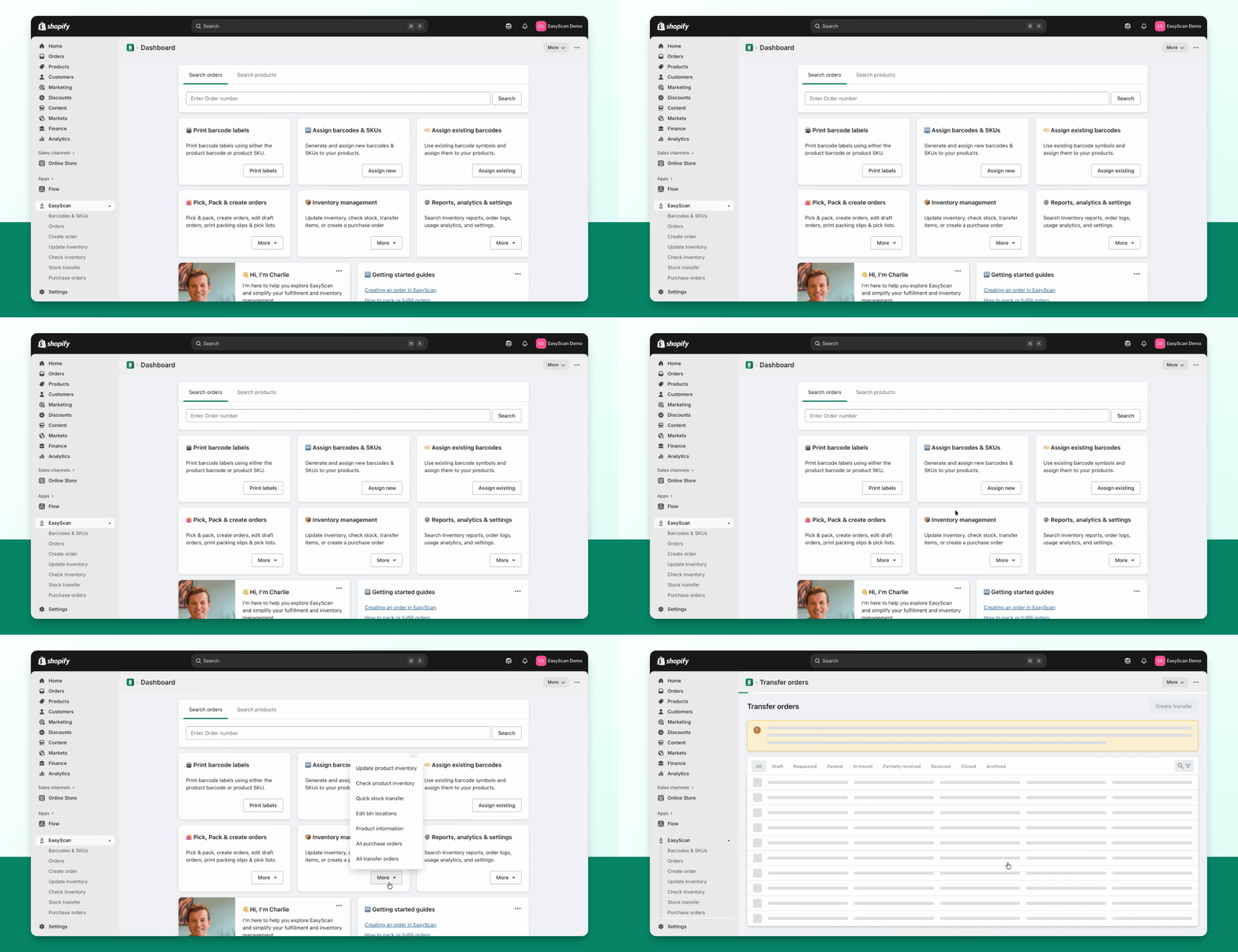
Step 1: Open Transfer Order
Go to the Transfer Order page.
Click on the transfer order you wish to pack.
Step 2: Start Packing
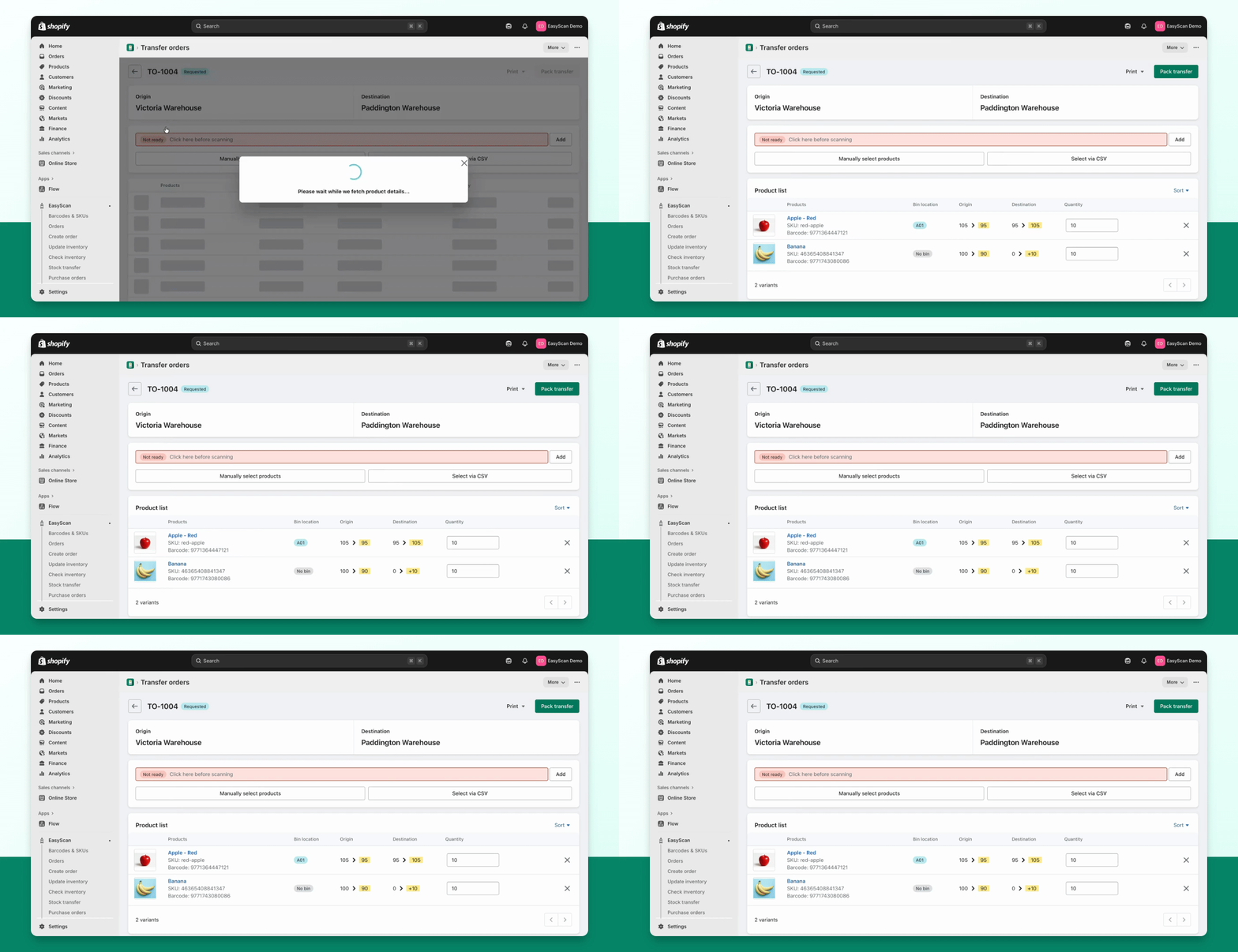
Press the Pack Transfer button to begin.
Step 3: Pack Items
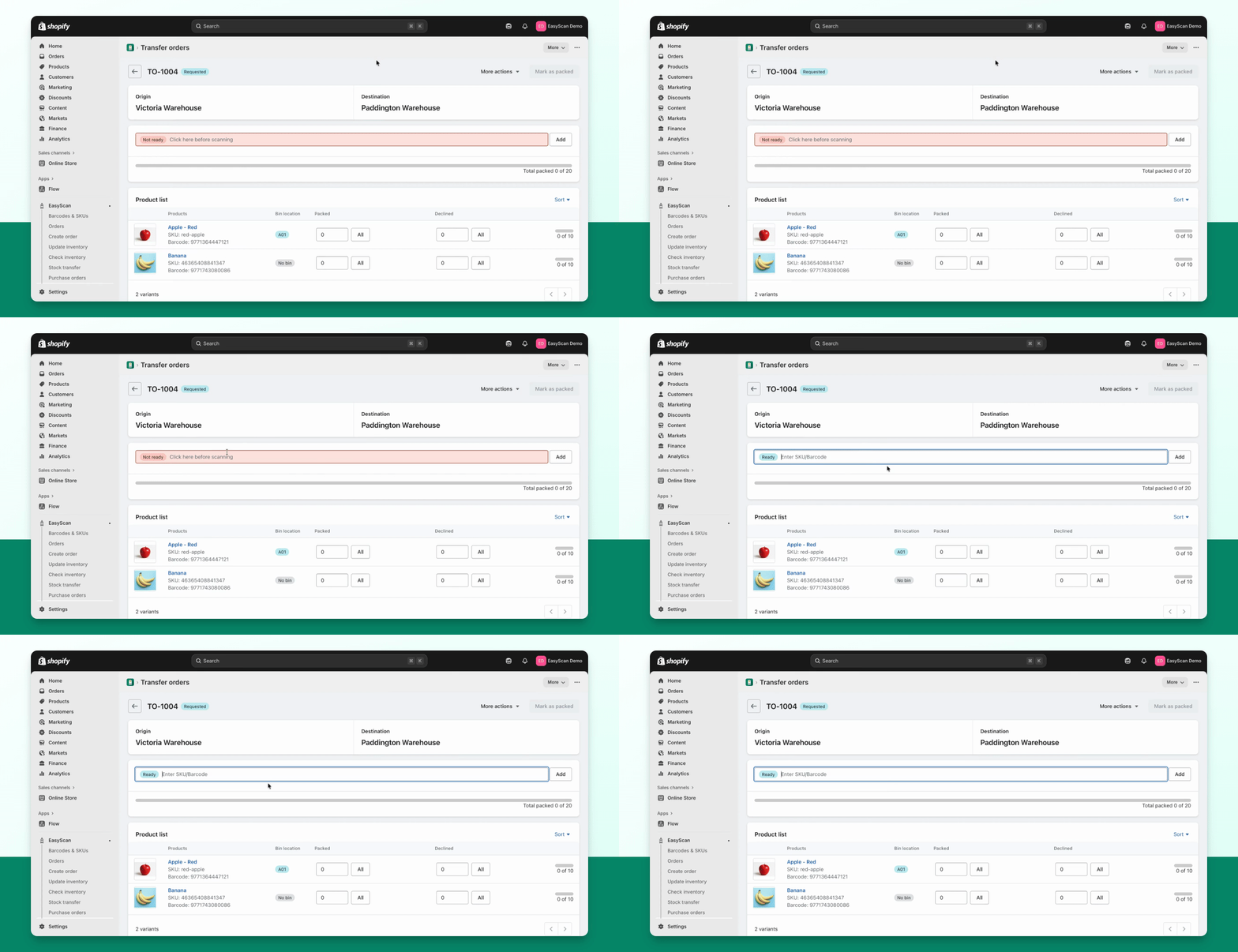
Use your barcode scanner to scan products as you pack.
You can also use the buttons on the screen to pack items.
To quickly pack everything, use the All buttons.
Step 4: Decline Items
If needed, decline any items using the Decline button.
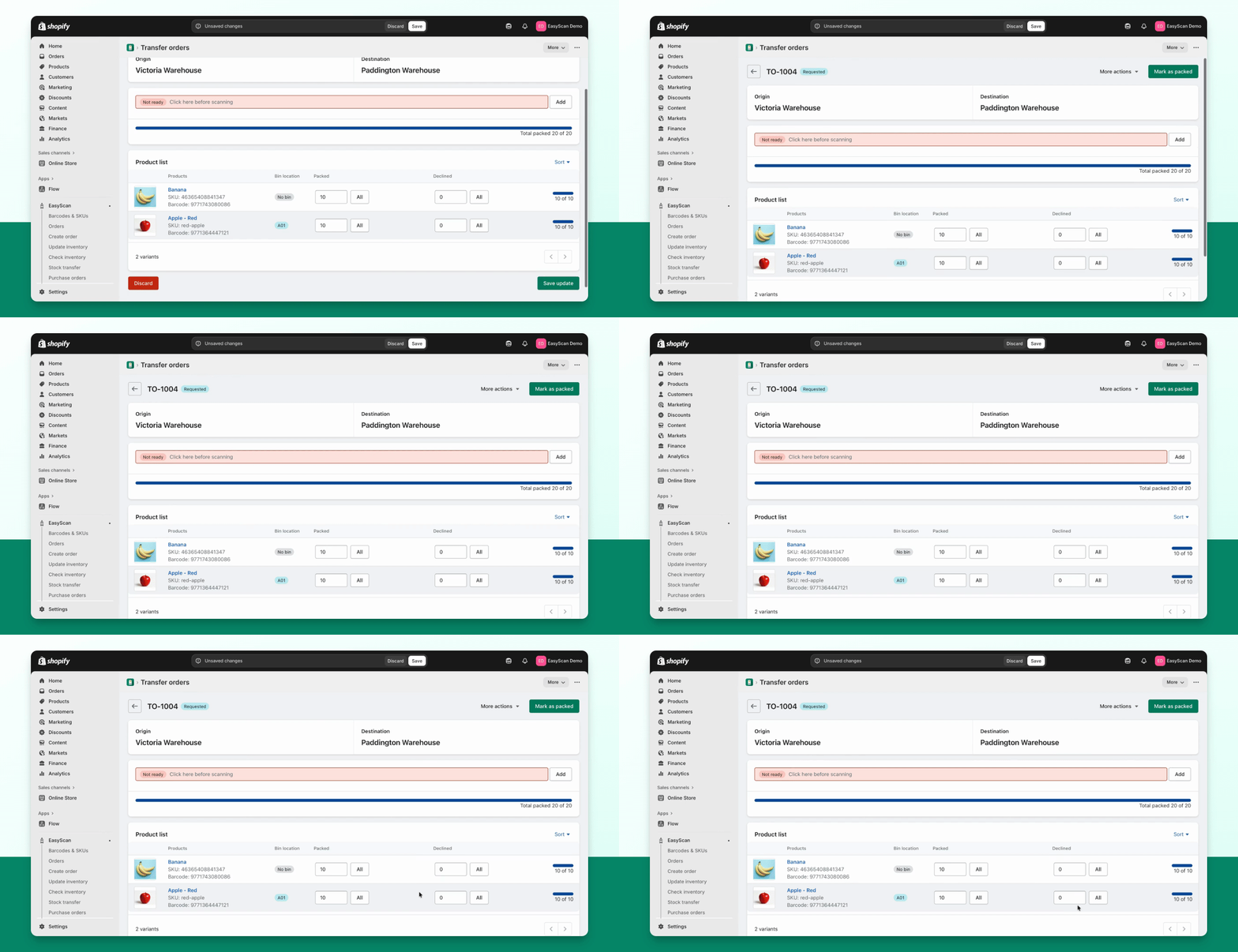
Step 5: Mark as Packed
Press Mark as packed when satisfied with the items.
A warning will appear, indicating a change in item quantities.
Once confirmed, proceed to add notes and press Pack Transfer.
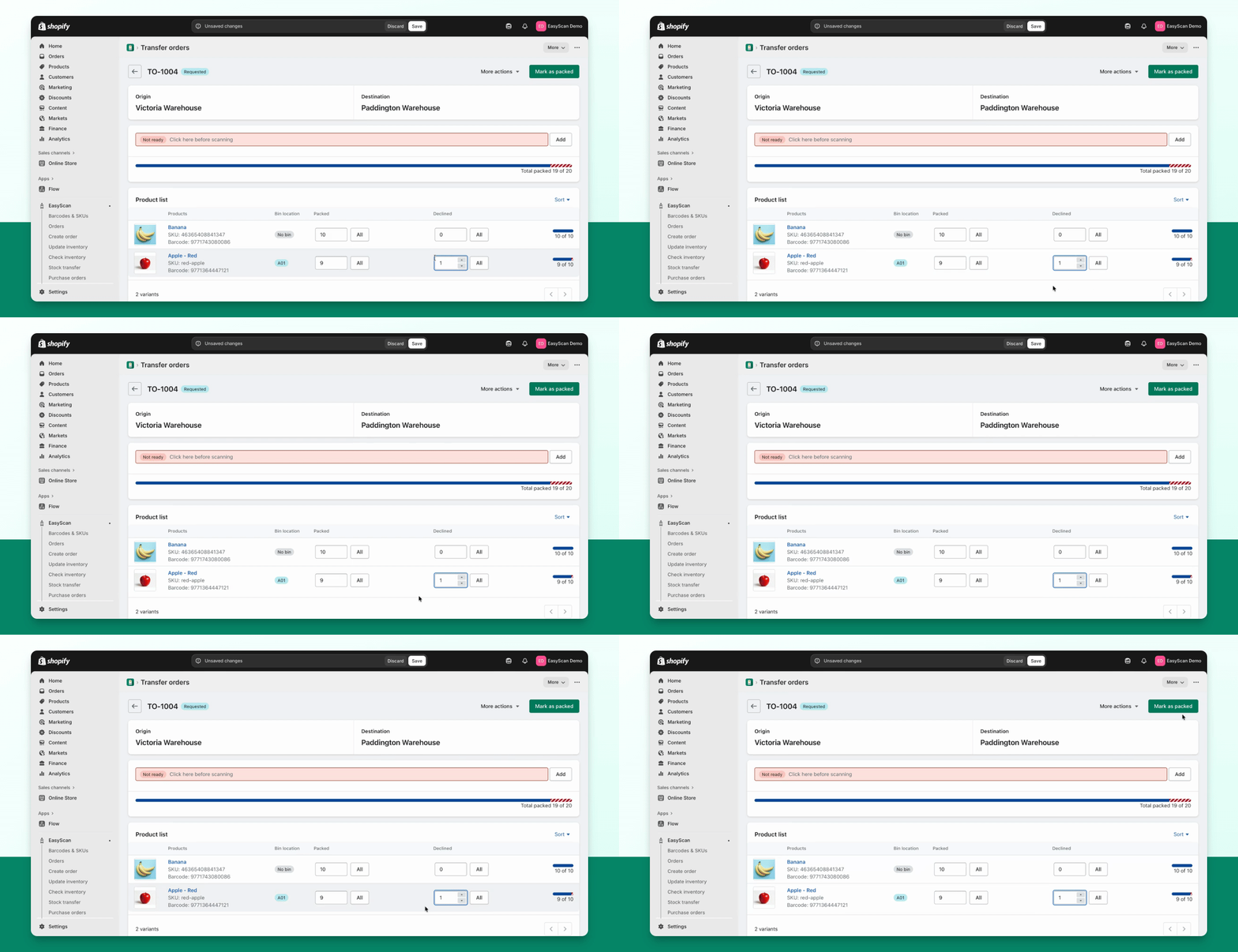
Step 6: Complete Packing
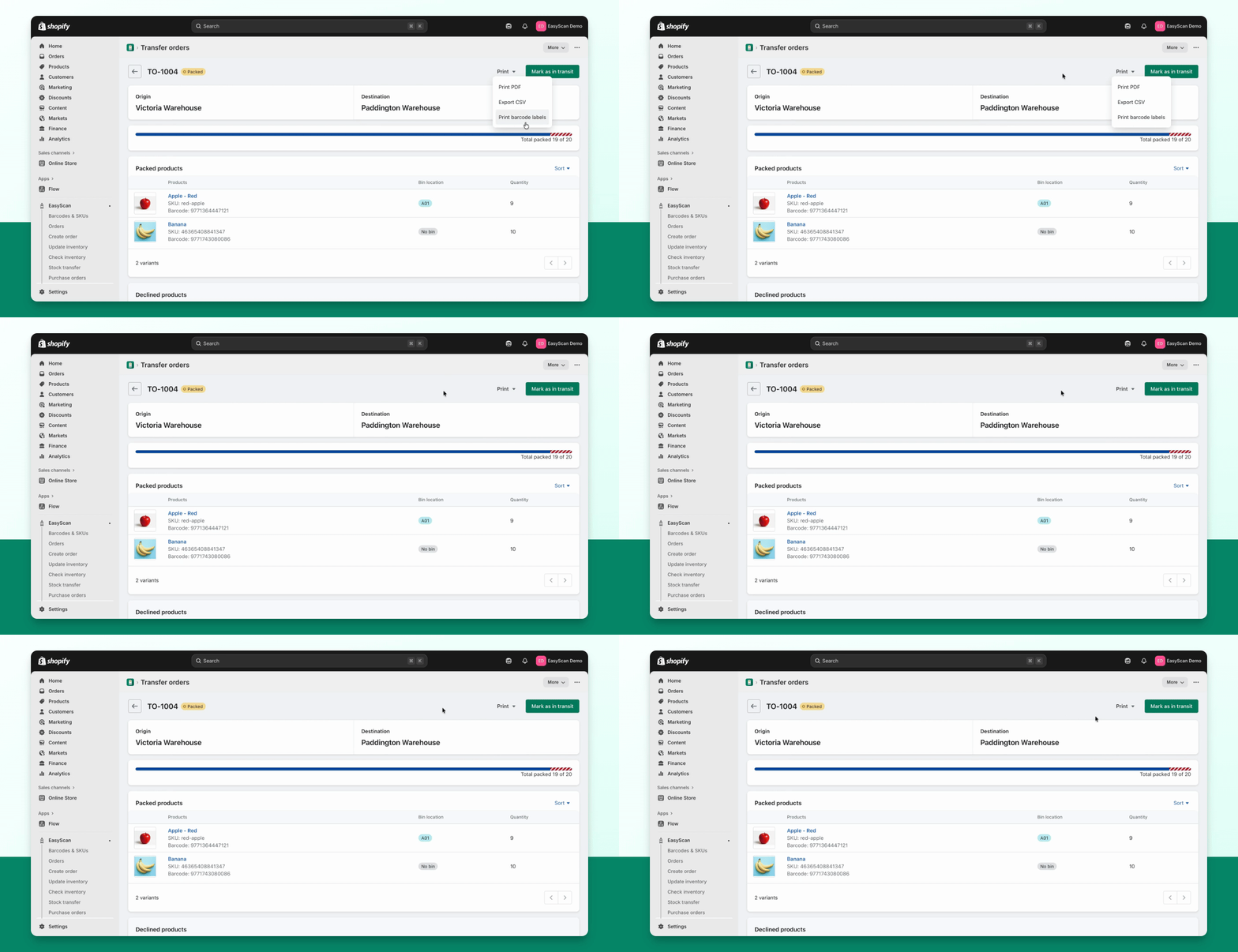
The transfer order has now been packed.
You can view packed and declined products, and add shipping details.
Print as a PDF, export to CSV, or print a barcode label if needed.
Check the packing result
Confirming the pack deducts the newly packed units at the origin. Previously packed units are not deducted again when you resume the transfer. Review the result before marking the shipment in transit; a pack error means some lines still need attention.
By default, EasyScan blocks a pack that would make origin Available stock negative. If your stock is deliberately held as unavailable, an admin can review Settings → Inventory → Transfer order → Packing options → Allow packing when origin available stock goes negative. Enabling it allows negative origin availability, so use it only when that matches your inventory process.
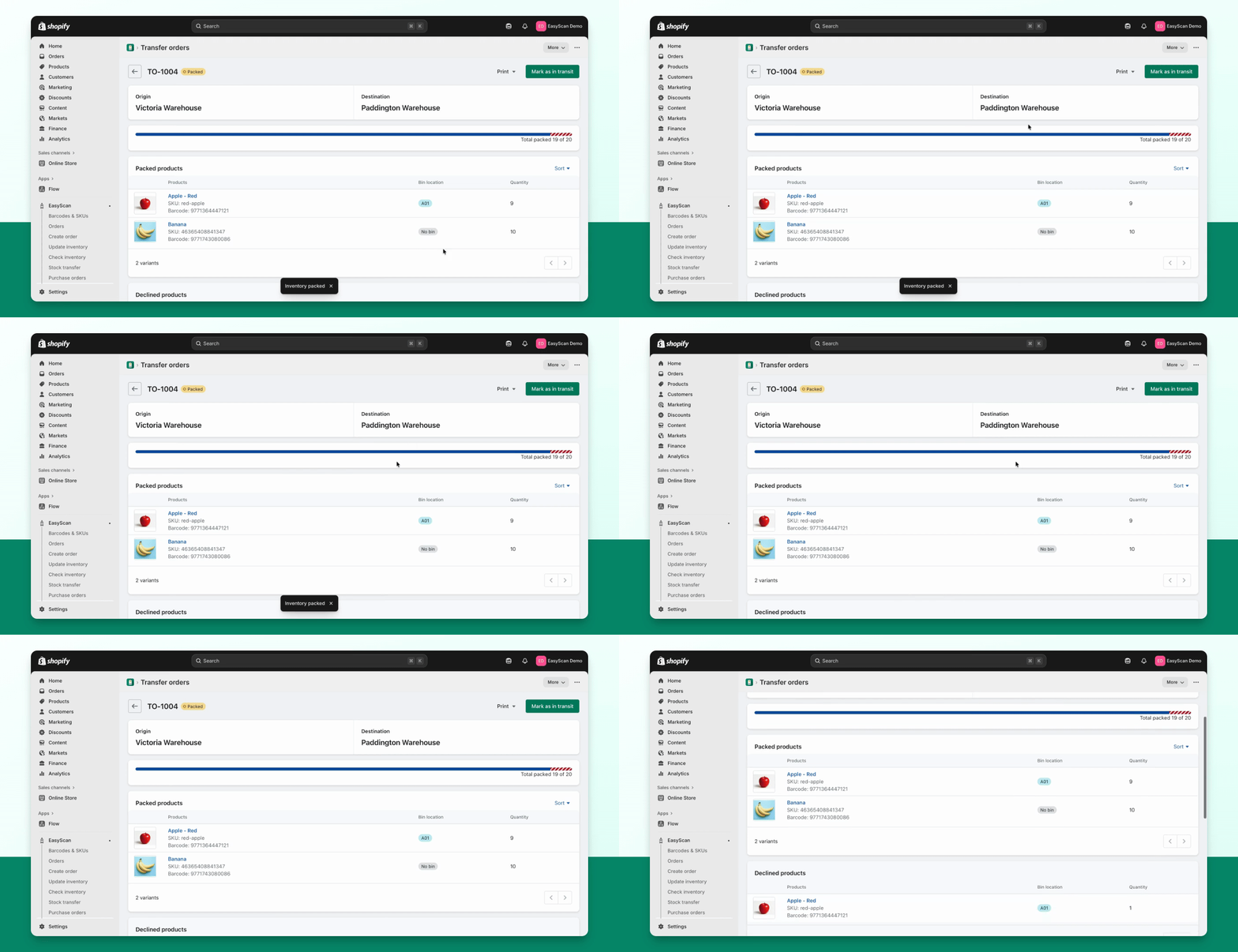
Step 7: Mark as In Transit
Press Mark as In Transit when ready.