TL;DR
Let's Do It Together!
Step 1: Start a Transfer Order
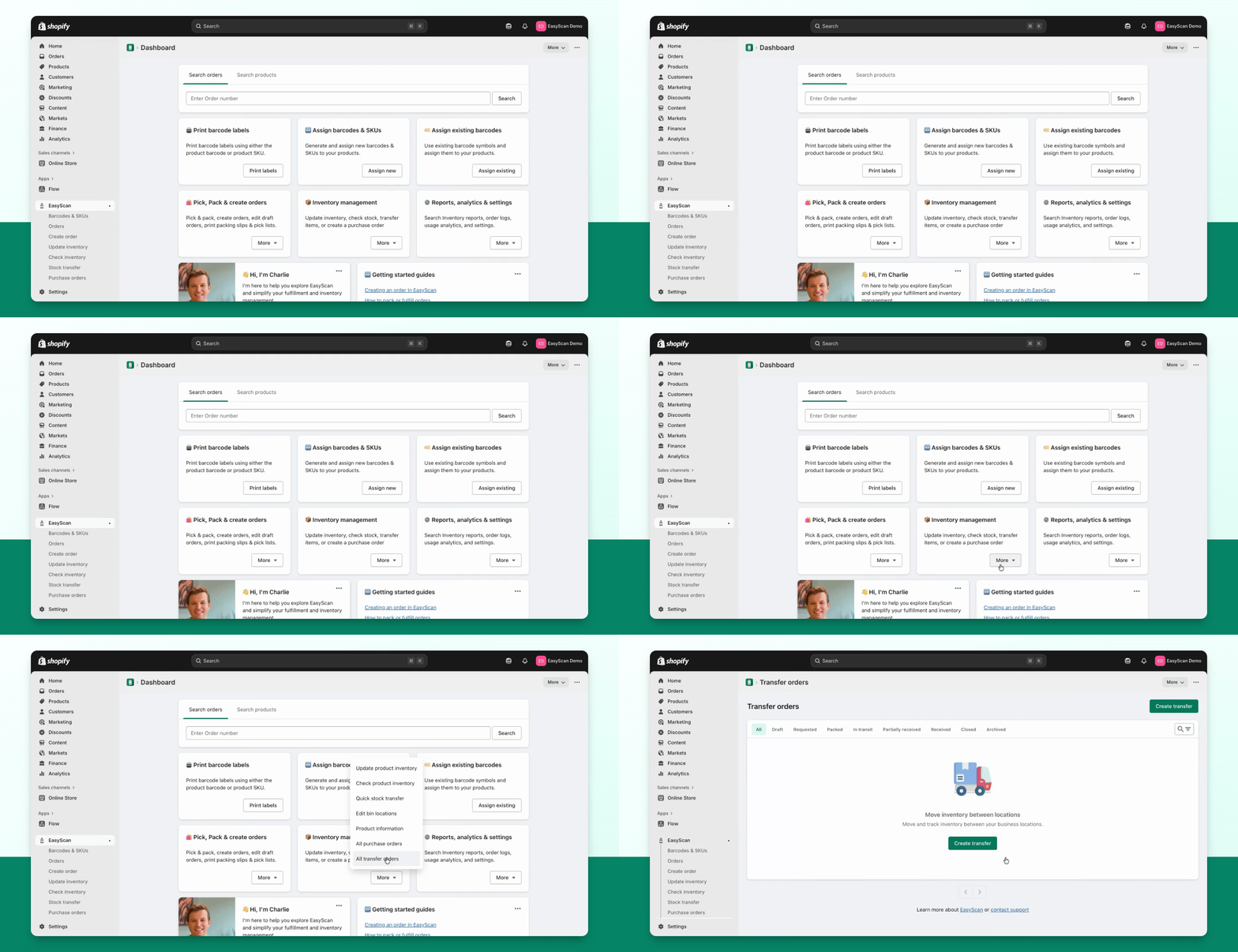
Navigate to the Transfer Orders page.
Click Create Transfer to begin.
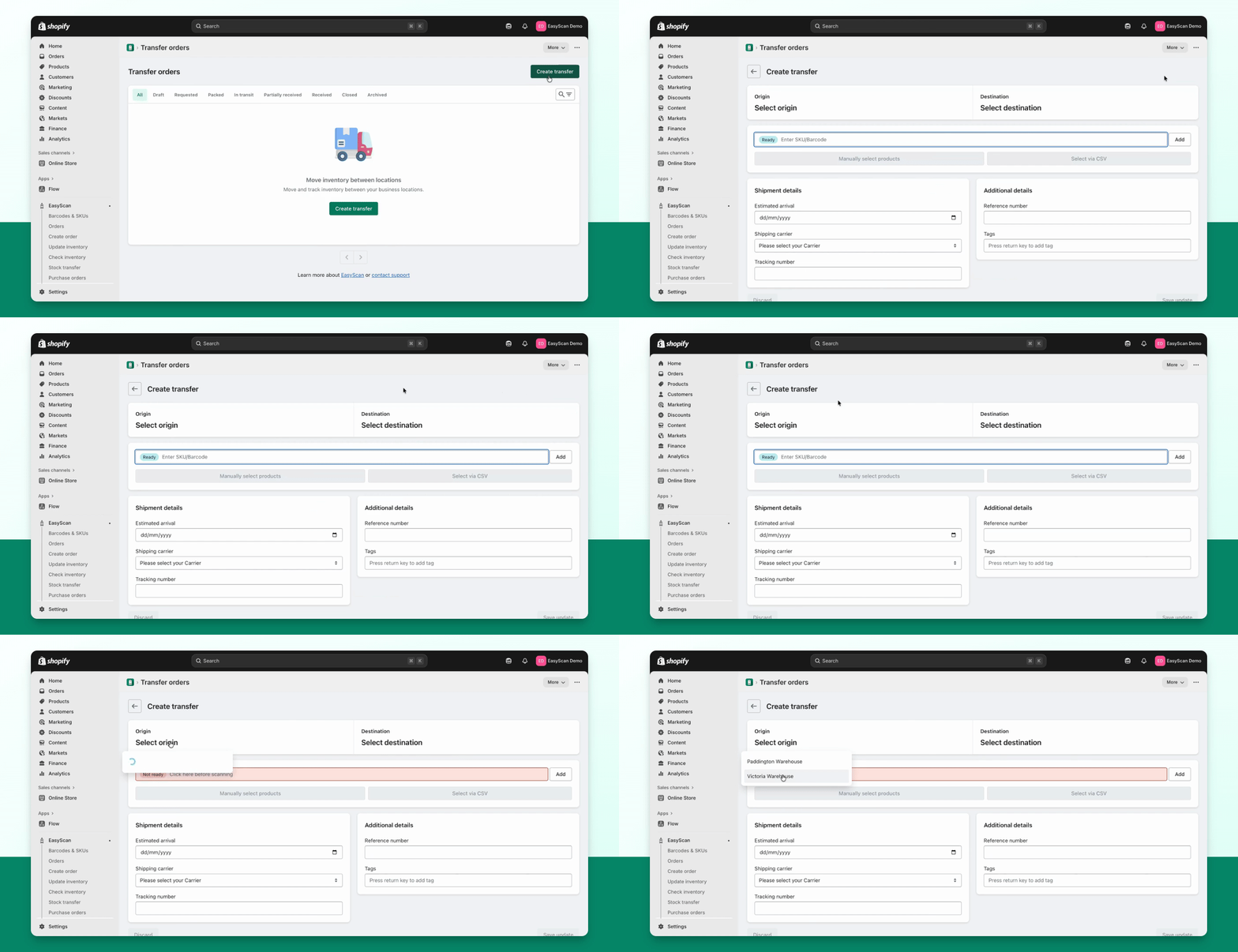
Step 2: Select Locations
Select an origin and a destination.
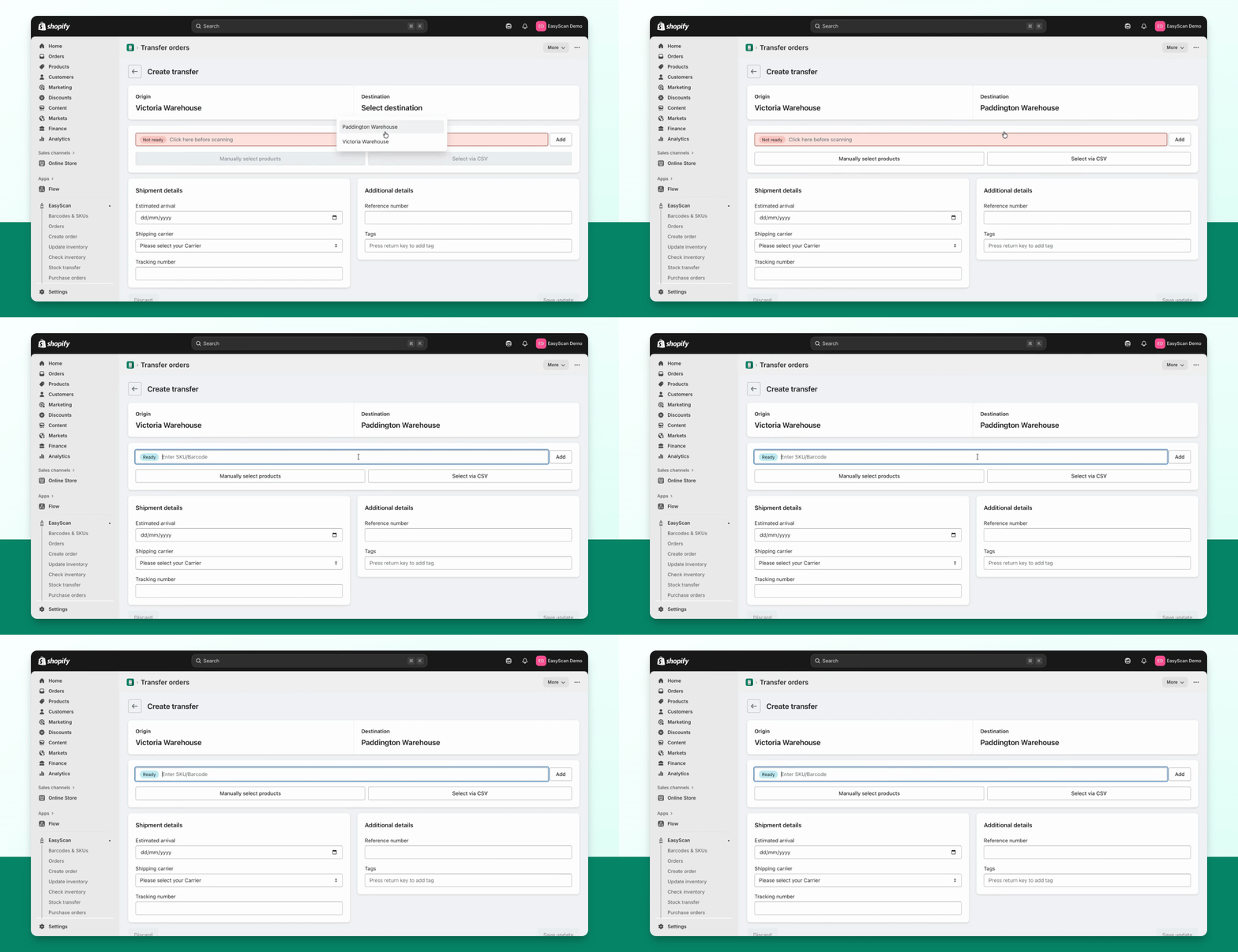
Step 3: Add Products
Scan the products you wish to include in the transfer order.
You can manually adjust the quantities or scan the product.
Other ways to add products: use manual product selection, CSV import, or Smart generate for the origin and destination. Review quantities against the origin’s stock and the destination’s needs before saving. CSV imports can map the source columns and match by SKU, Barcode or Variant ID where offered in the importer.
Step 4: Add Notes
Add any notes such as shipment details or reference numbers.
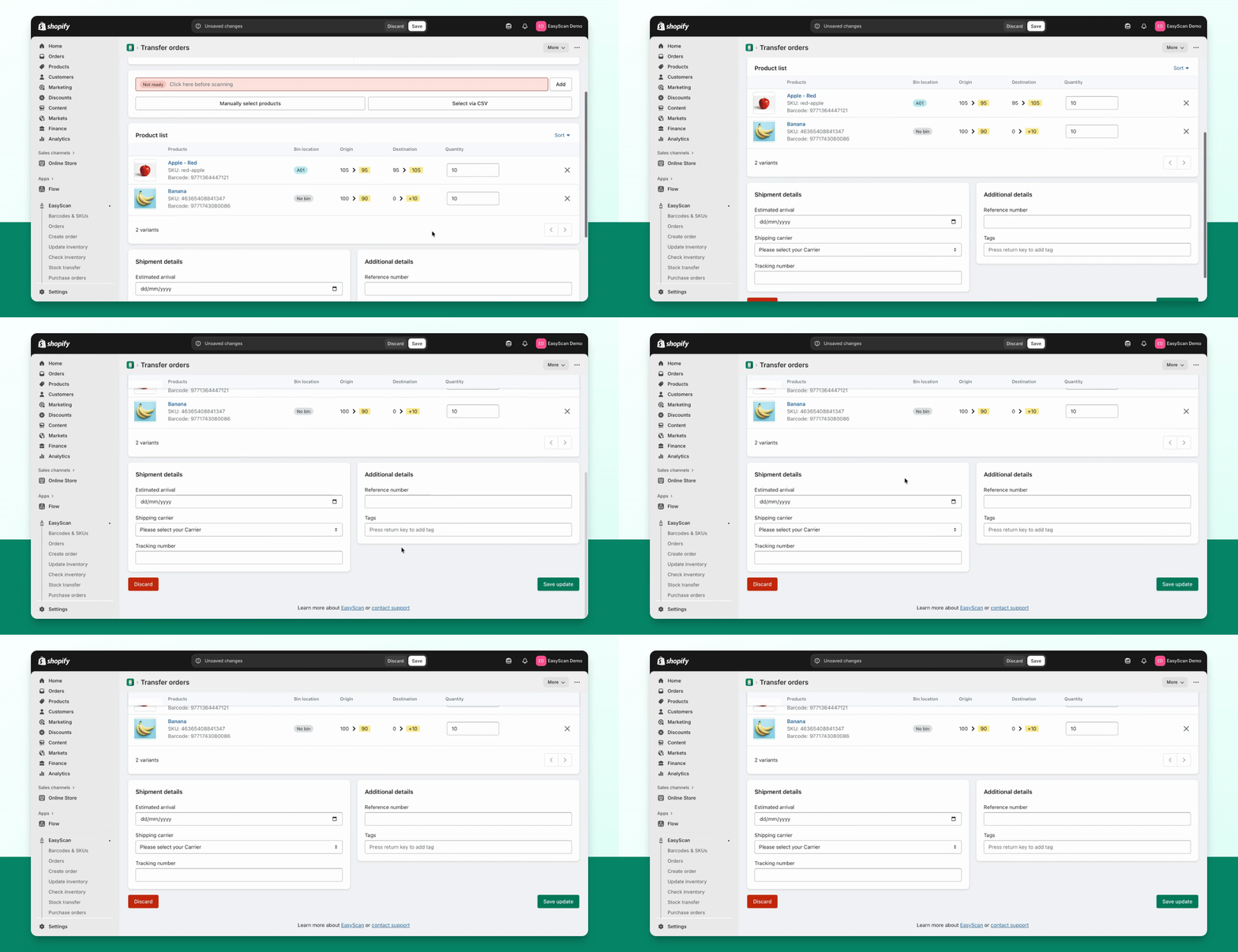
Step 5: Save and Review
Press Save Update once you're happy with the information.
You have now created a draft transfer order.
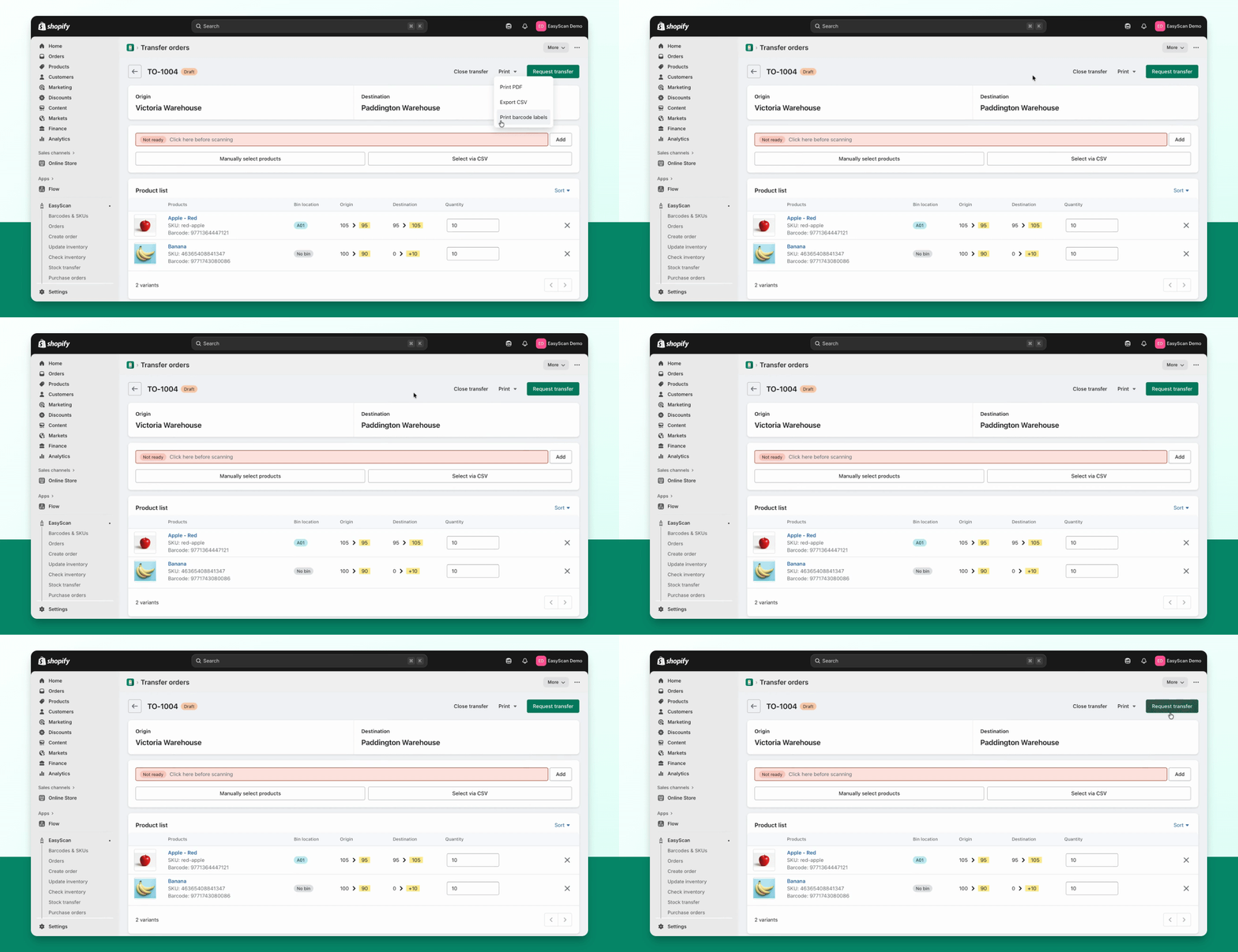
Review the draft transfer order before requesting.
Keep the transfer details together: after saving, add supporting files in Attachments and review the Timeline for comments and workflow activity. Attachments are stored in Shopify Files. Saving a draft or requesting the transfer does not deduct inventory; the stock movement begins when packing is confirmed.
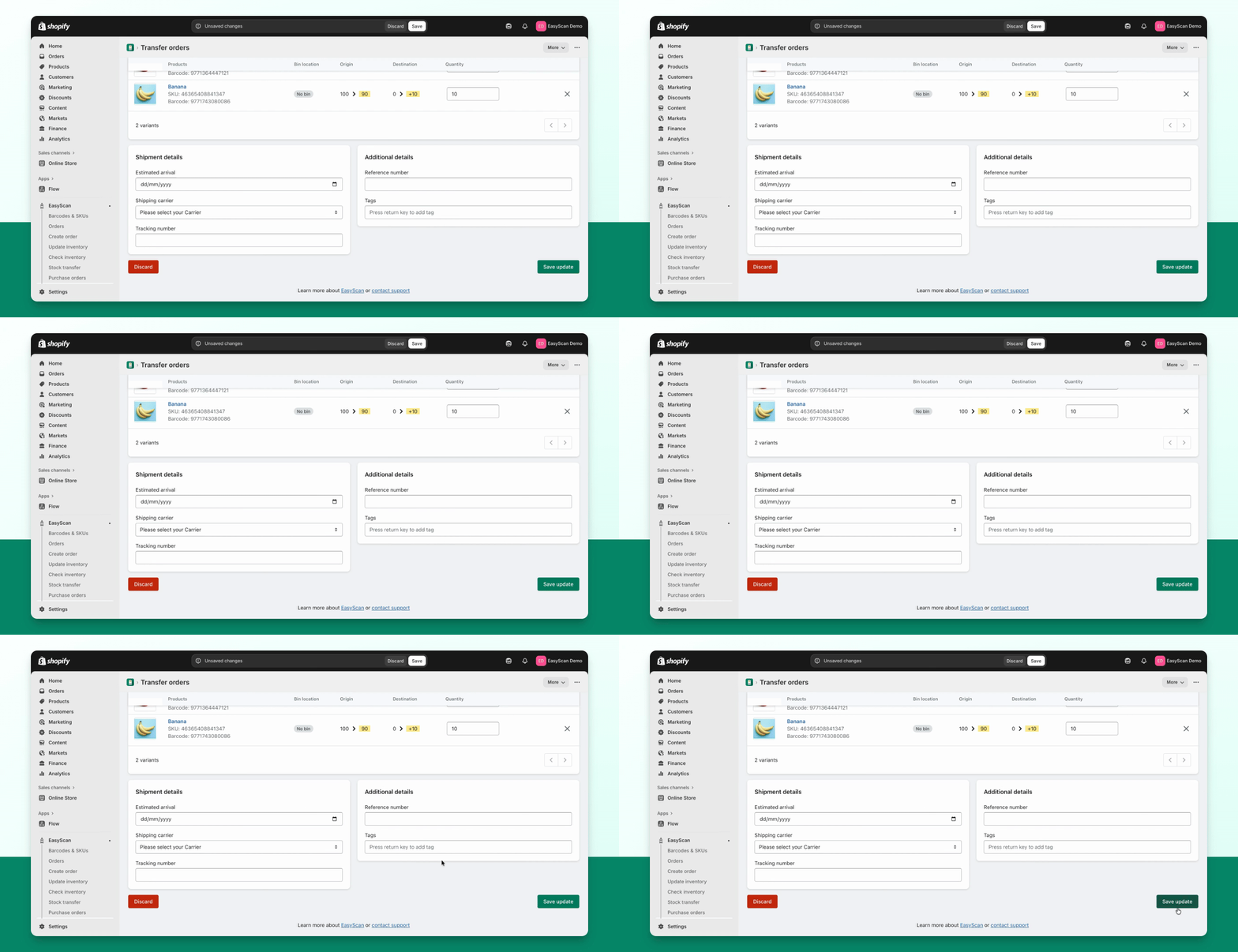
Step 6: Manage Draft Transfer
You can make changes or press Close Transfer if created accidentally.
At this stage, print a PDF, export a CSV, or print barcode labels if needed.
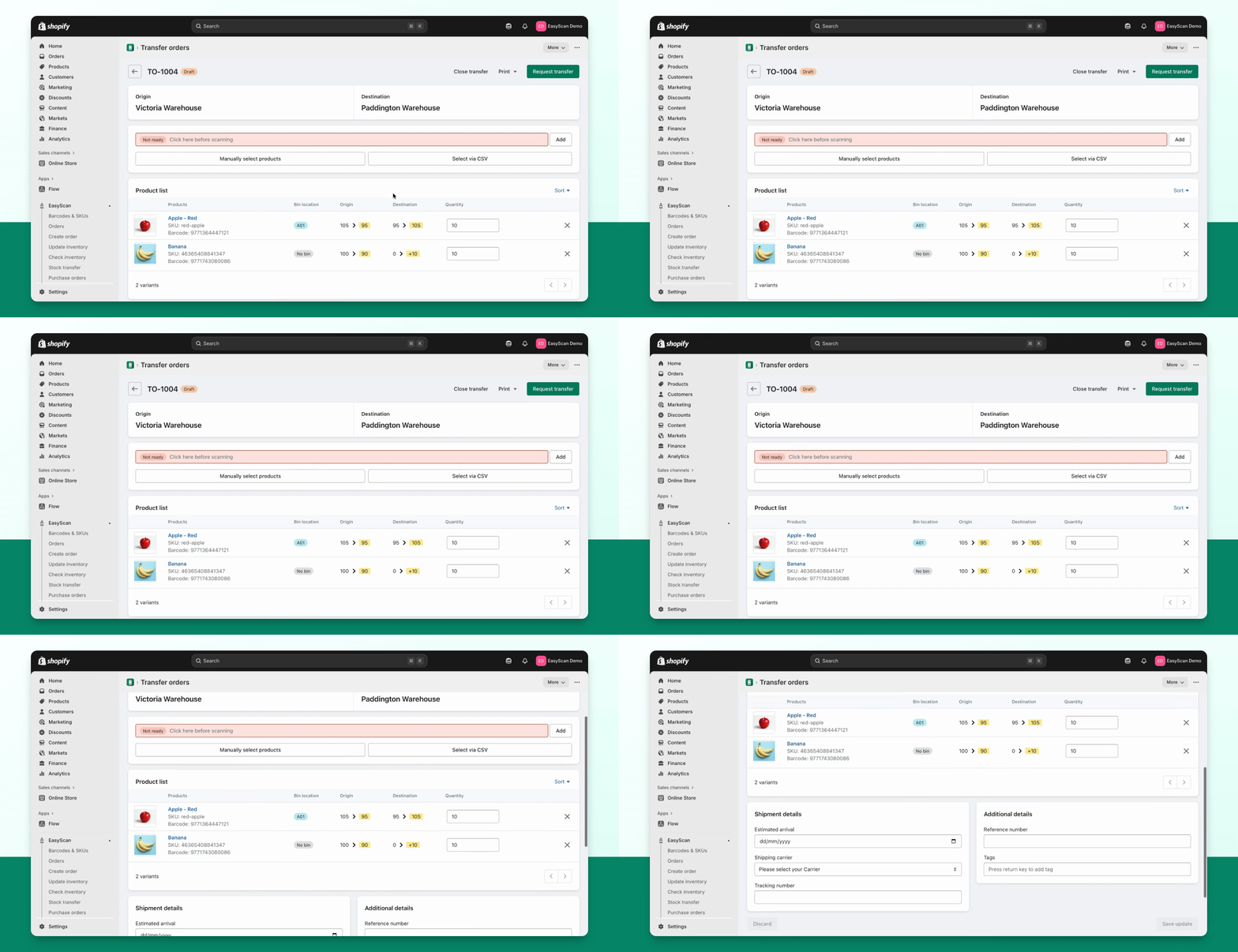
Step 7: Request Transfer
Once satisfied with everything, press Request Transfer.
Congratulations! You have just created a transfer order within EasyScan.